Remove a worktree after reviewing it
Review worktree cleanup… shows what removing one linked checkout would delete, then Remove reviewed checkout deletes that folder and its worktree registration. The local branch and the repository history stay. The preview changes no files. This is not an Undo.
Works in GitTree Free: every local Git feature, with no account needed.
On this page
Before you start
- The checkout is a linked worktree, not the main working folder. Main, current and locked worktrees are excluded from the list.
- Cleanup is part of the Free plan. Close tabs that still use the folder before you remove it.
Where to find it
- A worktree’s menu, or its card in Workspaces: Review worktree cleanup….
- Tools, or the shortcut
Alt+Shift+W. - The command palette: Review worktree cleanup….
| Action | macOS | Windows and Linux |
|---|---|---|
| Review worktree cleanup… | ⌥⇧W | Alt+Shift+W |
| The command palette | ⌘⇧P | Ctrl+Shift+P |
Steps
Open the cleanup preview
Choose Review worktree cleanup… from the worktree menu, the card or
Alt+Shift+W. The dialog title is Review worktree cleanup…. Pick a linked checkout. The note names the path and says no files or processes change during the preview.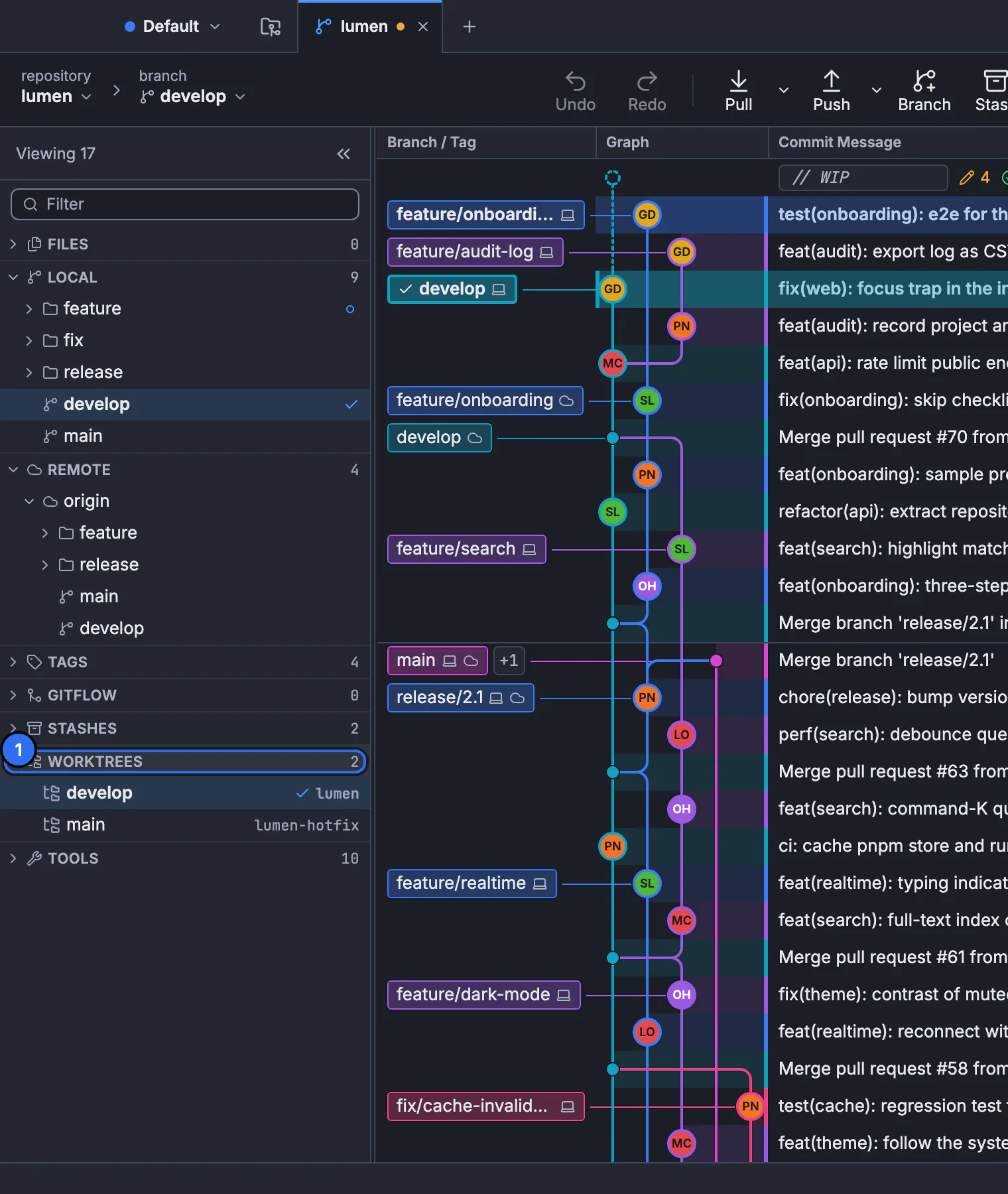
Cleanup starts from a worktree in this list or from its card. The preview itself is the next dialog.GitTree interface with a demonstration repository. Read what would be removed and what stays
Removes the selected checkout directory and its Git worktree registration. Keeps the repository history and the local branch, and the dialog says this is not an Undo. It also lists tracked dirty entries, untracked entries, ignored entries and commits not known on fetched remotes.
Clear anything that blocks removal
If the dialog says Resolve the listed blockers or refresh the preview, do that first. Close open tabs and their attached sessions. On a detached tip, Create a local branch to retain this detached tip before cleanup. GitTree does not stop unrelated external processes. Stop those yourself.
Remove the reviewed checkout
Press Remove reviewed checkout. When it finishes, GitTree says Removed the reviewed checkout. Its local branch and repository history remain. Refresh preview if the folder changed while the dialog was open.
Expected result
The chosen folder is gone and Git no longer lists it as a worktree. The branch still exists, so the commits are still reachable. Check out that branch, or add a worktree again, to get the files back. Your other checkouts are unchanged.
The Git command this relates to
In a terminal, from the main working tree, git worktree list shows the linked folders and git worktree remove <path> removes one that is clean. git worktree prune drops registrations whose folders are already gone. GitTree’s preview is the check you do before that removal. It does not prune every stale record by itself.
git worktree list
git worktree remove ../feature-checkout
git worktree prune
If the directory is already missing but Git still has the record, the dialog says so: review prune separately, and no directory was removed in that step. See worktrees for adding a checkout, and undo for GitTree’s own Undo, which this button is not.
What the preview counts
| Line | Meaning |
|---|---|
| Tracked dirty entries | Tracked files that differ from HEAD in that checkout |
| Untracked entries | Files Git is not tracking there |
| Ignored entries | Files matching ignore rules |
| Commits not known on fetched remotes | Local commits that fetched remote refs do not contain |
| Unknown | A count GitTree could not classify |
Cleanup is not Undo
The keeps line says This is not an Undo operation. Undo restores a snapshot GitTree took. Cleanup deletes a folder you reviewed. After removal, Recreate a checkout from the retained branch… is how you get a folder back from the branch that was kept. Untracked files that existed only in the deleted folder are not on that branch.
If you are looking for commits that no branch points to, use Lost & Found, not cleanup. The tutorial lesson on worktrees covers git worktree add before you have several folders to remove.
If something goes wrong
“No eligible linked checkout is listed.”
The open folder is the main worktree, the current one, or it is locked. Open the saved repository first if the dialog says to, then pick a sibling checkout.
“Resolve the listed blockers or refresh the preview.”
Close tabs and sessions that hold the folder, branch a detached tip, and stop external processes yourself. Then refresh the preview. Removal waits until those blockers are gone.
“The directory is unavailable but Git retains its record.”
Nothing was deleted, because the folder was already gone. Prune the stale worktree record from the worktree list. Do not expect this dialog to delete a second folder.
“This checkout is already removed. Nothing else was deleted.”
The folder was removed between preview and confirm. The branch is still there if it was a branch checkout. Refresh the worktree list.
Questions
Does Remove reviewed checkout delete the branch?
No. The success line says the local branch and the repository history remain. Only the selected checkout directory and its Git worktree registration are removed.
Will I lose uncommitted files?
Tracked edits that you have not committed exist in that folder. Read the tracked, untracked and ignored counts before you press Remove. Those files are not copied onto the branch by cleanup.
Is this the same as git worktree prune?
No. Prune drops registrations whose directories are already missing. Remove reviewed checkout deletes a directory that is still there, after the preview. The dialog sends you to prune only when the directory is already unavailable.
Can I undo the removal?
Not with Undo. Recreate a checkout from the retained branch. Commits on that branch come back. Untracked files that were only in the deleted folder do not.
Does cleanup contact the remote?
No. The unpublished line uses fetched refs already on this computer. Fetch first if you want that line to see a recent remote update.