Resolve merge conflicts
A conflict happens when both branches changed the same lines. GitTree’s resolver shows the two versions side by side, A and B: tick the lines to keep in each conflict, check the Output, then Save and continue the merge, rebase or cherry-pick.
Works in GitTree Free: every local Git feature, once you are signed in.
On this page
Before you start
- A merge, rebase, cherry-pick or revert stopped with conflicts: the banner says so and counts them.
Where to find it
- The banner above the graph: Resolve.
- In the changes panel, the conflicted files are listed first; select one to open it.
| Action | macOS | Windows and Linux |
|---|---|---|
| Next change in the file | F7 | F7 |
| Previous change in the file | ⇧F7 | Shift+F7 |
Steps
Open the conflicted file
Select Resolve in the banner. The resolver opens the first conflicted file, with how many conflicts it has and 0 of 2 conflicts resolved above it.
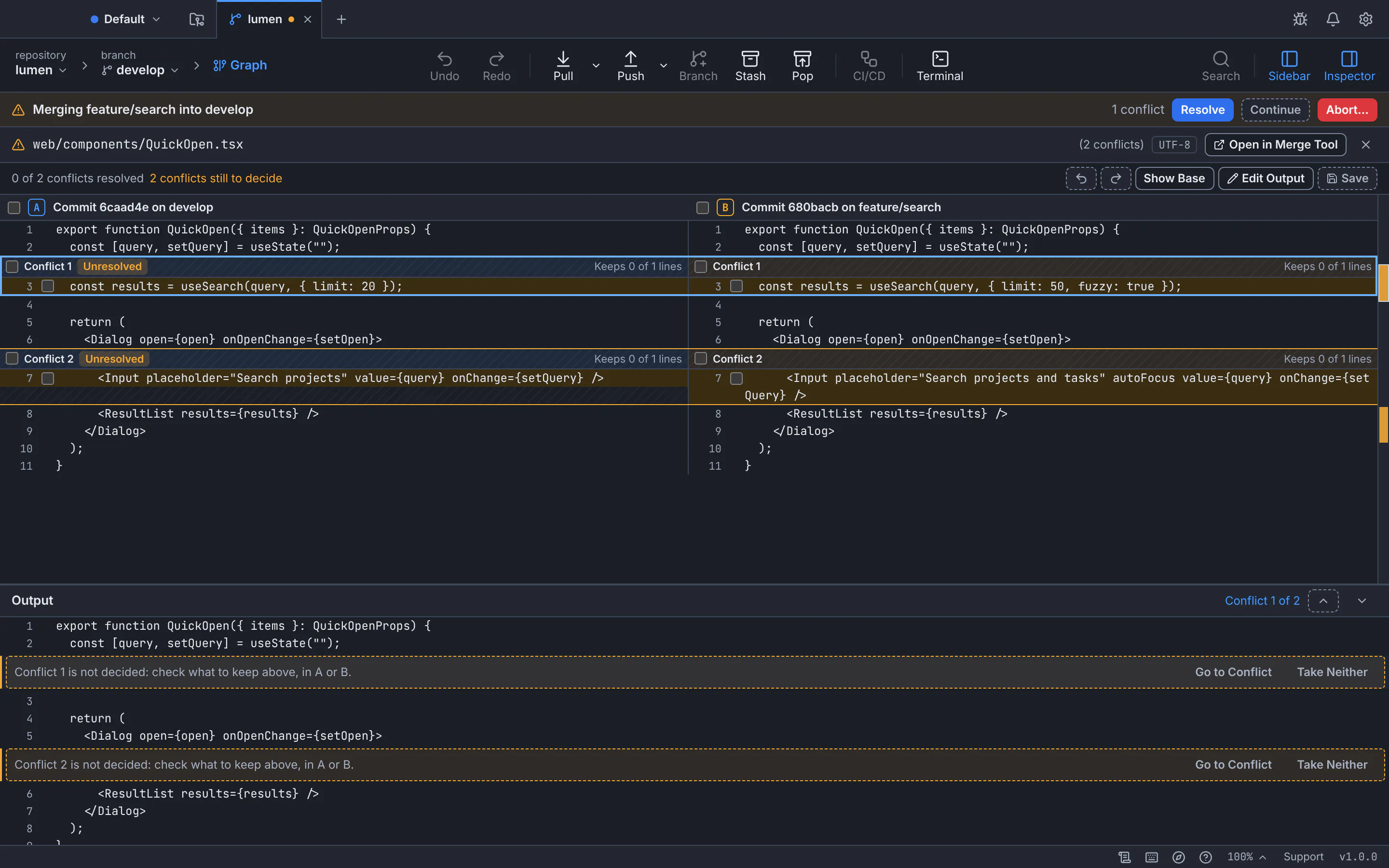
Each side names its commit and branch; the output below shows what the file will contain.GitTree interface with a demonstration repository. Decide each conflict
For Conflict 1, tick the lines to keep in A, in B, or in both. Keeps 1 of 1 lines confirms your choice; the conflict is marked resolved as soon as something is decided. Take Neither keeps none of them.
Check the output
The Output pane shows the file as it will be saved, with a note on every conflict still undecided and Go to Conflict to jump there. Use Edit Output to type a fix by hand, and Show Base to see the common ancestor.
Save and continue
Press Save to write the file and mark it resolved. When every file is resolved, choose Continue in the banner to finish the operation.
Expected result
The merge (or rebase step) completes with your resolution, and the banner disappears.
Faster ways to resolve
- The box beside A or B in the header takes every conflict of the file from that side.
- Undo Choice and Redo Choice step through your decisions without touching the file.
- Open in Merge Tool hands the file to the external merge tool set in your Git configuration.
- With
rerereon, Git reuses how you resolved the same conflict before; GitTree says Reused resolution and lets you review it.
If something goes wrong
“The result still has … conflict marker lines; it cannot be saved until they are removed.”
You edited the output by hand and a line such as <<<<<<< or >>>>>>> is left. Remove it, or decide the conflict with the boxes instead.
“This file changed on disk while you were resolving it.”
Another program wrote to the file. GitTree keeps your earlier choices: compare them with the file now, use them as the output, or discard them.
Questions
Which side is mine?
During a merge, A is your current branch and B the branch being merged; each header names the commit and branch. During a rebase they swap: A is the branch you rebase onto, B your commit being replayed.