Choose and use a diff view
Every diff in GitTree can be shown as Hunk, Inline or Split (side by side). Highlight the changed words, wrap long lines, ignore whitespace changes, preview Markdown, and jump from one change to the next.
Works in GitTree Free: every local Git feature, once you are signed in.
On this page
Before you start
- A diff is open: select a changed file in your working changes or in a commit.
Where to find it
- Diff view above the diff: Hunk, Inline, Split.
- The command palette: Highlight Changed Words, Wrap Diff Lines, Ignore Whitespace in Diffs, Preview Markdown.
| Action | macOS | Windows and Linux |
|---|---|---|
| Next Change | F7 | F7 |
| Previous Change | ⇧F7 | Shift+F7 |
Steps
Pick the view
Hunk shows only the changed parts with a little context, Inline shows the file in one column, Split shows before and after side by side.
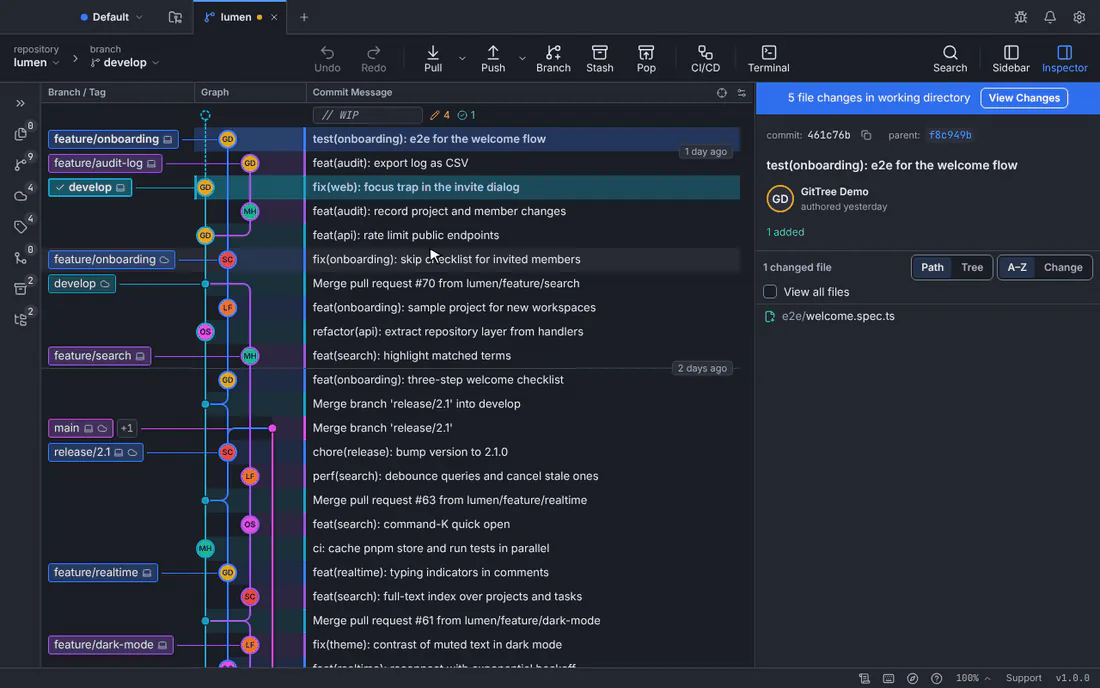
A diff in GitTree, with lines selected and staged.GitTree interface with a demonstration repository. Make it readable
Turn on Highlight changed words to see what changed inside a line, and Wrap lines for long lines.
Hide the noise
Ignore Whitespace in Diffs hides changes that only touch spaces and indentation.
Move through the changes
Press F7 for the next change and Shift+F7 for the previous one.
Expected result
The diff reads the way you prefer, in every repository.
More in the diff
- Preview shows a Markdown file rendered; Code goes back.
- Find and replace inside the diff, and Go to line.
- View File opens the whole file; Open in External Diff Tool hands it to your configured tool.
If something goes wrong
“Binary file — no text to compare”
Binary files have no lines to show. Images get their own comparison (images and binary changes).
A large file’s diff is not shown
Files over the size limit are not loaded. Raise the limit in Preferences, or open the file in an external diff tool.
Questions
Does ignoring whitespace change what I commit?
No. It only changes what the diff shows; staging and commits still include every change.