Discard changes and clean untracked files
Discarding puts files back to their last committed or staged state, like git restore; cleaning removes files Git does not track, like git clean. GitTree saves a recovery snapshot first, so Undo can bring them back.
Works in GitTree Free: every local Git feature, once you are signed in.
On this page
Before you start
- The Working Changes panel is open, from the
// WIProw in the graph.
Where to find it
- Hover a file in the changes panel: Discard Changes to File…. Right-click it for Discard Changes… on every selected file.
- In a diff: Discard Hunk, or select lines for Discard Lines.
- The command palette: Discard All Changes… and Clean Untracked Files….
| Action | macOS | Windows and Linux |
|---|---|---|
| Undo the last discard or clean | ⌘Z | Ctrl+Z |
| The command palette | ⌘⇧P | Ctrl+Shift+P |
Steps
Choose what to throw away
Hover the file and select Discard Changes to File…, or select several files and use Discard Changes… from their menu.
Read the confirmation
GitTree lists the files that go back to their last committed or staged state, and says whether their staged changes go too. Cancel is the default.
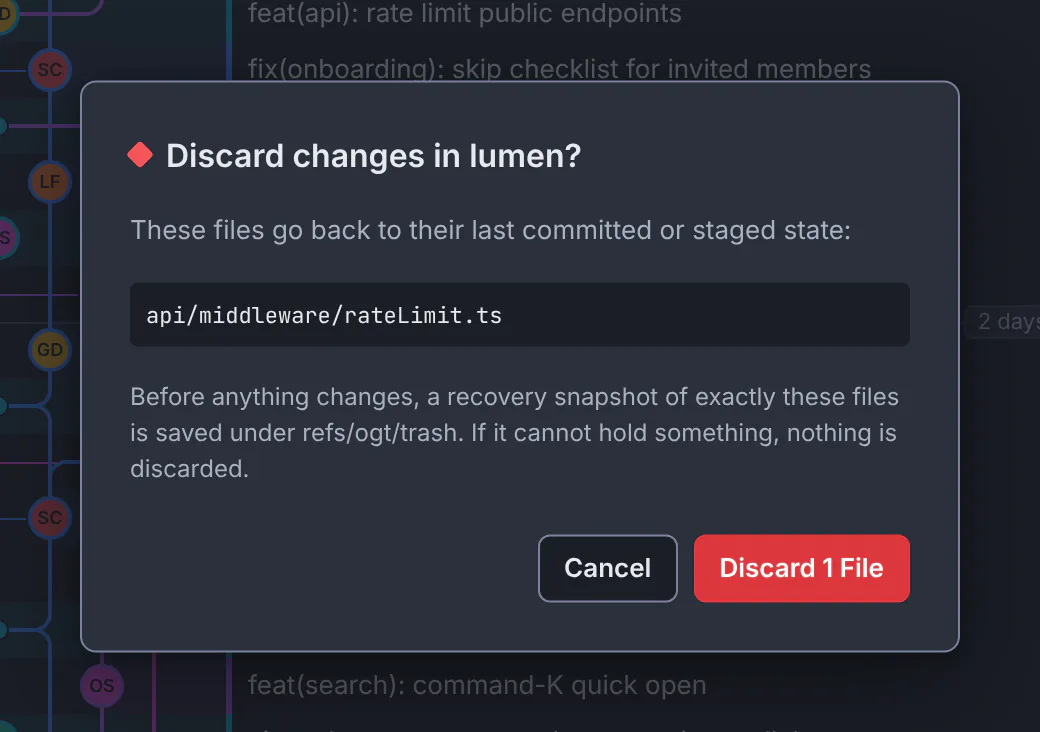
The confirmation names the file and the recovery snapshot saved before anything changes.GitTree interface with a demonstration repository. Discard
Press Discard 1 File. The message says how many paths were discarded and which recovery ref holds them.
Expected result
The files match their last committed or staged version again. Undo in the toolbar puts the discarded changes back.
Discard everything
Discard All Changes… discards every staged and unstaged change, new untracked files included; ignored files are kept. A bar asks you to confirm with Reset All, after a recovery snapshot of everything is saved under refs/ogt/trash.
Clean untracked files
Clean Untracked Files… lists exactly what goes and what stays before anything is removed. Choose what to clean:
| Option | Also removes |
|---|---|
| Include untracked folders | The files inside untracked folders, then the folders once empty. |
| Include ignored files | Files your ignore rules hide, such as build output. |
| Only ignored files | Just the ignored files; other untracked files stay. |
If something goes wrong
“Too many files for one recovery snapshot.”
GitTree will not remove what it cannot save first. Clean a smaller part, for example one folder at a time.
“The files changed since this list was shown, so nothing was removed.”
Something wrote to the folder meanwhile. Review the updated list and confirm again.
Questions
How long can I get discarded changes back?
The recovery snapshots stay under refs/ogt/trash until you delete them with Delete Old Recovery Snapshots… in the command palette. Undo steps back through your recent operations, the discards included.