Browse and edit project files
The Files section of the left panel shows your project’s folders, marking the ones that hold changes. Open a file to read or edit it in a tab beside the Graph tab, and switch it between File, Changes, Blame and History.
Works in GitTree Free: every local Git feature, once you are signed in.
On this page
Before you start
- A repository is open.
Where to find it
- Files at the top of the left panel; Find a file… filters it by name.
- The command palette: type
:and part of a file name.
| Action | macOS | Windows and Linux |
|---|---|---|
| Show Files | ⌘⇧E | Ctrl+Shift+E |
| The command palette | ⌘⇧P | Ctrl+Shift+P |
Steps
Expand Files
Select Files in the left panel. Folders that hold changes are marked, and changed files show a letter such as M for modified.
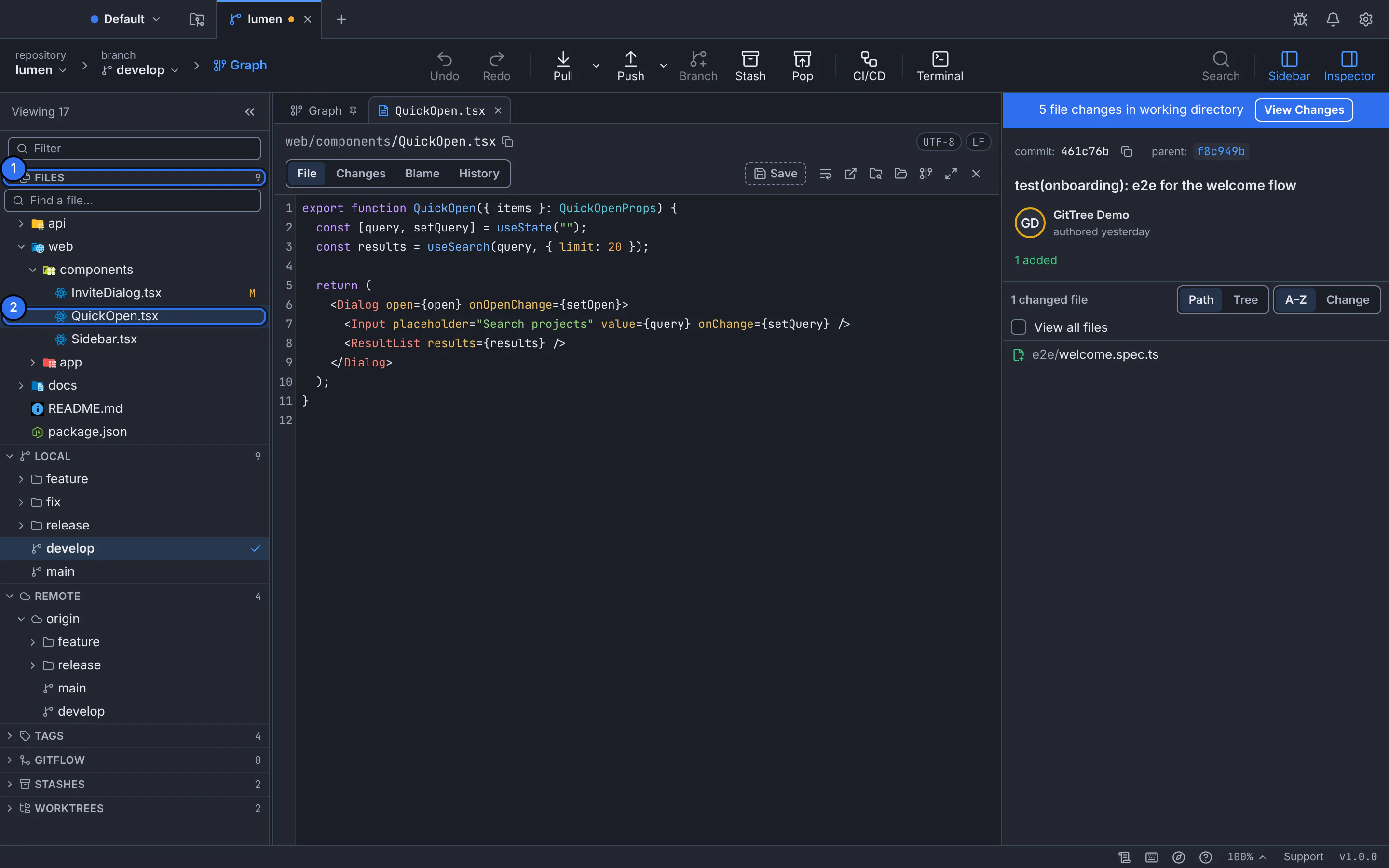
1 the Files section, 2 the file open in its own tab, with File, Changes, Blame and History views.GitTree interface with a demonstration repository. Open a file
Select it. It opens in a tab next to Graph, with its path, encoding and line endings above the content.
Edit and save
Type in the file and press Save. Until you save, the tab is marked unsaved.
Return to the graph
Select the Graph tab, which is always pinned first, or Graph in the breadcrumb above the toolbar.
Expected result
The saved file shows up in your working changes, ready to stage and commit.
More you can do with files
- New File… and Rename… take a path from the project folder; missing folders are created and nothing is overwritten.
- Open as of HEAD shows the last committed version; Show Changes compares it with your edits.
- Show Ignored Files reveals files your
.gitignorehides, such as build output. - Copy File Path, Copy Relative Path and Reveal in File Manager (Reveal in Finder on a Mac) work on any file.
If something goes wrong
“More files are in this folder than are shown”
Very large folders are listed partly. Use Find a file… or the command palette to reach any file by name.
Questions
Can I use my own editor instead?
Yes. Open in External Editor opens the file in the editor set in Preferences, and GitTree picks up the changes you save there.