Work on several branches with worktrees
A worktree is a second working folder for the same repository, with its own checked-out branch, like git worktree add. Review a pull request, run a long build or let a coding agent work in one, without stashing anything in the other.
Works in GitTree Free: every local Git feature, once you are signed in.
On this page
Before you start
- A repository is open. Each branch can be checked out in only one worktree at a time.
Where to find it
- The Worktrees section of the left panel lists them; right-click it or a worktree for the actions.
- Right-click a branch: Create Worktree for This Branch…; right-click a commit: Create Worktree from This Commit….
| Action | macOS | Windows and Linux |
|---|---|---|
| The command palette, then Create Worktree… | ⌘⇧P | Ctrl+Shift+P |
Steps
Find your worktrees
Expand Worktrees in the left panel. Each worktree is listed by its branch, with its folder’s name beside it; a ✓ marks the one open in this tab, and marks such as locked or missing flag the others.
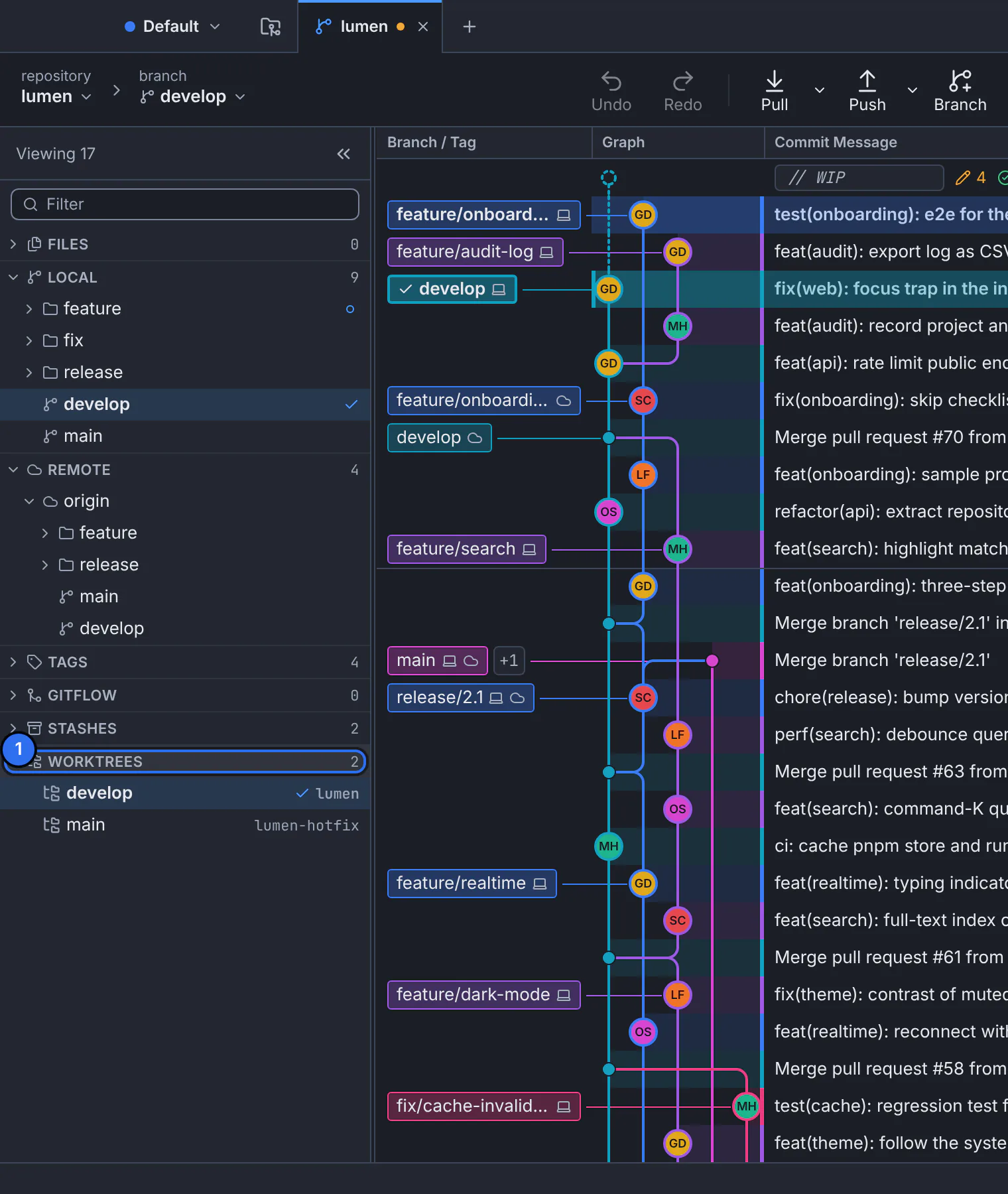
The repository’s worktrees, each with the branch it has checked out.GitTree interface with a demonstration repository. Create one
Choose Create Worktree…. Under Check out, pick an existing branch or A new branch here with its Branch name, then choose the Folder with Browse….
Open it
Press Create Worktree, then Open Worktree in a New Tab on it. The tab works like any repository: its own changes, terminal and graph.
Expected result
Two folders, two branches, one repository: commits made in either appear in both graphs right away.
Manage worktrees
- Lock Worktree… stops Git from pruning a worktree kept on a removable drive; Unlock Worktree lifts it.
- Move Worktree… changes its folder; Remove Worktree… deletes the folder after checking it has no uncommitted work.
- Prune Stale Worktrees… cleans up worktrees whose folder was deleted by hand; Repair Worktree Links fixes moved ones.
- Sparse Checkout… checks out only the folders you list, for very large repositories; Check Out All Files goes back.
If something goes wrong
“That branch is already checked out in …”
A branch can be in only one worktree. Open that worktree instead, or create a new branch for this one.
“Close the tab for … first”
The worktree is open in a tab, with its terminals and file watching. Close that tab, then move or remove it.
Questions
Do worktrees copy the whole repository?
No. They share one repository and its history; only the checked-out files exist twice. Creating one is quick even for large projects.