Find your way around GitTree
A repository tab has six parts: the tab bar, the toolbar, the sidebar, the commit graph, the inspector and the status bar. This page shows where each one is and what you do there.
Works in GitTree Free: every local Git feature, once you are signed in.
On this page
Before you start
- Open a repository so its tab is showing (open a repository). Without one, GitTree shows the New Tab page.
Where to find it
- Each part is always in the same place; hide or show the side panels and the drawer with the toolbar buttons or the shortcuts below.
- For a searchable list of every feature and where it lives, open the Feature Guide from Help in the status bar.
| Action | macOS | Windows and Linux |
|---|---|---|
| Show or hide the sidebar | ⌘J | Ctrl+J |
| Show or hide the inspector | ⌘K | Ctrl+K |
| Show or hide the bottom drawer | ⌥T | Alt+T |
| Full view (hide every panel) | ⌘⇧F12 | Ctrl+Shift+F12 |
| Open the Feature Guide | ⌥H | Alt+H |
Steps
The tab bar (1)
Each open repository is a tab; + opens the New Tab page. On the start side is the workspace switcher (Default until you create others); at the end are Report a Bug, the notifications bell and Preferences.
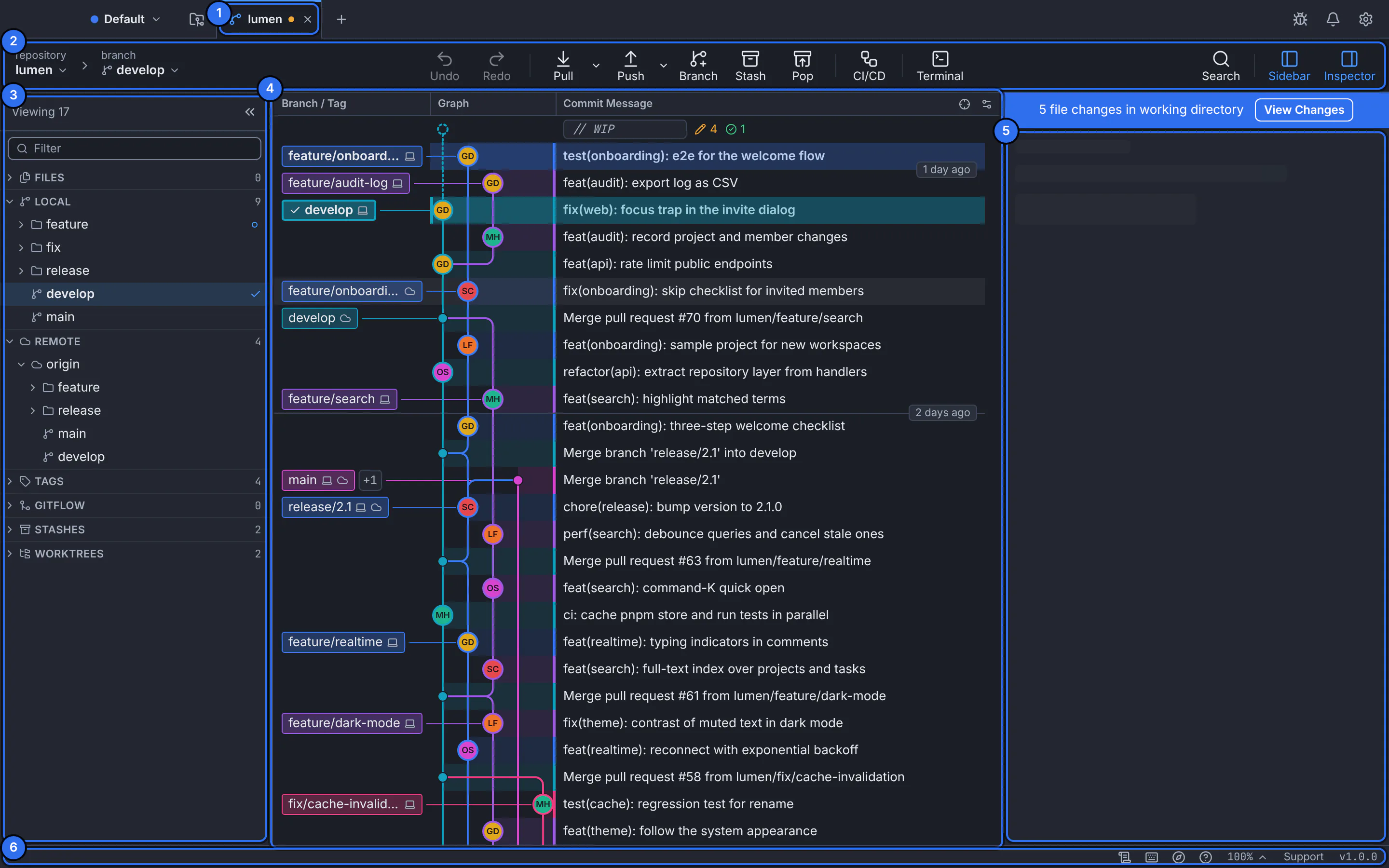
The numbers match the steps on this page.GitTree interface with a demonstration repository. The toolbar (2)
On the start side, the repository and the checked-out branch: select either one to switch. Then the everyday Git actions: Undo and Redo, Pull and Push, Branch, Stash and Pop, CI/CD and Terminal. On the end side, Search and the Sidebar and Inspector toggles.
The sidebar (3)
Everything the repository holds, in collapsible sections: Files, Local and Remote branches, Tags, Gitflow, Stashes and Worktrees. Pull requests, issues and CI/CD appear here too once the repository’s provider account is connected. Filter at the top narrows every section.
The commit graph (4)
The history: one row per commit, newest first, with columns for Branch / Tag, Graph and Commit Message. Lanes show how branches split and merge. The
// WIProw at the top stands for your uncommitted changes.The inspector (5)
Details of what you selected: for a commit, its SHA, parents, author, message and changed files. When the working folder has changes, a blue bar above it counts them and offers View Changes.
The status bar (6)
At the bottom: the Activity Log, Keyboard Shortcuts, the Feature Guide, the Help menu, the zoom level, Support and the version you are running.
Expected result
You can name every part of the window, and hide the ones you do not need with the toolbar toggles. The bottom drawer (Alt+T, ⌥T on a Mac) holds the Terminal and the Activity Log; it opens under the graph.
Panels, zoom and full view
Make room for the graph or a diff by hiding panels. Full view hides them all at once; press its shortcut again to bring them back. Zoom changes the size of the whole interface; the current level is in the status bar, where you can pick another.
| Action | macOS | Windows and Linux |
|---|---|---|
| Zoom in | ⌘= | Ctrl+= |
| Zoom out | ⌘- | Ctrl+- |
| Actual size | ⌘0 | Ctrl+0 |
If something goes wrong
The sidebar or inspector disappeared
It is hidden, not gone. Select Sidebar or Inspector in the toolbar, or press its shortcut. If every panel is hidden, you are in full view: press Ctrl+Shift+F12 (⌘⇧F12 on a Mac).
Everything is too small or too large
Choose the zoom level in the status bar, or press Ctrl+0 (⌘0 on a Mac) to return to the actual size.
Questions
Why is the layout mirrored in Arabic?
When GitTree runs in Arabic it reads right to left, so the sidebar moves to the right and the inspector to the left. Code, paths, branch names and the graph keep their own direction.