Git guides
Git tree visualizer: how to see your Git history as a graph
Three ways to see your Git history as a tree: the git log graph in your terminal, gitk, and a clickable GUI commit graph. Then learn to read lanes and merges and find the commit you need.
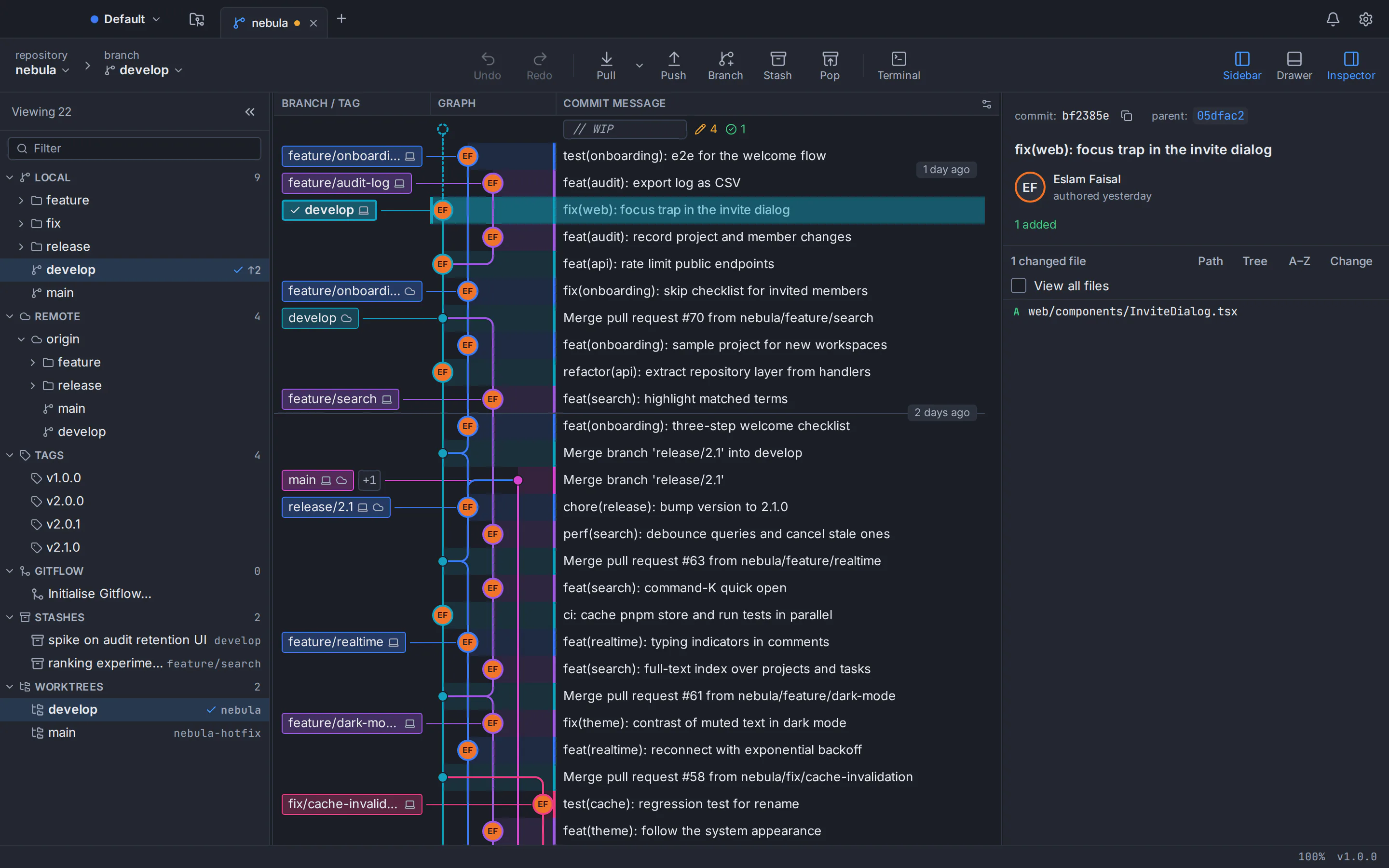
A Git tree visualizer draws your commit history as a graph: every dot is a commit, every coloured line is a branch, and two lines meeting at one dot is a merge. Git itself comes with two: run git log --graph --oneline --all --decorate in any terminal, or open gitk --all. When you want a history you can click, filter and search, use a GUI commit graph such as GitTree, a free Git client for macOS, Windows and Linux.
This guide walks through all three, then shows how to read lanes and merge commits and how to find one commit among thousands. A short disclosure: GitTree’s maker wrote it. The command-line and gitk sections need nothing but Git.
Git log graph: the tree view already built into Git
The quickest Git tree view is one command. It works in any repository, over SSH, and on every system Git runs on:
git log --graph --oneline --all --decorate--graphdraws a text graph of branches and merges to the left of each commit. It also sorts commits so that no parent appears before its children.--onelineprints one line per commit: the short hash and the first line of the message.--allshows every branch, remote branch and tag plusHEAD, not just the branch you are on. Without it, branches that are not merged into your current branch stay hidden.--decorateprints branch and tag names next to the commits they point to. Git already does this when the output goes to a terminal, so the flag matters mostly when you pipe the output or have changedlog.decorate.
The output looks like this. The newest commit is at the top, * marks a commit, and the |, \ and / characters are the branch lines:
*   a1b2c3d (HEAD -> main) Merge branch 'feature/search'
|\
| * 9f8e7d6 (feature/search) Highlight matched terms
| * 5c4b3a2 Add search index
* | 1a2b3c4 Fix typo in README
|/
* 0f9e8d7 (tag: v1.0.0) Release 1.0.0
Read it from the bottom up: v1.0.0 was released, then two lines of work ran side by side (a README fix on main, a search feature on its own branch), and the merge at the top joined them again.
Save it as a short alias
Nobody wants to type four flags every time. A Git alias turns the whole command into git tree:
git config --global alias.tree "log --graph --oneline --all --decorate"
git tree
Four variations worth knowing
git log --graph --oneline --first-parent main
git log --graph --oneline --all --simplify-by-decoration
git log --graph --oneline main..feature/search
git log --graph --pretty=format:"%h %an %ar %s"--first-parentfollows only the first parent of each merge, somainreads as a straight list of what landed on it, one merge per feature.--simplify-by-decorationkeeps only the commits a branch or tag points to: an outline of your Git branch tree without the commits in between.main..feature/searchshows the commits onfeature/searchthat are not inmainyet, which is what a merge would bring in.--pretty=formatadds the author and a relative date (“3 days ago”) to every line.
gitk: the Git history viewer that ships with Git
gitk is Git’s own graphical repository browser, written in Tcl/Tk. It draws the commit graph, shows the details of each commit and lists the files in each revision. Start it from inside a repository:
gitk --allgitk accepts the same limits as git log, so you can narrow it to a time range or a folder. This opens only the last two weeks of changes under src/:
gitk --since="2 weeks ago" -- src/If your shell answers gitk: command not found, your Git installation left it out. On Debian and Ubuntu, gitk is a separate package:
sudo apt install gitkgitk is built for reading history. It has a few commit actions in its right-click menu, but making commits belongs to its sibling tool, git gui, which by its own documentation does not show project history. For everyday work you end up switching between the two windows and the terminal.
A GUI commit graph: a Git tree view you can click
A desktop Git client draws the same tree, but every row is live. Select a commit to see its message, parents and changed files. Right-click it to create a branch, cherry-pick or revert. Double-click a branch label to check it out, or drag one branch onto another to merge or rebase. In GitTree the commit graph is the main window rather than a separate viewer.
Here is what GitTree draws on the graph, beyond dots and lines:
- Colour-coded lanes for every branch, with local, remote and tag labels on the commits they point to.
- A
// WIProw above the newest commit for changes you have not committed yet, and each stash drawn on the graph at the commit it was made from. - Author avatars and signature badges on signed commits.
- Pull request and CI-check chips on branch tips once you connect GitHub, GitLab, Bitbucket or Azure DevOps.
- Smooth scrolling past 100,000 commits (measured on Linux), so large histories stay usable.
GitTree runs the Git already installed on your computer (version 2.39 or newer), so every button does what the matching command would do. If you are still deciding between the two styles, our comparison of using a Git GUI versus the command line covers the trade-offs.
How to read a Git commit graph: lanes, forks and merges
Whether the graph is ASCII in a terminal or coloured in a window, the same rules apply:
| What you see | What it means |
|---|---|
A dot (* in the terminal) | One commit. Newer commits are above older ones. |
| A vertical line, or lane | A line of development: commits that follow one another on one branch. |
| A line that splits off | Someone started a branch from that commit, and work continued in two places. |
| Two lines meeting at one dot | A merge commit. It has two parents, one from each line. |
A label such as main, origin/main or v1.0.0 | A local branch, a remote branch or a tag pointing at that commit. HEAD -> marks what you have checked out. |
| One straight line, no forks | Linear history, usually from fast-forward merges or rebasing before merging. |
Reading merge commits
A merge commit has two parents. The first parent is the branch you were on when you merged, usually main. The second is the branch you merged in. That is why --first-parent gives such a clean summary of main: it skips the inside of every feature branch. In GitTree, select a merge and the details panel lists both parent hashes.
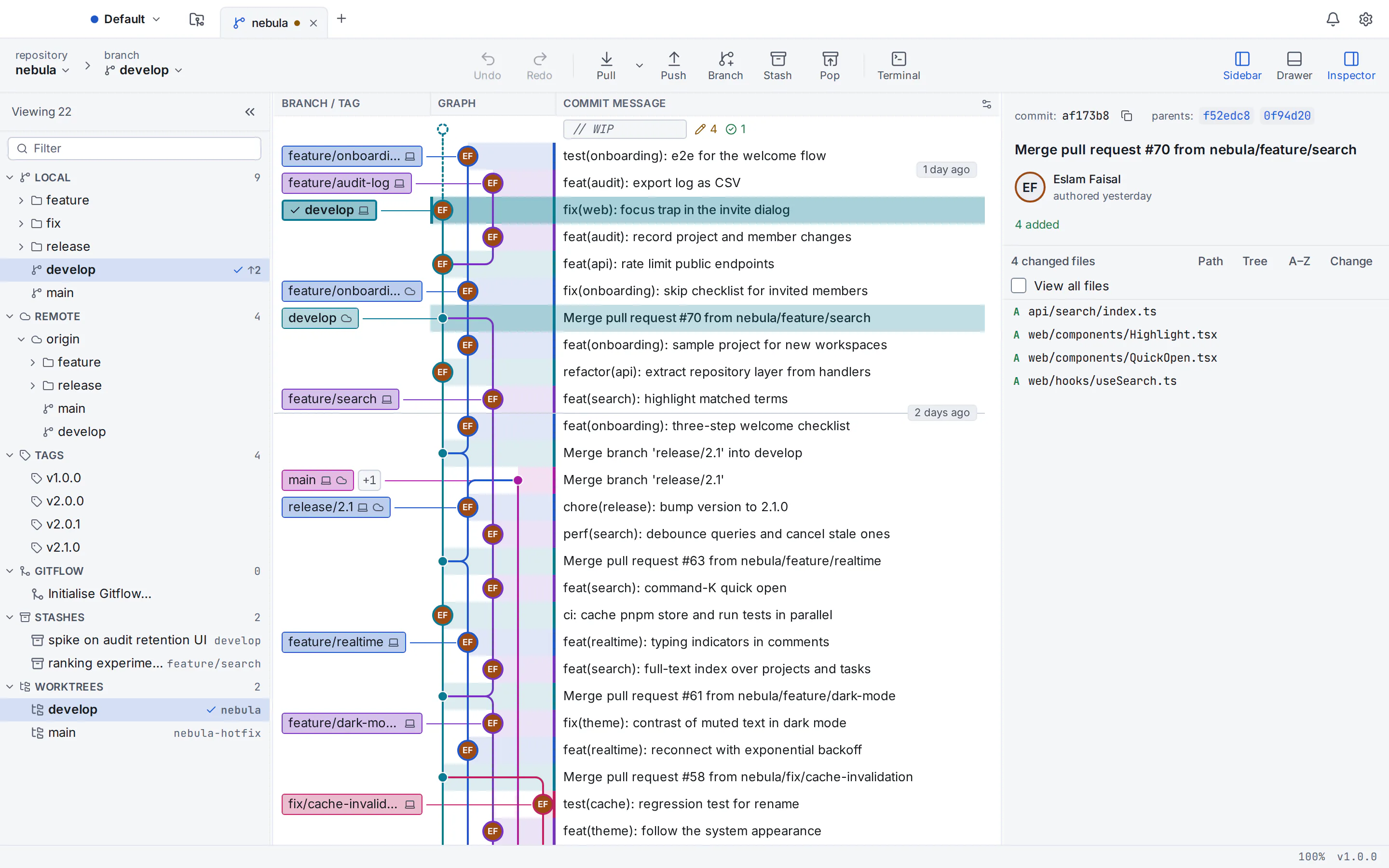
When lanes cross and the picture gets busy
Long-lived branches that merge back and forth make lanes cross. Nothing is broken; there is simply more on screen than you need. Cut it down to the branches you care about. In the terminal, name them instead of using --all, for example git log --graph --oneline main feature/search. In GitTree, right-click a branch label and choose Hide in Graph, Solo in Graph to show only that branch, or Pin to the Left to keep its lane in the first column.
Search Git history: find one commit among thousands
Seeing the tree is half the job. The other half is finding the one commit that changed the thing you are debugging.
Search from the command line
git log --oneline --author="Jane"
git log --oneline --since="2 weeks ago" -- src/
git log --oneline -S"parse_header"
git log --oneline -G"fn [a-z_]+_header"--authorkeeps commits whose author name or email matches the pattern.--sinceand--untillimit by date, and-- src/keeps only commits that touched that path.-S, the “pickaxe”, finds commits that added or removed a string. It is the fastest way to learn when a function appeared or disappeared.-Gfinds commits whose added or removed lines match a regular expression. Stick to POSIX bracket expressions such as[a-z_]or[[:alnum:]]: shortcuts like\wdo not work with every Git build.
Search in GitTree with author:, file: and change:
The search above the graph (Search Loaded History) matches a message, author, hash, branch or tag. For a deeper search, open the command palette with Ctrl+Shift+P (⌘+Shift+P on a Mac), type #, then your query. Words without a prefix search commit messages, and these prefixes narrow the result:
author:janeorauthor:"Jane Doe": the author’s name or email contains that text.file:src/main.rs: the commit touches that path. Repeat it to match several paths.change:parse_header: the commit adds or removes that string, likegit log -S.change:/fn [a-z_]+_header/: a changed line matches the regular expression, likegit log -G.
Combine them in one query: #fix crash author:jane file:src/ finds Jane’s commits that mention “fix crash” and touch src/. To shrink the graph itself rather than list results, use Filter Graph… to keep only one author, a date range or a path.
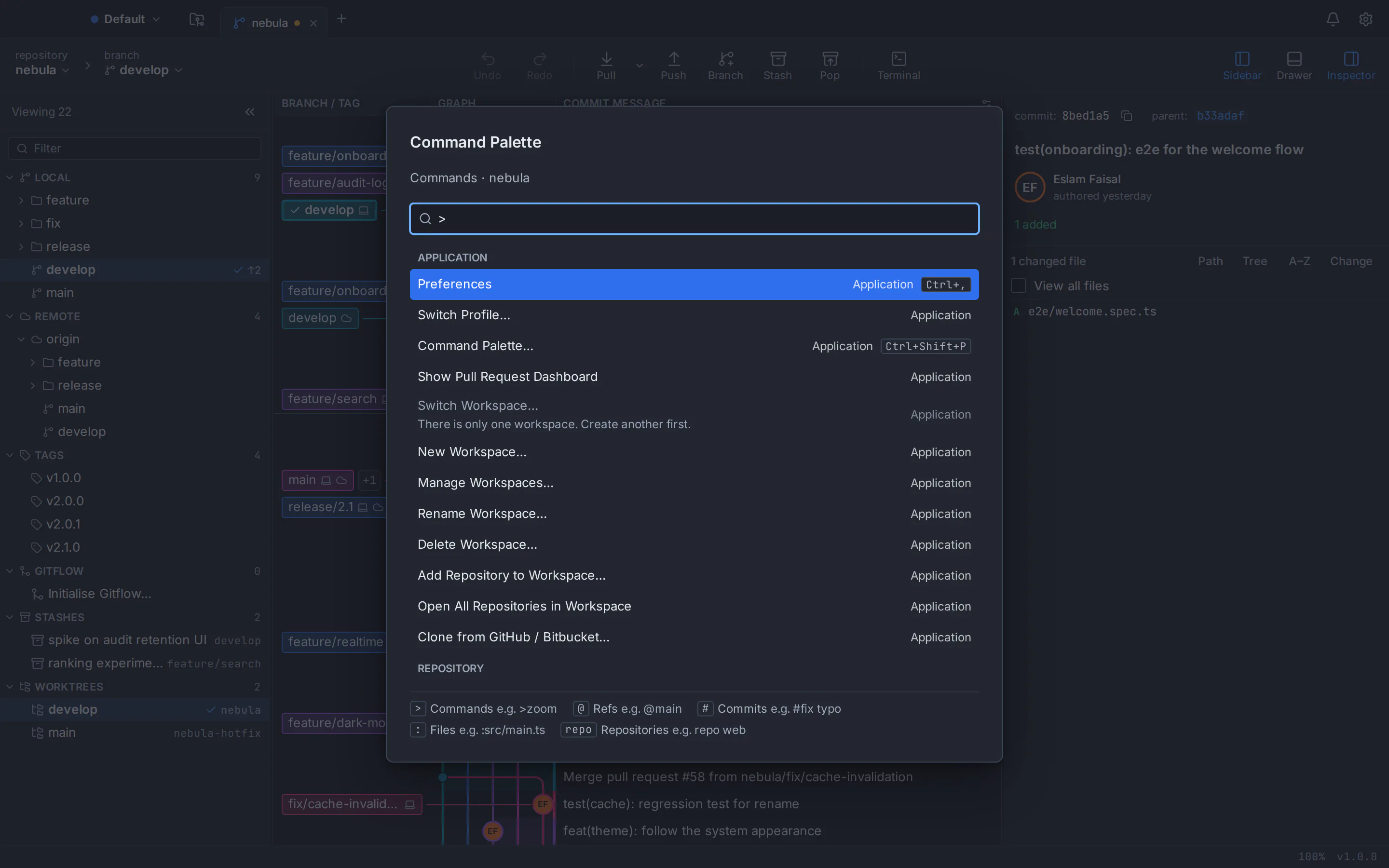
See your Git tree in GitTree
Install GitTree
Download GitTree for macOS, Windows or Linux and install it. Make sure Git 2.39 or newer is installed (on Windows, that means Git for Windows); Ubuntu 22.04 ships an older Git, so upgrade Git on Ubuntu first.
Sign in once
Sign in with a free GitTree account, created on gittree.app with GitHub, GitLab, Bitbucket or Azure DevOps. The first launch needs the network; after that the app works offline for up to 7 days between checks.
Open or clone a repository
On the start page, choose Open and pick a folder that holds a Git repository, or choose Clone to copy one from a URL over HTTPS or SSH.
Read the graph
The commit graph fills the main window: newest commits at the top, one coloured lane per branch, labels for branches and tags. Click any commit to see its message, parents and changed files.
Focus and search
Right-click a branch label to hide, solo or pin it, use Filter Graph… for an author, a date range or a path, and type
#in the command palette to search withauthor:,file:orchange:.
Which Git tree visualizer should you use?
| Option | Best for | What you need |
|---|---|---|
git log --graph | Quick looks, SSH sessions, scripts and CI logs | Git only |
| gitk | A clickable graph from the Git suite itself | Git (on Debian and Ubuntu, the separate gitk package) |
| GitTree | Reading, searching and changing history in one window | GitTree (free today, with a free account) and Git 2.39 or newer |
Most developers end up using more than one: the terminal for a quick look, a GUI for digging through history and for edits that are easier to see, like an interactive rebase in a GUI. If you are new to branches and commits, start with our Git for beginners guide. If you want to compare desktop apps, see our round-up of the best Git GUI clients.
GitTree is free today, private repositories included. See everything the commit graph and the rest of the app can do, or read the install notes for Mac, Windows and Linux.
Frequently asked questions
What is a Git tree visualizer?
A Git tree visualizer is a tool that draws a repository’s commit history as a graph instead of a flat list. Each commit is a dot, each branch is a line, and merges show up where lines join. Git includes two: the git log --graph command for the terminal and the gitk window. Desktop Git clients such as GitTree add a clickable, searchable graph.
How do I see the Git branch tree in the terminal?
Run git log --graph --oneline --all --decorate inside the repository. --graph draws the branch lines, --oneline keeps each commit to one line, --all includes every branch and tag rather than only the current branch, and --decorate prints branch and tag names. Save it as an alias with git config --global alias.tree "log --graph --oneline --all --decorate" and from then on type git tree.
Why does git log not show all my branches?
By default git log lists only the commits reachable from HEAD, the commit you have checked out. Branches that are not merged into your current branch are left out. Add --all to include every local branch, remote branch and tag, or name the branches you want, for example git log --graph main feature/search.
Is gitk installed with Git?
gitk is part of the Git suite, so many installations include it. Some Linux distributions package it separately: on Debian and Ubuntu, install it with sudo apt install gitk. Start it from inside a repository with gitk --all to see every branch. It accepts the same date and path limits as git log, such as --since or -- src/.
How do I find the commit that added a specific line of code?
Use the pickaxe search. git log -S"text" lists commits that changed how many times that exact string appears, which shows when it was added and removed. git log -G"regex" matches added or removed lines against a regular expression. In GitTree, open the command palette, type # and use change:text or change:/regex/ for the same searches.
Is GitTree free, and which systems does it run on?
GitTree is free today for individuals and organizations, private repositories included, and it has no paid plan. It runs on macOS 13 or later, 64-bit Windows 10 and 11, and 64-bit Linux (Ubuntu 22.04 or later, Debian 12 or later). It needs a free GitTree account and uses the Git already installed on your computer, version 2.39 or newer.
Can a Git graph viewer handle very large repositories?
The terminal graph handles any size but becomes hard to read with many branches; limit it with branch names, --since or a path. GitTree’s commit graph scrolls smoothly past 100,000 commits in measurements on Linux, and you can hide, solo or pin branches and filter by author, date or path to keep a large history readable.
Sources
Claims about other products were checked against their official pages on October 6, 2026. Prices and features change; the vendors’ pages are the source of truth.