Git basics
Git GUI vs command line: when each one is better, and how to use both
An honest answer to the Git GUI vs CLI question: what each does best, where each falls short, and how to use both without losing the command line.
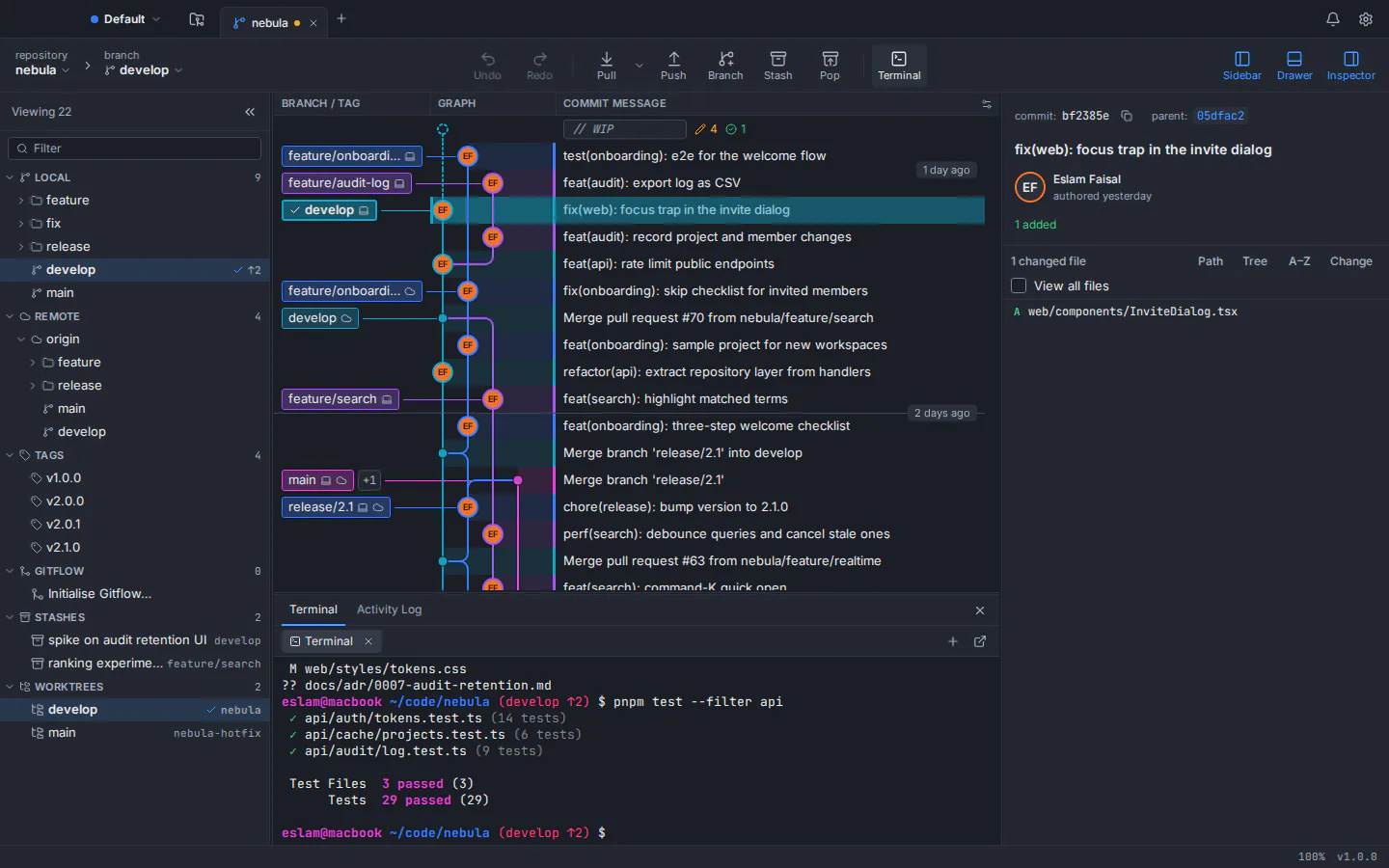
Git GUI vs command line is not a contest with one winner. The command line is better for automation, scripts, servers and the rare option no button covers. A Git GUI is better for reading history, staging part of a file, resolving conflicts and seeing what a risky operation will change before you run it. So if you are asking “should I use a Git GUI?”, the practical answer is yes for the visual work, while you keep the command line for everything you repeat, script or run on a remote machine. Many developers who are fluent in Git use both.
Below: a task-by-task comparison, the weak spots of each, and a learning path that builds both skills. A short disclosure: GitTree’s maker wrote it, so weigh the GitTree section accordingly. Every command here is plain Git and works the same on macOS, Windows and Linux.
Git command line vs GUI: a side-by-side comparison
The table covers the jobs that fill a normal week with Git. “GUI” means a full desktop Git client, not the small source-control panel inside a code editor.
| Task | Command line | Git GUI |
|---|---|---|
| Seeing branches and history | git log --graph draws a text graph that gets hard to read with many branches | A clickable commit graph with coloured lanes, labels and search |
| Staging part of a file | git add -p, answering y, n, s or e for each hunk | Click a hunk or tick single lines in the diff |
| Resolving merge conflicts | Edit the conflict markers by hand, or set up a merge tool | A three-way view with a choice per hunk or per line |
| Interactive rebase | Edit a todo list in a text editor | Reorder commits by dragging and pick each action from a list |
| Undoing a mistake | git reflog plus reset; you need to know where to look | Depends on the client; some offer undo or a reflog view |
| Automation, hooks and CI | Native: every command can go in a script | Not a GUI’s job; you still write the scripts |
| Working on a server over SSH | Always available | Usually unavailable on a machine without a desktop |
| Speed for routine commits | Very fast once the commands and aliases are in your fingers | Fast, and quicker when you want to review the diff first |
| Coverage of Git features | Complete, including plumbing and brand-new options | Depends on the client; rare options may be missing |
| Learning curve | Steep at first, and the model stays invisible | Gentle; the graph shows the model, but buttons can hide the commands |
In short, the Git GUI vs CLI split is simple: the command line wins wherever the work is text, repeatable or remote, and a GUI wins wherever you need to see something before you decide.
When the Git command line is better
- Automation and CI. Anything you do twice can become a script, a Git hook or a CI step. A GUI can run your scripts, but it cannot replace them.
- Remote machines. On a server, in a container or over SSH there is often no desktop at all.
gitis the one tool you can count on everywhere. - Full coverage. The Pro Git book puts it plainly: there is nothing a graphical client can do that the command-line client cannot. Plumbing commands, rare flags and options added in the latest Git release reach the command line first.
- Sharing and reproducing. A command can be pasted into a README, a code review or an issue, and anyone can run it exactly. “Click the third item in that menu” does not travel as well.
- Speed for experts. With a few aliases, a fluent user commits, switches branches and pushes without touching the mouse.
Three common aliases to start with: a short status, a one-line graph of every branch, and an amend that keeps the last message.
git config --global alias.st "status --short --branch"
git config --global alias.lg "log --graph --oneline --all --decorate"
git config --global alias.amend "commit --amend --no-edit"
When a Git GUI is better
A Git GUI earns its place on tasks where you need to see a lot at once or make many small decisions in a row. Git itself acknowledges this: it comes with two graphical tools of its own, gitk for browsing history and git gui for preparing commits (some Linux distributions package them separately).
Reading history and branches
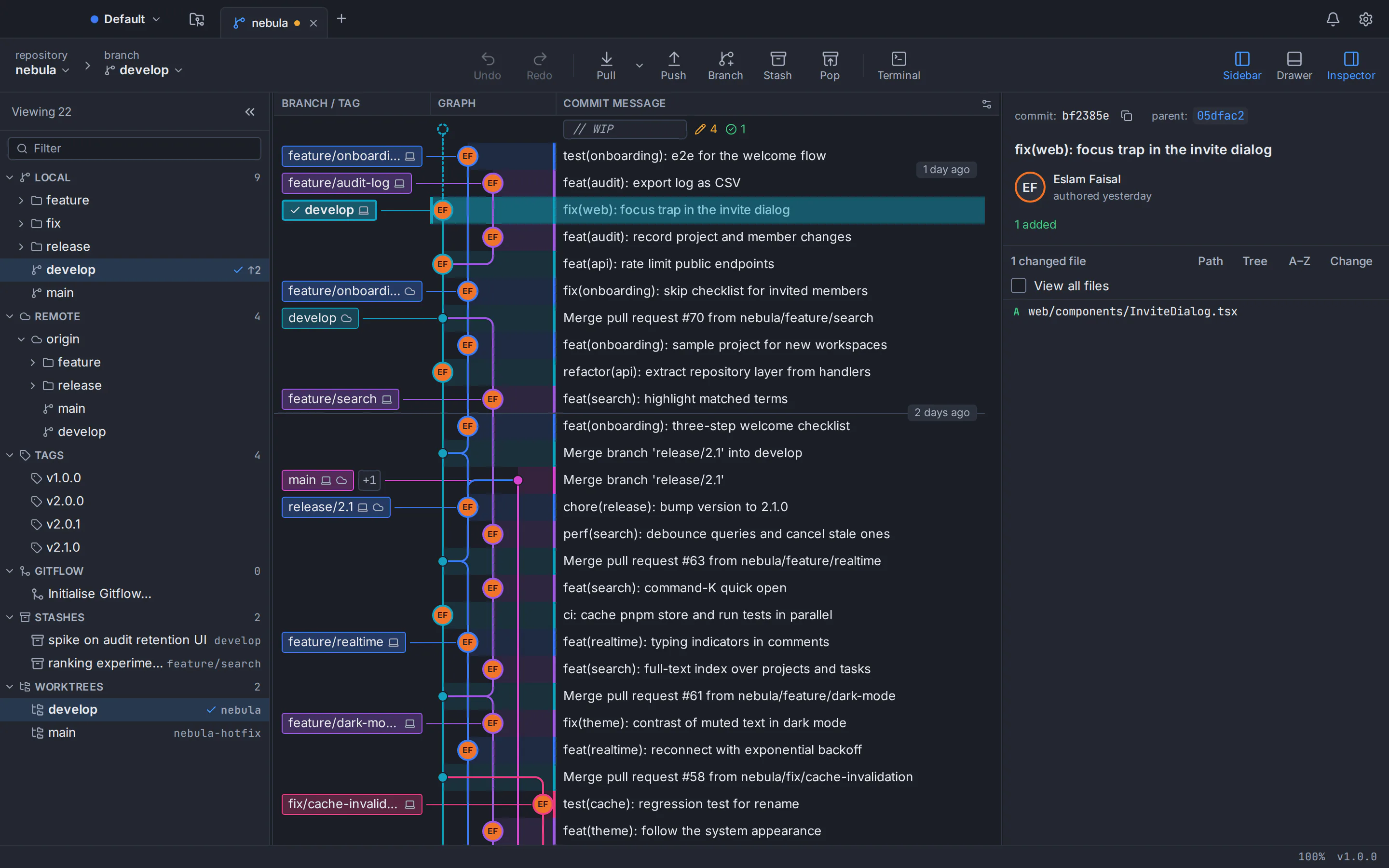
With three branches, git log --graph --oneline --all is perfectly readable. With twenty, the lines cross and wrap, and you cannot click a commit to see what it changed. A commit graph lets you follow one branch, search by author or message and open any commit in place. Our Git tree visualizer guide compares both in detail.
Staging part of a file
git add -p walks through your changes hunk by hunk. You press y or n, s to split a hunk, and e to edit the patch by hand when you want only some lines. It works, but it is slow on a file with many changes. In a GUI you click the hunk, or tick the exact lines you want in the commit.
git add -p src/app.ts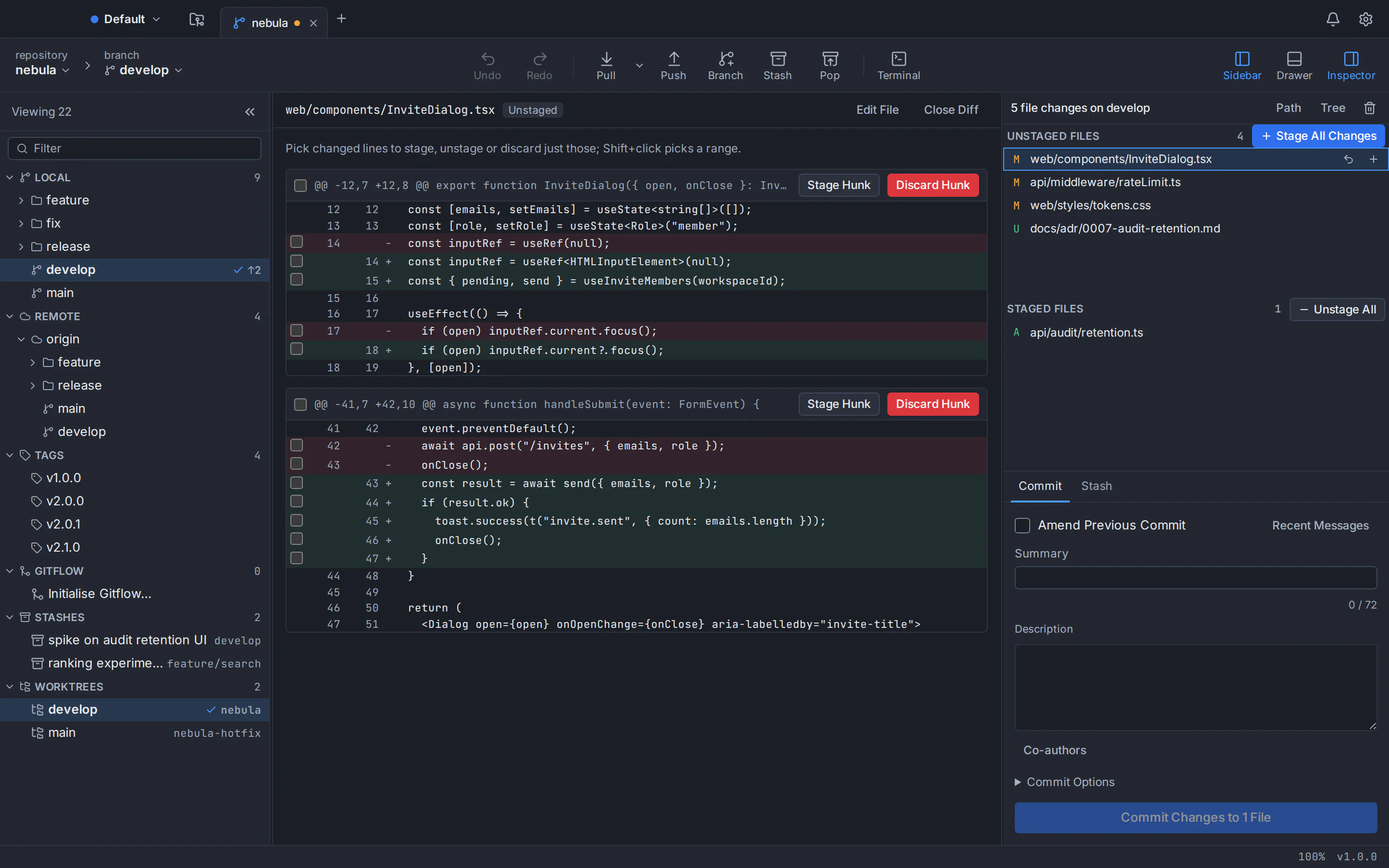
Conflicts and history rewrites
Merge conflicts and interactive rebase are where most people go looking for help. On the command line you edit <<<<<<< markers by hand, or rewrite a todo list in a text editor and hope the order is right. A GUI shows both sides of a conflict next to the result, and turns a rebase into a list you reorder by dragging. Step-by-step guides: how to resolve Git merge conflicts and interactive rebase in a Git GUI.
Git GUI vs command line: the honest trade-offs
What the command line costs you
- A steep start. You have to learn the model (working tree, staging area, commits, branches) before the commands make sense, and the terminal never draws that model for you.
- Destructive commands are one typo away.
git reset --hardthrows away uncommitted work, andgit push --forcecan overwrite commits a teammate pushed in the meantime. - Output is plain text. Comparing two branches or reviewing a large diff in a terminal is possible, but slow.
What a GUI costs you
- It can hide what Git is doing. If you only learn button names, you are stuck the day a button is missing or no GUI is available.
- Coverage and behaviour vary between clients. Some leave out rarer commands, and some ship their own copy of Git, which may not be the version in your terminal.
- It does not run on a server without a desktop, and it does not replace scripts or CI.
git reflog
git reset --hard HEAD@{1}
How a GUI that runs your own Git keeps you close to the CLI
The best answer to “GUI or command line?” is a GUI that never takes you away from the command line. Look for three things when you choose one:
- It runs the Git you installed. A commit, rebase or push from the GUI then gives the result the command would have given, with the Git version and configuration you already know.
- It has a terminal inside. When a task is faster as a command, you type it without switching windows or losing your place.
- Its safety nets match Git’s. Force-pushes should use
--force-with-lease, which refuses to overwrite commits someone else pushed since you last fetched, and mistakes should be undoable.
That is how GitTree, a free Git client, is built. It uses the Git already on your computer (version 2.39 or newer) instead of bundling its own, so every action matches the command line. A built-in terminal is docked under the commit graph, opens at the repository root and runs your own shell. Force-push always uses --force-with-lease. Undo and redo cover commits and amends, checkouts, resets, rebases, discarded changes and deleted branches; every destructive step is snapshotted before it runs, and a reflog view lets you restore an earlier position.
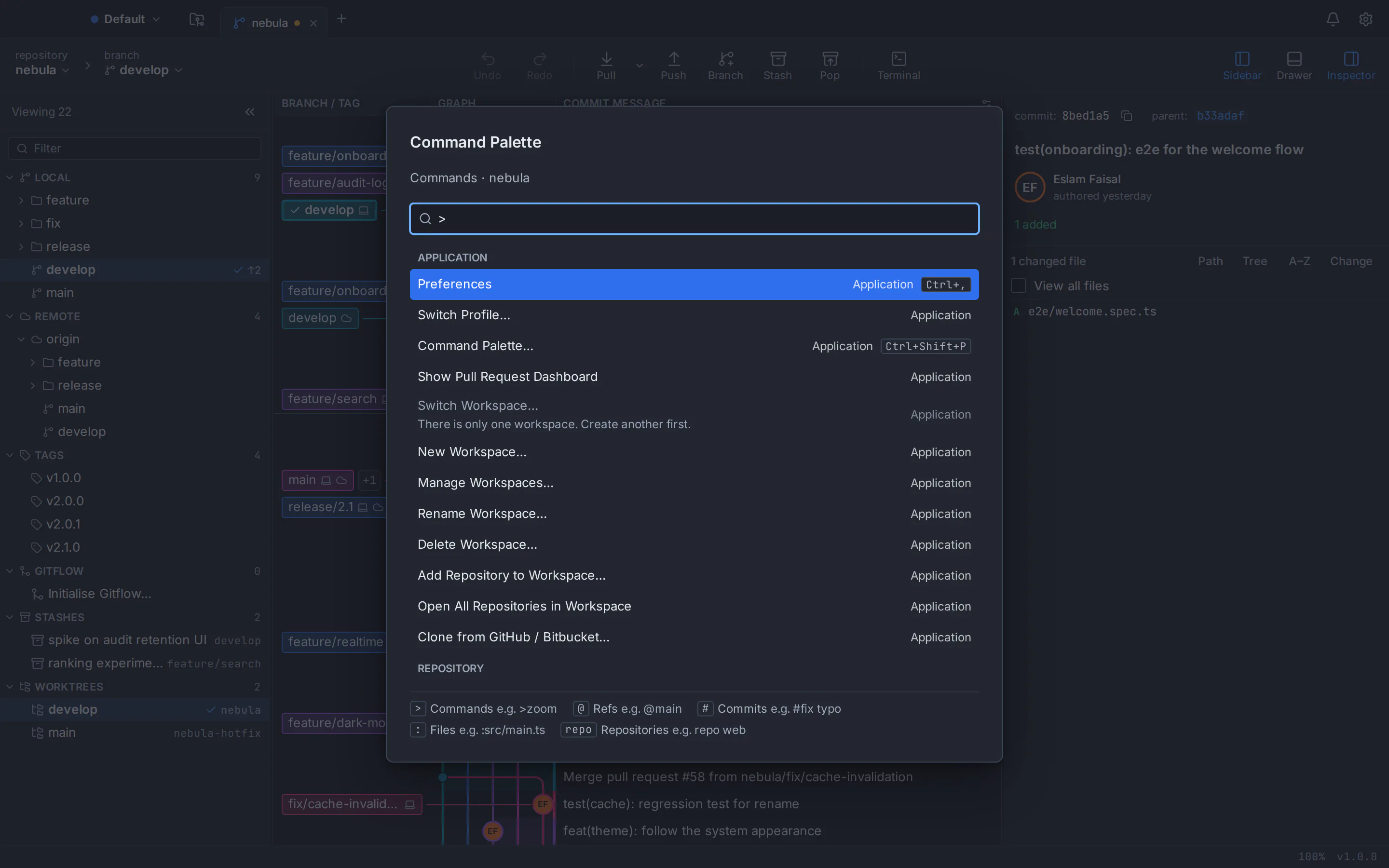
The command palette (Ctrl+Shift+P, or ⌘+Shift+P on a Mac) puts about 300 commands in one search box and shows the keyboard shortcut beside every command that has one. Custom commands add your own scripts to the app’s menus.
GitTree is free today for macOS, Windows and Linux, private repositories included. It needs a free GitTree account to sign in, and on Windows it needs Git for Windows installed. Ubuntu 22.04 ships Git 2.34, so upgrade Git first with our guide to upgrading Git on Ubuntu.
A Git learning path that uses both
Learn the model with a graph
Open a repository in a GUI and run
git log --graph --oneline --allbeside it. Commits are dots, branches are labels that move forward, andHEADmarks where you are. That picture makes every later command easier to follow.Learn five commands in the terminal
For one week, do your daily work with
git status,git add,git commit,git pullandgit push. Rungit statusbefore and after each one and read what it says.Hand the visual jobs to the GUI
Use the GUI for partial staging, reviewing a diff before you commit, resolving conflicts and reading history: the tasks where the command line costs the most time.
Check the GUI from the terminal
After a GUI action, look at the result in the terminal:
git log -3after a commit,git statusafter a merge. You learn which command each button stands for.Practise risky operations on a throwaway branch
Try interactive rebase, reset and cherry-pick on a branch you can delete, then find each step in
git reflog. You know the way back before you need it on real work.Script what you repeat
Once a sequence of commands feels routine, turn it into an alias or a small script. That is where the command line pays off most.
Should I use a Git GUI? A quick decision guide
- You are new to Git: start with a GUI and the five commands above together. The graph teaches the model and the commands teach the vocabulary. Our Git for beginners guide walks through a first project.
- You live in the terminal: keep it, and add a GUI for history, conflicts and large diffs.
- You work with designers, writers or other non-developers: a GUI lets them commit and sync without memorising commands.
- You mostly run Git on servers or in CI: the command line is the right tool, and a GUI adds little.
If a GUI belongs in your setup, compare the options in our roundup of the best Git GUI clients, or try GitTree on macOS, Windows or Linux. Every installer is on the GitTree download page.
Whichever way you lean, the goal is to understand what Git is doing, and a graph plus a terminal get you there faster than either alone. Questions? The support page lists every way to reach us.
Frequently asked questions
Is a Git GUI better than the command line?
Neither is better overall. The command line is better for automation, scripts, servers and rare Git options, because every command can be repeated exactly and runs anywhere Git is installed. A Git GUI is better for reading branch history, staging parts of files, resolving conflicts and reviewing diffs, because it shows everything at once.
Should beginners learn Git with a GUI or the command line?
Learn with both at the same time. A GUI commit graph makes the model visible, so commits, branches and HEAD stop being abstract. A handful of terminal commands (status, add, commit, pull and push) teaches the vocabulary used in documentation, tutorials and error messages. Learning only buttons leaves you stuck when no GUI is available.
Do professional developers use Git GUIs?
Yes, a GUI is a normal part of professional Git work, usually next to the terminal rather than instead of it. A common pattern is typing everyday commands and opening a GUI for history, large diffs, merge conflicts and interactive rebase. Git itself comes with two graphical tools: gitk for history and git gui for commits.
Can a Git GUI do everything the command line can?
No GUI covers every Git command and option. The Pro Git book notes that there is nothing a graphical client can do that the command line cannot. Plumbing commands, rare flags and brand-new options also reach the command line first. A GUI with a built-in terminal closes that gap, because the missing command is one line away.
Will using a Git GUI stop me from learning Git properly?
Only if you treat the buttons as magic. Choose a GUI that runs your installed Git, check its results with git status and git log now and then, and learn the command behind each action you use often. Used that way, a commit graph speeds up learning, because you see exactly what each operation changed.
Is it safe to use a Git GUI and the terminal on the same repository?
Yes. Everything Git knows about a repository lives in its .git folder, and any tool that uses Git reads and writes the same commits, branches and staging area. Avoid starting two write operations at the same moment; Git’s lock file stops the second one. If a GUI bundles its own Git, its version may differ from your terminal’s.
Does GitTree replace the Git command line?
No, it is designed to sit next to it. GitTree runs the Git you already have installed (2.39 or newer) instead of bundling its own, so every action matches the command line, and a built-in terminal with your own shell is docked under the commit graph. It is free today for macOS, Windows and Linux, private repositories included, and needs a free account.
Sources
Claims about other products were checked against their official pages on October 6, 2026. Prices and features change; the vendors’ pages are the source of truth.