Git guides
Git interactive rebase in a GUI: squash, fixup, reword, reorder and drop commits
How to squash, fix up, reword, reorder and drop commits with an interactive rebase GUI, what each action does in git rebase -i, and how to undo a rebase that went wrong.
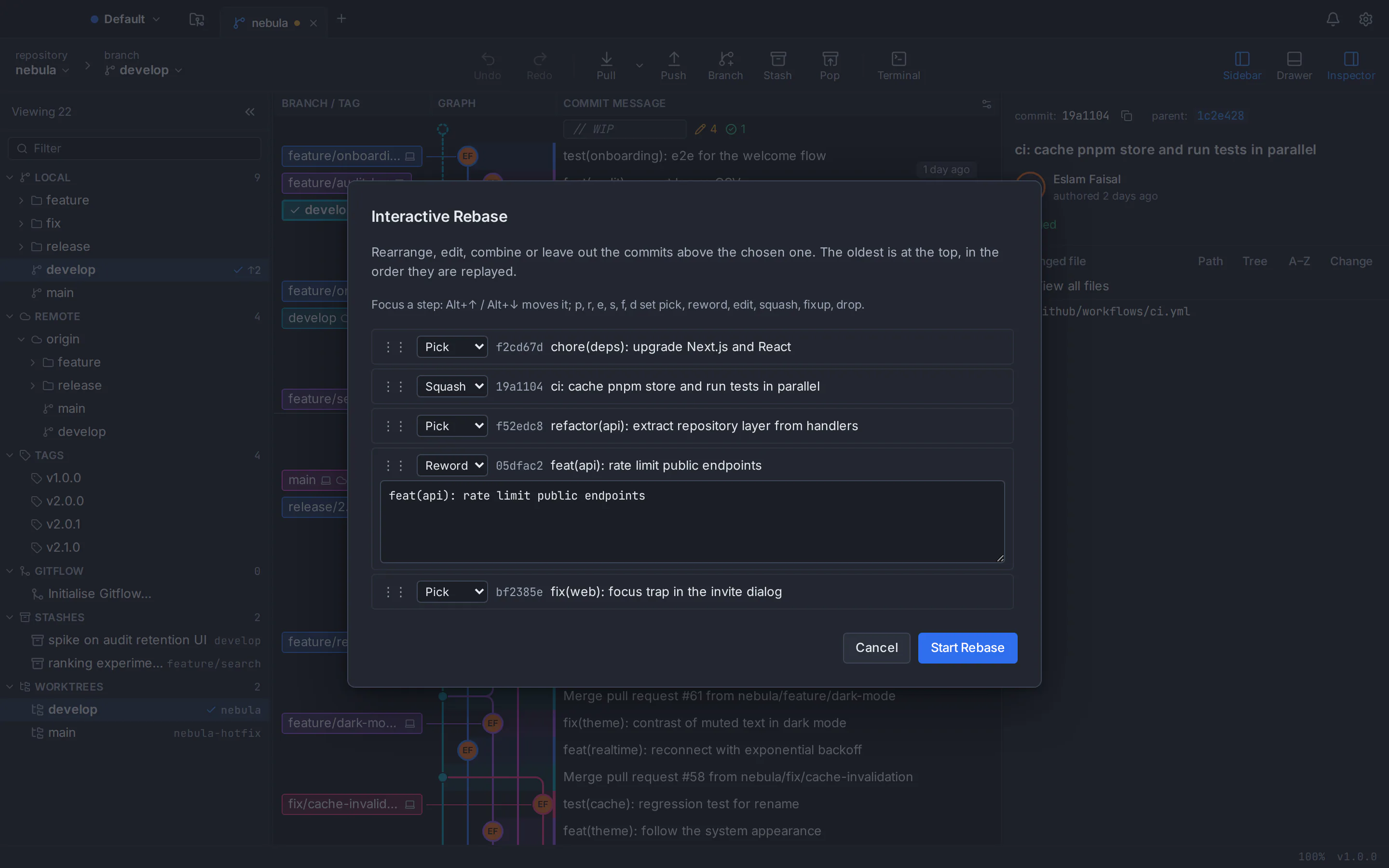
An interactive rebase GUI lets you rewrite the commits on your branch from a list instead of a text file: choose a starting commit, give every commit above it an action (pick, squash, fixup, reword, edit or drop), drag them into a new order, and let Git replay them. It runs the same operation as git rebase -i, so the result is identical to the command line. In GitTree you right-click the commit just below the ones you want to change, choose Interactive Rebase of the Commits Above…, set the actions and click Start Rebase. If the result is wrong, Undo puts the branch back.
This interactive rebase tutorial covers each action, three ways to squash commits, the matching commands, autosquash and the safety net. The screenshots show GitTree’s interactive rebase editor, a free Git client for macOS, Windows and Linux, but the Git behaviour is the same in any tool.
What Git interactive rebase does, and when to use it
A normal rebase moves a series of commits onto a new base. An interactive rebase also lets you edit that series on the way: Git shows the commits it is about to replay, you change the list, and Git rebuilds the branch to match. Every rewritten commit gets a new id, which is why interactive rebase belongs to the stage before you share your work. Typical reasons to reach for it:
- Squash a run of “wip”, “fix typo” and “address review” commits into one meaningful commit before you open a pull request.
- Reword a commit message that has a typo, a missing ticket number or a vague summary.
- Fold a forgotten change into the commit it belongs to, so every commit builds on its own.
- Reorder commits so that a refactor lands before the feature that depends on it.
- Drop a debugging commit or an experiment that should never reach the main branch.
Pick, squash, fixup, reword, edit and drop: the rebase actions explained
Every line in an interactive rebase plan is one commit plus one action. These are the ones you will use day to day (Git’s todo file has a few more for scripting, such as exec and break):
| Action | Key in GitTree | What Git does | Use it to |
|---|---|---|---|
| pick | p | Keeps the commit as it is. | Leave a commit alone (the default). |
| reword | r | Keeps the changes and lets you write a new message. | Fix a typo or a vague summary. |
| edit | e | Replays the commit, then stops so you can amend it. | Split a commit or change its files. |
| squash | s | Melds the commit into the one above and combines both messages. | Join related commits and keep their notes. |
| fixup | f | Melds the commit into the one above and keeps only the earlier message. | Fold in a small fix quietly. |
| fixup -C | Action menu: “Fixup, use its message” | Like fixup, but keeps this commit’s message instead. | Replace the earlier message along with the fix. |
| drop | d | Leaves the commit out of the branch. | Remove a debugging or experimental commit. |
Order matters, and it is the opposite of `git log`. The plan lists the oldest commit at the top, in replay order, while git log and most commit graphs show the newest first. A squash or fixup always melds into the commit directly above it, the older one. If a squash ends up at the top with nothing to fold into, GitTree refuses to start until you move it below a commit you keep.
The command-line equivalent: git rebase -i
On the command line you name the commit just below the ones you want to change: count back from HEAD, or use the point where your branch left main.
# rewrite the last 5 commits
git rebase -i HEAD~5

# rewrite everything since the branch left main, without moving its base
git rebase -i $(git merge-base main HEAD)
Git opens your editor with a todo list. This one is the same plan as the screenshot further down: the second commit is squashed into the first, and the fourth gets a new message.
pick f2cd67d chore(deps): upgrade Next.js and React
squash 19a1104 ci: cache pnpm store and run tests in parallel
pick f52edc8 refactor(api): extract repository layer from handlers
reword 05dfac2 feat(api): rate limit public endpoints
pick bf2385e fix(web): focus trap in the invite dialog
Save and close the file and Git starts replaying. It asks for the squash message and the reworded message, and pauses on any edit step or conflict, where you carry on or give up:
git rebase --continue   # after amending or resolving a conflict
git rebase --abort      # stop and put the branch back where it was
A GUI changes how you write the plan, not what Git does with it. GitTree runs the same plan with the Git already installed on your computer (version 2.39 or newer), so the app and a terminal produce the same commits. For the wider trade-offs, read Git GUI vs command line.
How to do an interactive rebase in a GUI: GitTree step by step
Check out the branch and tidy the working copy
Check out the branch you want to clean up. Commit or stash uncommitted changes first, or tick the option that stashes them for this rebase and puts them back afterwards.
Open the editor from the base commit
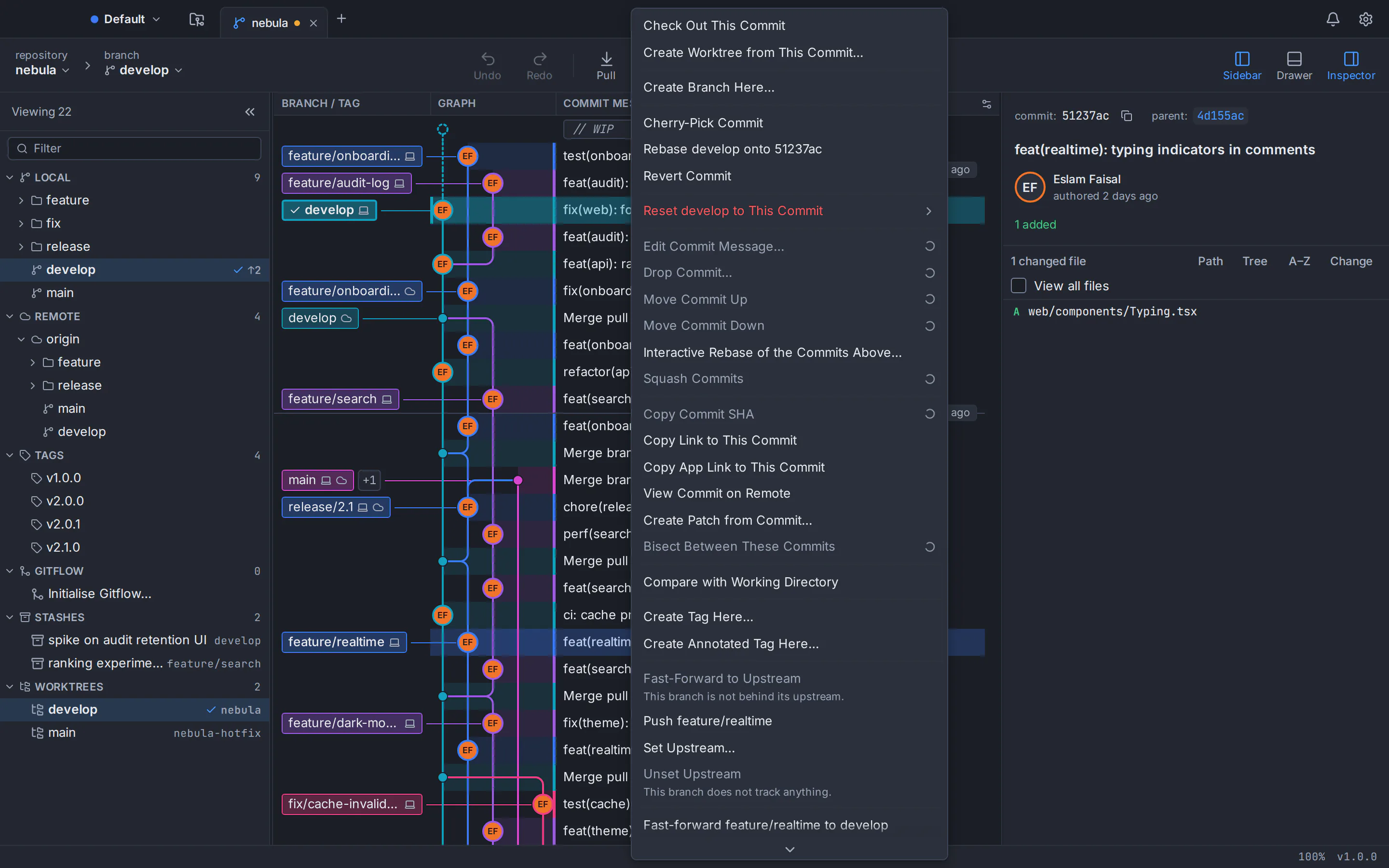
In the commit graph, right-click the commit just below the oldest one you want to change and choose Interactive Rebase of the Commits Above…. To move onto another branch at the same time, right-click that branch and choose Interactive Rebase Current Branch Onto This….
Choose an action for every commit
Use the menu on each row, or focus a row and press p, r, e, s, f or d for pick, reword, edit, squash, fixup or drop.
Reorder by drag or keyboard
Drag a row by its handle, or focus it and press Alt+↑ or Alt+↓, until the commits are in the order you want.
Write the new messages
A reword row opens a message box in place. Each squashed group appears under the list with its combined message, ready to edit, so you see the resulting commit before you start.
Check the options and start
Choose whether to stash local changes, move branches that point into these commits (update-refs) and arrange fixup! commits (autosquash). Confirm if some commits are already on a remote, then click Start Rebase.
Continue, abort or undo
If a step stops for an edit or a conflict, the banner offers Continue Rebase and Abort Rebase. When the rebase finishes, Undo puts the whole branch back.
How to squash commits in a Git GUI
The short answer to how to squash commits: put them next to each other, leave the first as pick, mark the rest as squash or fixup, and replay. GitTree gives you three ways to get there.
Squash a group of commits in the rebase editor
Open the editor from the commit below the group, set its first commit to pick and the others to squash, or to fixup if you do not want their messages. Drag stray commits into place if the group is not contiguous. GitTree previews each group that contains a squash as the commit it will become, with the combined message in a box you can edit.
Select commits in the graph and choose Squash Commits
For a quick squash, select two or more consecutive commits of the current branch in the graph, right-click and choose Squash Commits. GitTree runs the rebase for you, and Undo can put the separate commits back. The same menu rewrites single commits in one step: Edit Commit Message…, Drop Commit…, Move Commit Up and Move Commit Down. These shortcuts work on commits that are not on a remote yet; for pushed commits, use the editor, which asks you to confirm first.
Squash when you merge the pull request
If your team keeps one commit per pull request, you may not need to rewrite the branch at all: GitTree’s pull request view can merge with squash, and your local branch stays as it was.
Fixup commits and autosquash: fix an old commit without reordering by hand
While you work, commit each small correction as a fixup of the commit it belongs to; Git titles it fixup! <original title>. Later, one interactive rebase with autosquash moves every fixup directly under its target and marks it fixup, so all you do is check the list and start.
# record a correction for an earlier commit
git commit --fixup=05dfac2

# correct the commit and replace its message too
git commit --fixup=amend:05dfac2

# later: fold every fixup! and amend! commit into its target
git rebase -i --autosquash main

# turn autosquash on for every interactive rebase
git config --global rebase.autoSquash true
In GitTree, run those commands in the built-in terminal docked under the graph, or type fixup!, a space and the original title in the commit message box; Git matches fixups by title, so both create the same commit. With the Arrange fixup!, squash! and amend! commits option on, the editor opens already arranged, and what you see is exactly what Git runs.
An amend! commit becomes fixup -C in the plan (“Fixup, use its message” in GitTree): its changes are folded in and its message replaces the target’s. Per the git-commit documentation, neither kind changes who authored the original commit.
Is interactive rebase safe? Undo, the reflog and force-with-lease
A rebase does not delete the old commits straight away: they stay reachable from the reflog until Git’s garbage collection clears unreachable objects much later. The real risks are losing track of the old branch and overwriting a colleague’s work on the remote.
Undo a finished rebase
GitTree snapshots the branch before every rebase, so Undo in the toolbar puts it back in one click, including other branches the rebase moved with update-refs, as long as nothing has moved the branch since. How to undo a git reset, rebase or commit covers the rest of that safety net. On the command line:
# still in the middle of the rebase
git rebase --abort

# already finished: go back to the tip from before the rebase
git reflog show --date=relative
git reset --hard ORIG_HEAD
Git sets ORIG_HEAD to the old tip when a rebase starts, but a git reset run during the rebase (to split a commit, for example) moves it. Right after the rebase, @{1}, the previous position of the current branch, still points to the old tip, so git reset --hard @{1} works too. git reset --hard throws away uncommitted changes, so commit or stash them first.
Rewriting commits you already pushed
GitTree labels commits that are already on a remote with “On a remote” and asks you to confirm before rewriting them. Afterwards a normal push is refused, so you need a force push. Use the lease form, which only overwrites the remote branch if it still points where you last saw it:
git push --force-with-lease

# safer when something fetches in the background
git push --force-with-lease --force-if-includes
A background fetch can refresh your remote-tracking branch and weaken the lease, so the git-push documentation suggests adding --force-if-includes. In GitTree a force push always uses --force-with-lease, pinned to the remote tip shown when you confirm, and that tip is kept locally under refs/ogt/trash, so the commits it removes from the remote are not lost. Undo cannot reverse a force push, because it changed the remote.
When a step stops: edits and conflicts
An edit step, or a commit that no longer applies cleanly, pauses the rebase. GitTree shows the plan’s progress and a banner to continue or abort. Conflicts open in the three-way editor, covered in resolving merge conflicts in a GUI. During a rebase Git swaps the sides of a merge: “ours” is the branch you are rebasing onto and “theirs” is your own commit, so GitTree labels them “rebasing onto” and “your commit”.
Tips for a clean commit history before a pull request
- Make every commit build and pass its tests on its own, and keep unrelated changes apart: one commit for the refactor, one for the feature.
- Rebase onto the latest
mainbefore you open the pull request, so reviewers see only your changes. - Working with stacked branches? Turn on update-refs so the branches built on yours move with the rewritten commits.
- If the range contains a merge commit, GitTree shows it but will not rewrite it; use
git rebase -i --rebase-mergesfor that case. - Check the result in the commit graph before you push, and let your own AI coding CLI draft messages, as in AI commit messages with Claude Code and Codex.
GitTree is free today, private repositories included, on macOS, Windows and Linux, in English and Arabic. It needs a free GitTree account and Git 2.39 or newer. Get it from the download page, or compare the best Git GUI clients first.
Frequently asked questions
What is the difference between squash and fixup in git rebase?
Both meld a commit into the one above it in the rebase plan, so the two sets of changes end up in a single commit. Squash combines both commit messages and lets you edit the result, while fixup keeps only the earlier commit’s message and discards the later one. Fixup -C does the opposite and keeps the later message.
How do I squash my last 3 commits?
On the command line, run git rebase -i HEAD~3, leave the first line as pick, change the other two to squash or fixup, save, and edit the combined message. In GitTree, right-click the fourth commit from the top of your branch, choose Interactive Rebase of the Commits Above, set the two newer commits to squash and click Start Rebase. If the three commits are not on a remote yet, you can also select them and choose Squash Commits.
How do I undo an interactive rebase?
If the rebase is still running, stop it with git rebase --abort or the Abort Rebase button in GitTree’s banner. If it has already finished, use Undo in GitTree, which restores the snapshot taken before the rebase, or run git reset --hard ORIG_HEAD on the command line. The reflog lists every earlier position of the branch if you need an older one.
Is it safe to rebase commits that I already pushed?
It is safe on a branch that only you use, as long as you push with git push --force-with-lease, which refuses to overwrite commits you have not seen. On a shared branch, rewriting history forces everyone else to repair their copies, so agree with your team first, or squash when the pull request is merged instead of rewriting the branch.
Does GitTree support fixup! commits and autosquash?
Yes. Commits whose titles start with fixup!, squash! or amend! can be arranged automatically when the interactive rebase editor opens, either for a single rebase or by default through a preference that can follow your rebase.autoSquash setting. You still see the arranged list before anything runs, and Git runs exactly that list.
Can I do an interactive rebase without the command line on macOS, Windows and Linux?
Yes. GitTree’s interactive rebase editor works the same way on macOS, Windows and Linux: pick, reword, edit, squash, fixup and drop, with drag-and-drop or keyboard reordering and undo. The app is free today, needs a free GitTree account, and uses the Git already installed on your computer, version 2.39 or newer.
Should I squash with an interactive rebase or with a squash merge?
Use an interactive rebase when several meaningful commits should survive, cleaned up and in a sensible order, or when reviewers read a pull request commit by commit. Use a squash merge when the whole pull request should land as one commit on the main branch: it leaves your own branch untouched and needs no force push.
Sources
Claims about other products were checked against their official pages on October 6, 2026. Prices and features change; the vendors’ pages are the source of truth.