Git and AI agents
AI commit message generator in a Git GUI: Claude Code, Codex and Antigravity
GitTree turns the Claude Code, Codex or Antigravity CLI you already use into a one-click AI commit message generator. Here is what it sends, how to set it up and how to review a draft.
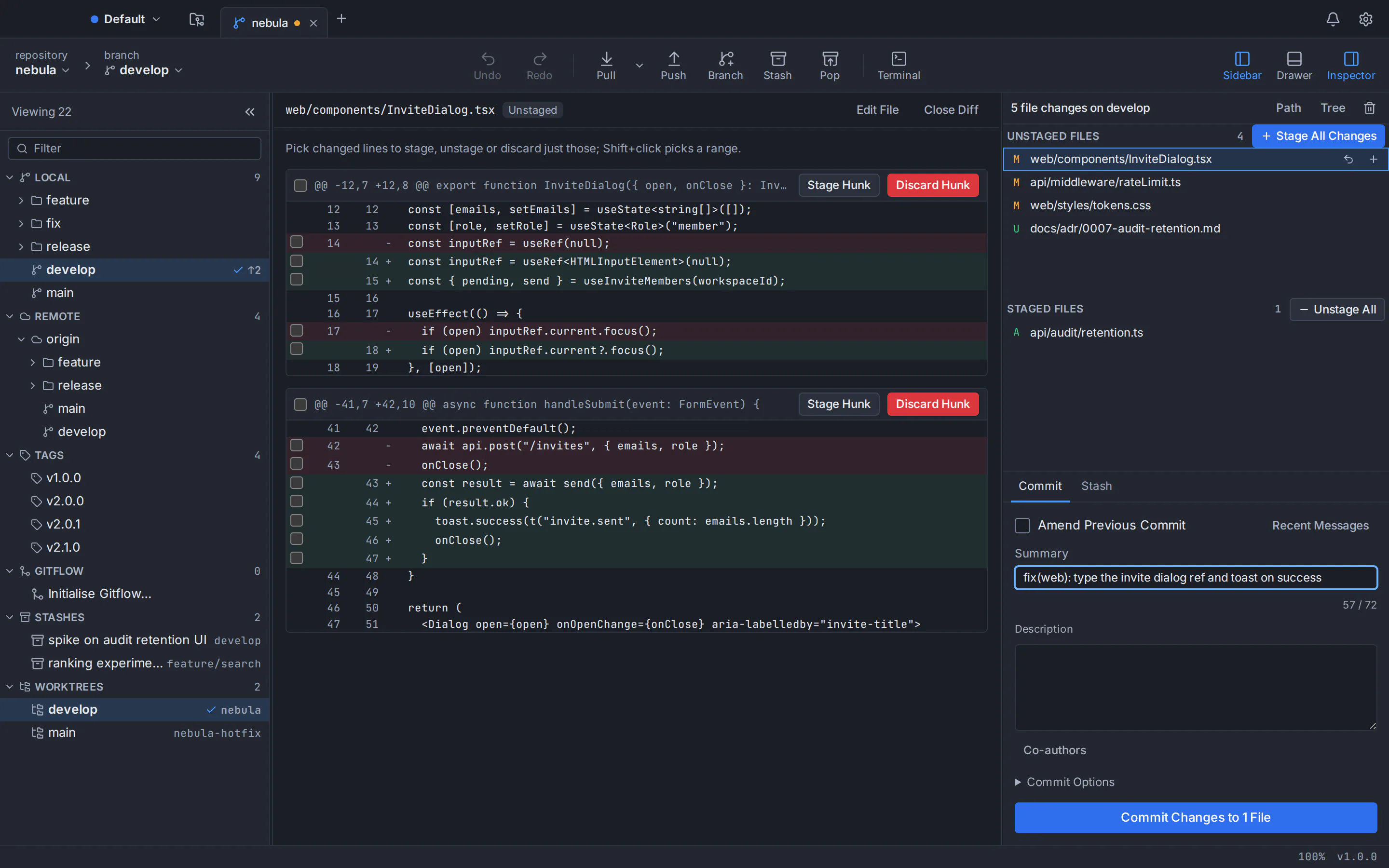
The simplest AI commit message generator for a Git GUI is the coding agent you already use. In GitTree, a free desktop Git client for macOS, Windows and Linux, you stage your changes, click the sparkles button beside the commit summary, and your installed Claude Code, Codex or Antigravity CLI drafts the message from the staged diff. You read it, edit it and commit. GitTree has no AI model of its own, stores no AI key and sells no credits, and nothing is sent until you click Generate.
This guide explains what leaves your computer, how to set it up, how to get Conventional Commits and how to review a draft so the history still says what you meant. The same agents draft pull request titles and descriptions too.
How a Git GUI with AI works when you bring your own agent
Many developer tools sell AI as an add-on: you buy credits, paste an API key into the tool or upgrade to a plan. GitTree instead finds the coding-agent CLIs already installed on your computer and, when you ask, runs one of them once to write a draft. The CLI answers with your existing subscription or API key, under its vendor’s terms, as if you had typed the request into a terminal yourself. So GitTree works as an AI Git client without adding another AI subscription.
- No credits and no extra plan. GitTree is free today, private repositories included. Any AI usage counts against the plan or API key your CLI is already signed in with.
- No key stored by GitTree. Each CLI keeps its own sign-in. GitTree never asks for an API key and keeps none.
- Nothing runs in the background. The CLI starts only when you click Generate, and you can stop it at any time.
- Your choice of agent. Set Claude Code, Codex or the Antigravity CLI in Preferences, or switch for one draft from the menu beside the button.
| CLI | Command | Vendor | How you sign in |
|---|---|---|---|
| Claude Code | claude | Anthropic | A Claude Pro, Max, Team or Enterprise plan, or a Console (API) account; the free Claude plan does not include it |
| Codex | codex | OpenAI | Sign in with ChatGPT (included in Free, Go, Plus, Pro, Business, Edu and Enterprise) or an API key at standard API rates |
| Antigravity CLI | agy | Your Google account in the browser on first run (every Antigravity plan includes the CLI, the free one with a weekly quota), or a Gemini API key |
What the AI commit message generator sends, and what stays private
When you click Generate, GitTree passes one prompt to the CLI on standard input, never as a command-line argument that other programs could read. It contains:
- The staged changes as a diff, led by a summary of every changed file. Unstaged edits stay out, and a very large diff is cut at 48 KB (the summary still names every file).
- Up to ten recent commit summaries from the repository, so the draft follows the style your team already uses. Merge commits are skipped.
- Your extra instructions from Preferences, if you have written any.
- A request for the Conventional Commits form, if you have turned that check on.
The CLI sends that prompt to its own vendor (Anthropic, OpenAI or Google) under your account. That is the one exception to GitTree’s rule that your code stays on your computer, and it happens only when you click. The GitTree privacy policy describes it too.
Guardrails around the agent
A diff can contain text written by someone else, such as the incoming side of a merge, that tries to instruct a model. So GitTree gives the agent as little as possible to act with:
- The CLI runs in an empty private folder, never in your repository, so agent instruction files, settings or hooks committed to a repository are not picked up.
- Claude Code runs with its built-in tools and MCP servers turned off. Codex runs in a read-only sandbox, and GitTree also asks it to switch its shell tool off. Both are told not to save the session.
- The Antigravity CLI has no switch to turn its tools off and keeps its own conversation history, so GitTree refuses to use it for a repository open in restricted mode (one whose settings or hooks you have not trusted). Claude Code and Codex, with their tools off, can still draft there.
- The draft only fills the message box: nothing is committed until you press the commit button. A draft that takes longer than three minutes is stopped.
How to generate a commit message with Claude Code, Codex or Antigravity in GitTree
Install an AI coding CLI
Install Claude Code, Codex or the Antigravity CLI with its vendor’s official installer: see the Claude Code setup guide, the Codex CLI page or the Antigravity CLI install guide. On Windows, use the standalone installer rather than an npm package, because GitTree only runs a real .exe file.
Sign in to the CLI once
Open a new terminal and run the CLI by name:
claudeopens a browser sign-in for your Claude account,codex loginopens Sign in with ChatGPT in your browser (codex login --with-api-keytakes an API key instead), andagyopens a browser sign-in with your Google account on its first run. GitTree reuses that sign-in and never asks for a key itself.Choose the agent in GitTree Preferences
Open Preferences, type “AI agent” in the search box and set AI agent for commit messages to Claude Code, Codex or Antigravity. The default, First one installed, tries Claude Code, then Codex, then Antigravity. The setting lives on the Commit Signing page.
Stage your changes and click Generate
Stage the files, hunks or lines the commit should contain, then click the sparkles button beside the commit summary. The draft fills Summary and Description, and if you already typed a message GitTree asks before replacing it. Edit the draft, then commit.
To check a CLI before you open GitTree, claude --version prints a version number and codex login status shows how Codex is signed in:
claude --version
codex login statusConventional Commits from your AI commit message generator
Conventional Commits is a small convention for the summary line: type(scope): description. A feat adds a feature, a fix patches a bug, and a ! after the type or a BREAKING CHANGE: footer marks a breaking change. Because the history becomes machine-readable, tools can build changelogs and pick version numbers from it.
Turn on Check Conventional Commits in GitTree’s Preferences. The commit box then suggests the type(scope): description form as you type (advice only; it never blocks a commit), and every AI draft is asked for that form with a standard type: build, chore, ci, docs, feat, fix, perf, refactor, revert, style or test. For the change in the screenshot above, a draft might read:
fix(web): type the invite dialog ref and toast on success

Type the input ref so focus() is checked, show a success toast
once the invites are sent, and close the dialog only when the
request succeeds.
With the check on or off, every draft is asked for the same basic shape: an imperative summary (“Add”, not “Added”) of at most 72 characters with no trailing period, then a body wrapped at 72 characters only when the change needs explaining.
Steer the drafts with extra instructions
Extra instructions for generated messages (up to 2,000 characters) is added to every request. Use it for house rules a diff cannot reveal, such as “Write in English”, “Keep the body to three lines” or “Use the scopes web, api and docs”. Like the Conventional Commits check, it can be overridden per repository in Repo-Specific Preferences.
How to review an AI-drafted commit message before you commit
The agent sees the diff, not your intent. It can describe what changed well and still miss why, overstate the change or call a refactor a fix. Thirty seconds of review keeps the history trustworthy:
- Stage one logical change at a time. The draft describes exactly what is staged, and line-by-line staging makes focused commits easy (see GitTree’s staging and commit features).
- Read the summary as a reviewer would. Does it say what the commit does, in the imperative? Are the type and scope right?
- Add the why. The reason, the ticket number and the trade-off you weighed are things only you know. Put them in the body.
- Delete anything invented. If the draft says tests were added or a bug was fixed and the diff does not do that, remove it.
- Fix mistakes afterwards. Tick Amend Previous Commit and Generate describes the whole amended commit. GitTree can also undo a commit, reset or rebase.
AI pull request titles and descriptions with the same agent
The same sparkles button sits beside the Title in GitTree’s Start a Pull Request dialog. The agent receives the branch and its target, the branch’s own commit messages (up to 200, merges left out), its changes since it left the target branch (cut to 48 KB), the dialog’s pull request template and your extra instructions. The description comes back as Markdown, and GitTree asks before replacing anything you typed.
The draft only fills the dialog: nothing reaches GitHub, GitLab, Bitbucket or Azure DevOps until you press Create Pull Request. (Support for GitLab, Azure DevOps, GitHub Enterprise Server and Bitbucket Data Center is new in GitTree.)
Claude Code, Codex or Antigravity: which CLI should write your commit messages?
GitTree sends each of them the same prompt and expects a few lines of text back, so the practical differences are access and the privacy details in the guardrails above. How good the wording is depends on the model behind each CLI, so judge them on your own code:
- Use the one you already have. A paid Claude plan covers Claude Code, your ChatGPT account signs in to Codex, and your Google account signs in to the Antigravity CLI.
- More than one installed? Set a default in Preferences and use the menu beside the button to try another agent for a single draft. It is a quick way to compare them on your own code.
Troubleshooting the Generate button
- “Claude Code is not installed” (or Codex, or Antigravity): GitTree looks in the usual install folders and on your login shell’s PATH. If a new terminal cannot run the command either, fix the installation first.
- On Windows: an npm-installed CLI is a .cmd script, which GitTree does not run. Reinstall with the vendor’s standalone installer so a real .exe is on your PATH.
- “Stage the changes this commit should contain first”: Generate needs staged changes, or Amend Previous Commit ticked.
- The CLI reports an error: an expired sign-in or a used-up plan limit comes from the CLI itself, and GitTree shows its message with anything resembling a key removed. Sign in again in a terminal.
- A draft is slow: press Stop generating at any time. GitTree also stops a draft after three minutes.
Still stuck? The GitTree support page lists the e-mail address and the bug report form.
Try AI commit messages in GitTree
GitTree is free today for individuals and organizations, private repositories included, on macOS, Windows and Linux. It needs a free GitTree account and Git 2.39 or newer; the AI draft only adds one of the three CLIs, signed in. Get the installer below or see every option on the GitTree download page.
Running several agents at once? Read how to use Git worktrees with AI coding agents. Weighing a visual client against the terminal? See Git GUI vs command line and our round-up of the best Git GUI clients.
Frequently asked questions
Is GitTree’s AI commit message generator free?
GitTree is free today, private repositories included, and the AI draft adds no charge on GitTree’s side: no AI credits to buy and no AI plan to upgrade to. The Claude Code, Codex or Antigravity CLI you installed makes the request, so any usage counts against the subscription or API key it is signed in with.
Does GitTree send my code to Anthropic, OpenAI or Google?
GitTree itself sends nothing to any AI service and stores no AI key. Only when you click Generate does it pass the staged diff, up to ten recent commit summaries and your extra instructions (for a pull request, the branch’s commits and changes) to the CLI you chose, which sends them to its own vendor. If you never click, nothing goes to an AI service.
Do I need an API key to use Claude Code or Codex with GitTree?
No key goes into GitTree; you sign in to the CLI itself. As of October 2026, Claude Code works with a Claude Pro, Max, Team or Enterprise plan or a Console account, Codex with a ChatGPT sign-in or an OpenAI API key, and the Antigravity CLI with a Google account or a Gemini API key.
Can the AI write Conventional Commits messages?
Yes. Turn on Check Conventional Commits in GitTree’s Preferences and every draft is asked for the type(scope): description form, using types such as feat, fix, docs, refactor or chore. The same setting makes the commit box suggest that form as you type. It is advice only, never blocks a commit and can be set per repository.
Can GitTree write pull request descriptions with AI?
Yes. In the Start a Pull Request dialog, the sparkles button beside the Title asks the same CLI for a title and a Markdown description, based on the branch’s commits, its changes since it left the target branch and the pull request template. Nothing reaches your hosting service until you press Create Pull Request.
Does AI commit message generation work on macOS, Windows and Linux?
Yes. The Generate button works in GitTree on macOS, Windows and Linux wherever one of the three CLIs is installed and signed in. The setup is the same on every system: install the CLI, sign in to it once in a terminal, then choose it in GitTree’s Preferences.
Can the AI write commit messages in Arabic or another language?
You can ask for it through Extra instructions for generated messages in Preferences. Whatever you write there, for example “Write the description in Arabic” or “Write in English”, is added to every request for the agent to follow. Many teams keep commit messages in one shared language, so agree on it before you set it.
Sources
Claims about other products were checked against their official pages on October 6, 2026. Prices and features change; the vendors’ pages are the source of truth.
- Claude Code: advanced setup, requirements and sign-in (Anthropic)
- Codex CLI quickstart (OpenAI)
- Codex authentication (OpenAI)
- Codex pricing and included plans (OpenAI)
- Antigravity CLI installation and sign-in (Google)
- Google Antigravity pricing
- Google Antigravity plans and the CLI
- Conventional Commits 1.0.0 specification