Git and AI agents
Git worktrees for AI agents: run Claude Code and Codex in parallel
A git worktree gives every AI coding agent its own folder and branch inside one repository. Here’s how to create one per agent, keep track of them in a Git GUI and merge the results without collisions.
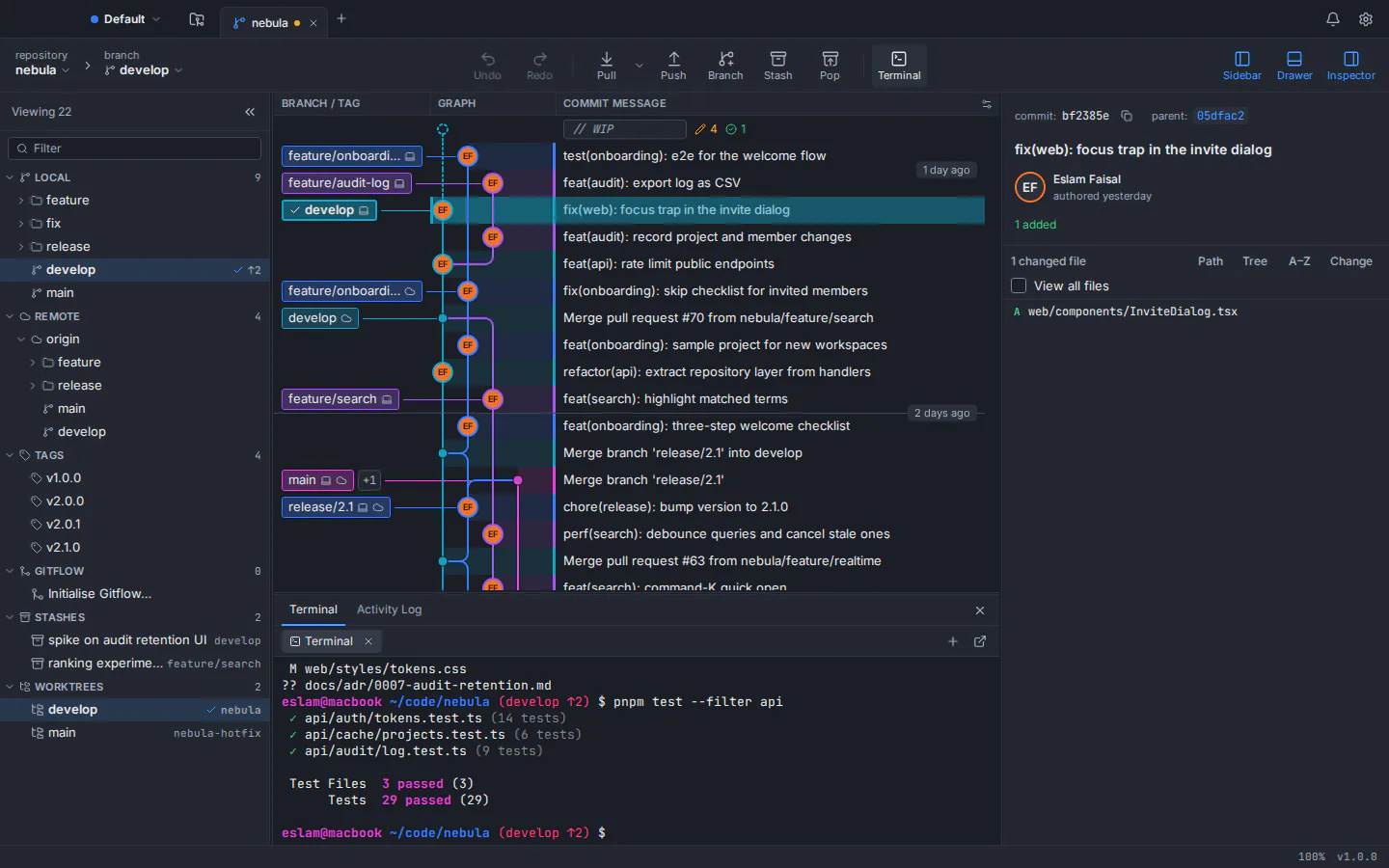
A git worktree is an extra working folder linked to the same repository: it has its own checked-out branch, its own staging area and its own files, while all worktrees share the same commits, branches and remotes. That makes git worktree the simplest way to run AI coding agents such as Claude Code or Codex in parallel. Give each agent its own worktree and they can edit, build, test and commit at the same time without touching each other’s files, and without a second clone.
Two agents in one folder share one working tree: one runs tests against files the other is halfway through rewriting, and a git checkout by either moves the ground under the other. Separate clones avoid that but need their own fetches; worktrees give you separate folders with the bookkeeping of one repository.
What a git worktree is, and what worktrees share
Every repository starts with one worktree, the main worktree: the folder that git clone or git init created. git worktree add creates linked worktrees, extra folders attached to the same .git data. According to the official git worktree documentation, a linked worktree shares everything with the repository except per-worktree files such as HEAD and the index. In practice:
| Part of the repository | Own copy or shared? | What it means for parallel agents |
|---|---|---|
| Working files | Own copy | One agent’s edits never overwrite another’s files |
HEAD and the checked-out branch | Own copy | Each agent stays on its own branch |
| Index (staging area) | Own copy | A git add in one worktree stages nothing in another |
| Commits and objects | Shared | A commit made in any worktree is visible in all of them |
| Branches and tags | Shared | You can merge an agent’s branch from your main folder with no fetch |
| Repository config | Shared by default | Remotes and aliases apply in every worktree |
One rule matters for agents: by default, git worktree add refuses to check out a branch that is already checked out in another worktree. Every agent therefore needs its own branch, which is exactly what you want at review time.
How to create a worktree with git worktree add
Run the commands from inside your repository, and put new worktrees next to it rather than inside it, so editors, search tools and agents don’t index one checkout from inside another. This creates two worktrees, each on a new branch that starts at main:
cd ~/code/myapp
git worktree add -b agent/auth-refactor ../myapp-auth main
git worktree add -b agent/flaky-tests ../myapp-tests main
git worktree list
-b creates the branch, the path is the new folder, and the last argument is the commit to start from. git worktree list prints every worktree with its folder, commit and branch. To use a branch that already exists, leave out -b: git worktree add ../myapp-review feature/login.
One AI agent per worktree: the parallel workflow
The pattern is simple: one task, one branch, one worktree, one agent session. You stay in the main worktree as the reviewer, and agents never share a folder. What matters most is how you split the work. Good parallel tasks are:
- In different parts of the code, such as a refactor in
auth/and new tests inbilling/, so their branches rarely touch the same lines. - Clearly done or not done: a failing test that should pass, an endpoint to add, a dependency to upgrade.
- Small enough to review in one sitting. A huge agent diff is a review problem, whichever folder it came from.
How to run AI coding agents in parallel with git worktrees
Commit or stash your current work
New worktrees start from a commit, and uncommitted changes in your main folder stay behind, so every agent should start from the same committed state.
Create one worktree per task
Run
git worktree add -b agent/<task> ../<repo>-<task> mainonce per task, or create the worktrees from a Git GUI.Prepare each folder
Install dependencies, copy the environment files the project needs and run the build once, so each agent starts from a checkout that works.
Start one agent in each folder
Open a terminal per worktree and start your agent there, for example
claudein one andcodexin another, each with a narrow prompt naming the area it owns.Review, merge and clean up
When an agent finishes, read its diff, merge its branch from your main worktree, then remove the worktree and delete the branch.
cd ../myapp-auth && claude
cd ../myapp-tests && codex
Run each line in its own terminal; each agent’s tests and builds then run against its own files.
Claude Code’s --worktree flag
Claude Code can create the worktree for you. According to Claude Code’s worktree documentation, claude --worktree feature-auth (or -w) creates a worktree under .claude/worktrees/feature-auth/ on a new branch named worktree-feature-auth, branched from the repository’s default branch unless the worktree.baseRef setting says otherwise. A .worktreeinclude file copies ignored files such as .env into each new worktree. On exit, Claude Code removes a clean worktree and its branch from an unnamed session and asks before removing one with changes or new commits.
claude --worktree feature-authThe Codex app and the Codex CLI
OpenAI’s Codex app worktree documentation describes worktrees that let Codex run several chats in one project. By default they go in $CODEX_HOME/worktrees, based on a branch you pick, and start in a detached HEAD state rather than on a branch. In the chat header, Hand off moves a chat between a worktree and your local checkout, and Create branch here turns a worktree’s work into a branch you can review and merge. With the Codex CLI, you run codex from a project directory, so start it inside the worktree you created.
Either way, these are ordinary Git worktrees, visible to git worktree list and to any Git GUI that reads it.
A git worktree GUI: tracking every agent’s folder and branch
With three or four agents running, the hard part is keeping track: which branch lives in which folder, and which agent is still changing files. GitTree, the Git client for macOS, Windows and Linux that publishes this blog (free today, private repositories included), reads the worktrees Git already knows about, including those Claude Code or Codex created, and gives each one a place in the interface.
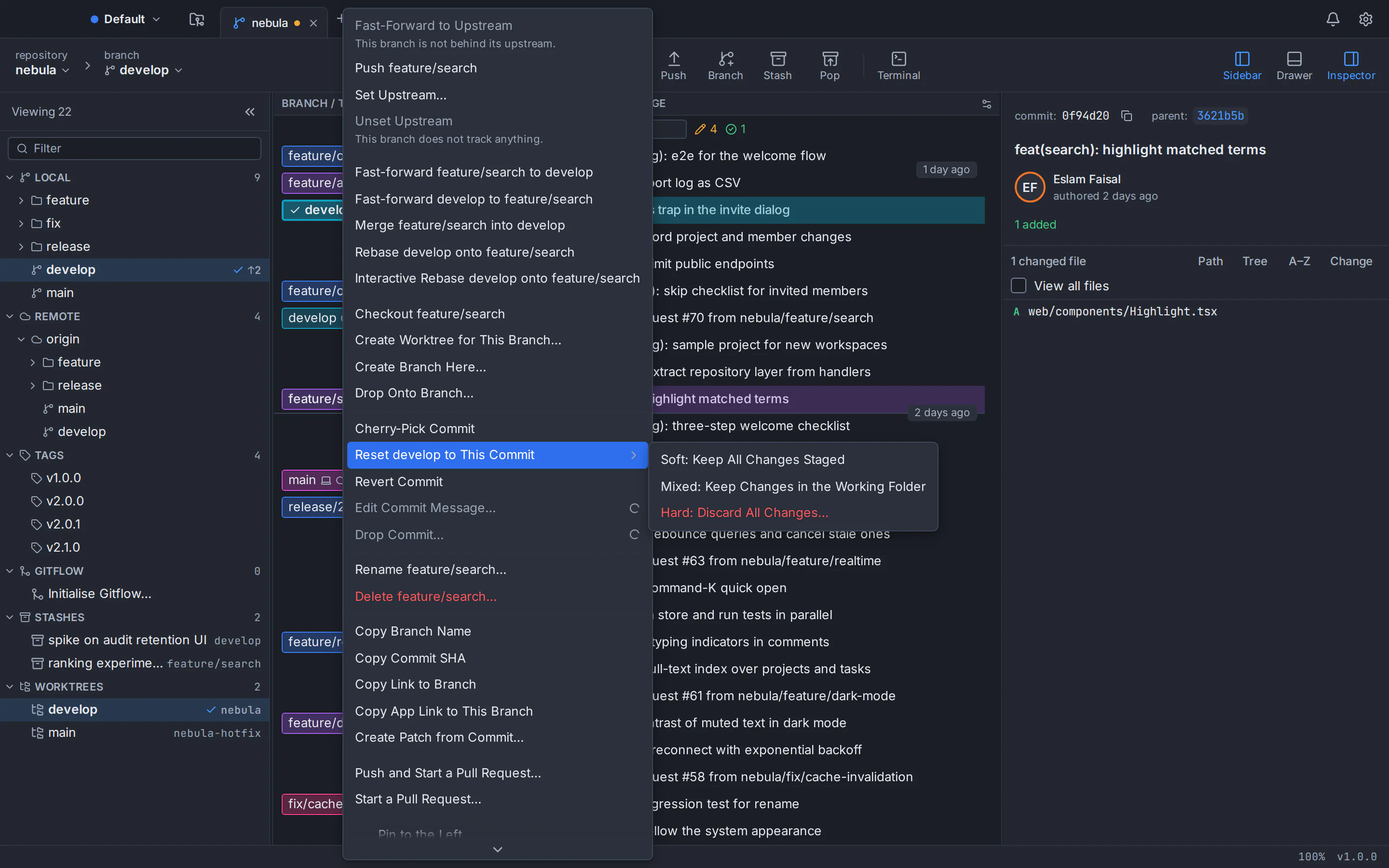
- A WORKTREES section in the left panel. Every worktree, the main one first, named by its branch (or its folder when detached), with a check mark on the one open in this tab. Locked, detached and missing worktrees are labelled.
- Sibling worktrees on branch tips. The commit graph marks each other worktree on its branch tip with the number of changes it holds, a quick way to see which agents are still editing. Clicking the marker opens that worktree’s tab.
- Create a worktree from where you are. Create Worktree… in the command palette or Create Worktree from This Commit… on a commit lets you choose a new branch or a detached checkout, then the folder; Create Worktree for This Branch… on a branch checks out that branch in the new folder.
- One tab per worktree, with its own terminal. Open Worktree in a New Tab opens it like any repository, and the built-in terminal under the graph starts in that worktree’s folder with your own shell, so you can start
claudeorcodexright there. - Lock, move, remove, prune and repair. Lock with an optional reason, move a folder or remove it. Git refuses to remove a worktree with uncommitted changes, and the branch stays. Prune Stale Worktrees previews what Git would delete, and Repair Worktree Links, run from a worktree you moved by hand, reconnects it.
Each action runs the Git you already have installed, so the result matches the command line:
| Task | Command line | In GitTree |
|---|---|---|
| Create | git worktree add -b <branch> <path> <start> | Create Worktree… (command palette, commit or branch menu) |
| List | git worktree list | WORKTREES section and markers on branch tips |
| Open | cd <path> | Open Worktree in a New Tab |
| Lock | git worktree lock --reason "<text>" <path> | Lock Worktree… (reason optional) |
| Move | git worktree move <path> <new-path> | Move Worktree… |
| Remove | git worktree remove <path> | Remove Worktree… |
| Prune | git worktree prune | Prune Stale Worktrees… (with a preview) |
| Repair | git worktree repair | Repair Worktree Links |
The GitTree features page lists everything else the app does, and Git GUI vs command line covers when each approach is faster.
Merging the work of several AI agents
Because branches are shared, your main worktree sees every agent’s branch the moment the agent commits. Treat each one like a pull request from a teammate: trusted, but reviewed.
- Read the diff first. Compare the agent’s branch with
mainhunk by hunk, and look for unrelated edits, deleted tests and new dependencies. - Check for overlap. GitTree predicts conflicts before a merge, warns beside a branch name when it would conflict with
main, and hints when other unmerged branches touch the same files, all computed on your computer. With several agent branches, that shows which merge order hurts least. - Tidy the history. Squash checkpoint commits with an interactive rebase in a GUI, inside that agent’s worktree: Git won’t check out a branch that is checked out in another folder.
- Merge or open a pull request. Merge from your main worktree, or drag the agent’s branch onto
mainin GitTree to merge, rebase or start a pull request. - Keep a way back. If two agents changed the same lines, see how to resolve Git merge conflicts; if a merge goes wrong, you can undo a merge, reset or rebase.
- Clean up. Remove the worktree, then delete the merged branch.
git switch main
git merge --no-ff agent/auth-refactor
git worktree remove ../myapp-auth
git branch -d agent/auth-refactorGit worktree pitfalls with AI coding agents
- Forcing one branch into two worktrees.
--forcegets around Git’s refusal at the cost of two folders fighting over one branch. Open the existing worktree instead; GitTree tells you where that branch is checked out. - Assuming worktrees isolate everything. They isolate files, not services. Agents that start dev servers on the same port or migrate the same local database still collide, so give each worktree its own port and test database.
- Deleting or moving folders by hand. Git keeps a record of every worktree. A deleted folder’s record lingers until
git worktree prune(or, much later, Git’s automatic cleanup) removes it;git worktree repair, run inside a folder you moved, reconnects it. Lock worktrees on drives that aren’t always mounted so pruning leaves them alone. - Force-removing unreviewed work.
git worktree removerefuses a worktree with changes unless you add--force, so read the diff first. Claude Code’s non-interactive-pruns leave their worktrees locked until a later session releases them; unlock one before removing it yourself. - Closing the tab that runs the agent. In GitTree, the built-in terminal belongs to its repository tab, and closing the tab stops its terminal sessions, including an agent running in one.
- Running more agents than you can review. Review is the real bottleneck. Start with two or three parallel tasks and add more once merging them feels routine.
Try worktrees on your next task
Git’s worktree commands are all you need to start, and a GUI makes several worktrees easier to watch. GitTree is free today, private repositories included, on macOS, Windows and Linux. It needs a free GitTree account and Git 2.39 or newer; on Ubuntu 22.04, upgrade Git on Ubuntu first. Follow the Linux install guide or visit the GitTree download page.
Frequently asked questions
What is the difference between git worktree and git clone?
A clone copies the whole repository into a new folder with its own object database, so its branches and commits reach another clone only through a push and a fetch. A worktree is an extra folder of the same repository: commits and branches are shared at once, while each folder keeps its own files, branch and staging area.
Can two git worktrees have the same branch checked out?
Not by default. Git refuses to create a worktree for a branch that is already checked out in another worktree, and the force option that overrides this is best left alone. Give every worktree, and so every AI agent, its own branch, created from the same commit if they need the same starting point.
Does Claude Code support git worktrees?
Yes. Claude Code’s documentation describes a --worktree flag, or -w for short, that creates a worktree under .claude/worktrees on a new branch and starts the session inside it. You can also create a worktree with git worktree add, change into its folder and start Claude Code there, which works the same way for Codex.
How do I delete a git worktree safely?
Run git worktree remove with the folder path. Git refuses while the worktree has uncommitted changes or untracked files, so review or commit them first and use the force option only when you are sure. The branch is kept, so delete it separately once merged. If you deleted the folder by hand, git worktree prune clears the leftover record.
Do git worktrees share node_modules, .env or build files?
No. A new worktree contains only the files Git tracks. Installed dependencies, environment files and build output stay in the folder where they were created, so each worktree needs its own install and its own copy of local configuration. For the worktrees it creates, Claude Code can copy chosen ignored files through a .worktreeinclude file.
What is the best git worktree manager with a GUI?
Look for a client that lists every worktree, shows each one’s branch and whether it holds changes, and can add, lock, move, remove, prune and repair worktrees without the terminal. GitTree, free today on macOS, Windows and Linux, does all of that and marks sibling worktrees on their branch tips in the commit graph.
Does GitTree start AI agents in worktrees for me?
No. GitTree manages the worktrees and gives each one its own tab, with a built-in terminal that starts in that worktree’s folder, where you start Claude Code, Codex or another agent yourself. Separately, GitTree can draft commit messages and pull request descriptions through your own Claude Code, Codex or Antigravity CLI when you click Generate.
Sources
Claims about other products were checked against their official pages on October 6, 2026. Prices and features change; the vendors’ pages are the source of truth.