GitTree Docs
How to use GitTree
New to GitTree? Start with step 1 below. Already set up? Search for a task or pick a topic: every guide shows where to click and what you should see.
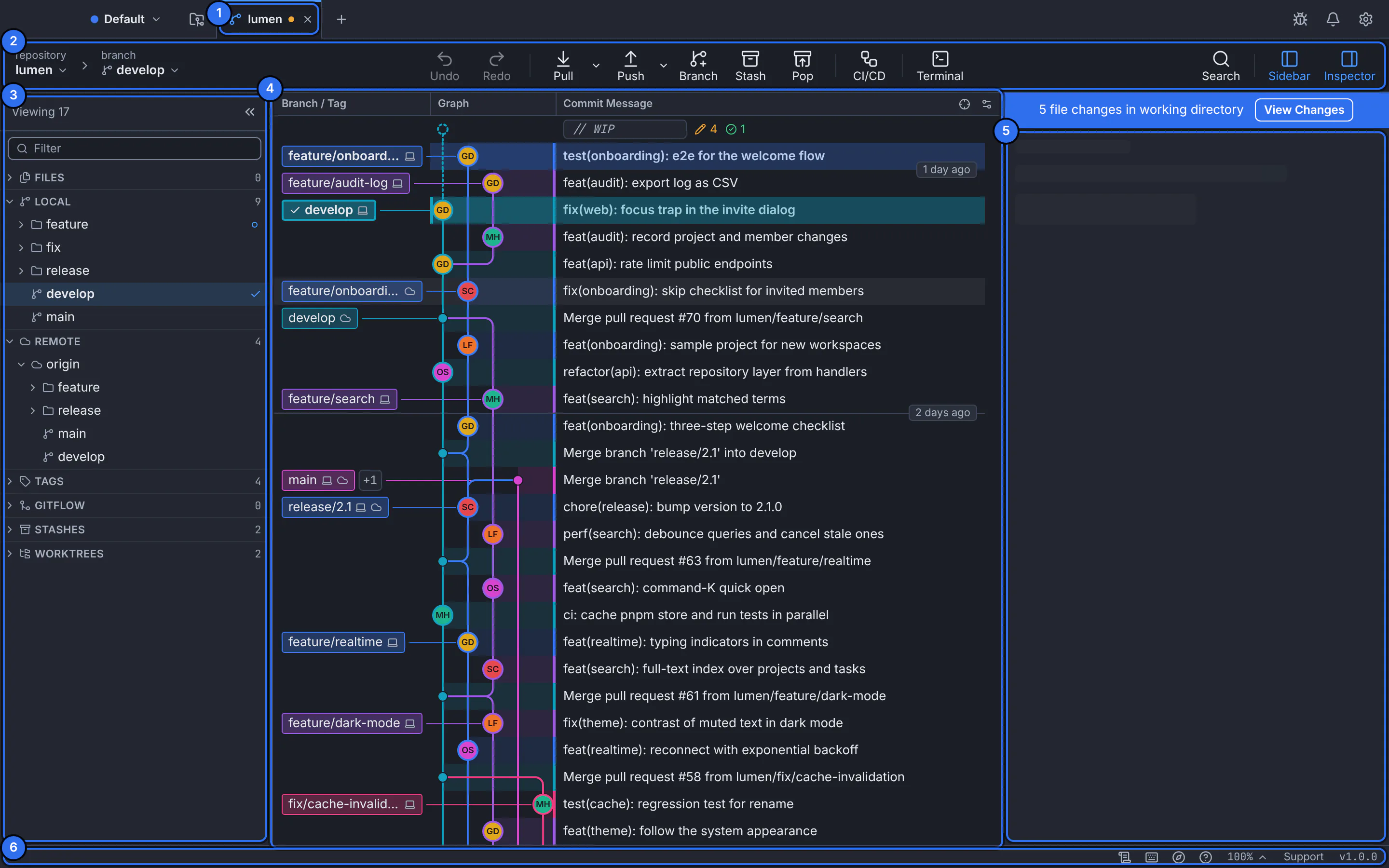
Every capture in these docs is the real GitTree interface, in English and in Arabic.
Start here
Get started in five steps
Follow them in order, from installing GitTree to your first commit. Each step is one short guide.
Install GitTree
Download the installer for your system, install it and open the app.
Connect Git
GitTree uses your own Git, 2.39 or newer, and the name and email your commits carry.
Find your way around
The tab bar, toolbar, sidebar, commit graph, inspector and status bar, and what each one does.
Open a repository
Open a folder you already have, or clone one from GitHub, GitLab, Bitbucket, Azure DevOps or any Git server.
Make your first commit
Stage a change, type a summary and press Commit: the new commit appears at the top of the graph.
Browse by topic
Find any task
Two manuals: the desktop app, section by section, and your account, teams and billing on gittree.app.
Desktop app
The desktop app, section by section. Each guide is one task: what you need first, where the control lives, numbered steps with the real interface, the result and how to recover.
Getting started
8 guides
Your first hour with GitTree: what each part of the window does, a first commit from start to finish, and what is free.
- Use GitTree for your daily work
- Install GitTree on macOS
- Install GitTree on Windows
- Install GitTree on Linux
Repositories
8 guides
Bring a repository into GitTree: open one that is already on your disk, clone one from a server, or start a new one.
- Open an existing repository
- Clone a repository
- Create a repository
- Use recent and favourite repositories
Commit graph
7 guides
The graph is your repository’s history at a glance. Learn to read its lanes and labels, find any commit, and look inside it.
See all 7 guidesChanges and commits
10 guides
From an edited file to a commit: review what changed, choose exactly what goes in, write the message, and fix the last commit when you need to.
- Review working changes
- Stage files, hunks and selected lines
- Write a commit message and commit
- Amend the last commit
Branches and tags
7 guides
Branches let you work on several things at once; tags mark releases. This section covers both, local and remote.
- Create and switch branches
- Rename and delete branches
- Create and manage tags
- Set tracking and publish a branch
Remotes and sync
6 guides
Share your work and pick up your team’s: fetch, pull and push, and what the ahead and behind numbers mean.
See all 6 guidesMerge and resolve
6 guides
Bring branches together: merge or rebase, settle conflicts line by line, and move single commits where you need them.
See all 6 guidesHistory and recovery
10 guides
Change history you have not shared yet, step back when something went wrong, and find out where a line came from.
- Edit history with an interactive rebase
- Squash commits
- Change selected local commits
- Reset a branch to a commit
Stashes and worktrees
6 guides
Switch tasks without losing work: stash changes for later, or open another branch in its own folder with a worktree.
See all 6 guidesFiles and tools
10 guides
The tools around Git: the project’s files, a terminal in the repository folder, the command palette and the shortcuts.
See all 10 guidesHosting integrations
15 guidesPro
Your Git host inside GitTree: pull requests, reviews and checks on GitHub, GitLab, Bitbucket and Azure DevOps.
See all 15 guidesCI/CD
11 guidesPro
Your pipelines next to your commits: what ran, what failed and why, without leaving the app.
See all 11 guidesNour assistant
7 guidesPro
Nour answers questions about your repository and can act in the app, always within the privileges you set and with your approval.
- Set up Nour, the AI assistant
- Ask Nour about your work
- Review Nour app actions
- Draft a commit or pull request
Preferences
12 guides
Make GitTree yours: how it runs Git, who you commit as, how you connect and sign, how it looks, and how to move or reset your settings.
- Find and change Preferences
- Appearance and language
- Configure Git and repository behavior
- Manage Git identities and profiles
Troubleshooting
12 guides
Something went wrong? Each page starts from what GitTree tells you and gives the fix, with no guessing.
- GitTree cannot find Git
- A repository will not open
- Changes are not refreshing
- A remote authentication attempt failed
Account and teams
Everything on gittree.app: signing in from the site and the app, your profile and settings, organizations and their members, your plan and payments, and support tickets.
Get started with your account
4 guides
One GitTree account signs you in to the desktop app and to this site. The app asks you to sign in, and the Free plan covers every local Git feature.
Profile and security
5 guides
What GitTree knows about you, how you sign in, which devices use your account, and how to close it.
See all 5 guidesOrganizations
9 guides
Bring your team together: create an organization, invite people, give them the right role and keep membership tidy.
See all 9 guidesPlans and billing
12 guides
How plans, trials and payments work, from choosing Pro to finding an invoice. Current prices are always on the Pricing page.
- Choose a plan and understand access
- Start an eligible trial
- Choose monthly or yearly access
- Complete checkout
Support tickets
3 guides
Ask the GitTree team a question or report a problem, and follow the conversation until it is answered.
Account troubleshooting
4 guides
When something on the website does not work as expected, start from the message you see.
Popular tasks
What most people come for
The guides readers open most once they are set up.
- Changes and commitsStage files, hunks and selected linesA commit contains only what you stage. In GitTree you stage a whole file, one hunk of it, or just the lines you pick in the diff, and the rest of your edits stay in the working folder for a later commit.
- Merge and resolveResolve merge conflictsA conflict happens when both branches changed the same lines. GitTree’s resolver shows the two versions side by side, A and B: tick the lines to keep in each conflict, check the Output, then Save and continue the merge, rebase or cherry-pick.
- History and recoveryUndo and redoGitTree records your Git operations so Undo in the toolbar can take the last one back: a commit, merge, rebase, reset, discard, clean, deleted branch or tag. Redo does it again. Destructive steps save a recovery snapshot under
refs/ogt/trashbefore they run. - History and recoveryEdit history with an interactive rebaseAn interactive rebase rewrites the commits above a chosen one: keep, reword, edit, squash, fix up or drop each, and drag them into a new order, like
git rebase -i. For a single change, Edit History in a commit’s menu does it in one step. - Remotes and syncFetch, pull and pushFetch downloads what is new on your remotes without changing your work. Pull brings your branch’s upstream into it. Push sends your commits to the remote. All three are in the toolbar, with their options in the arrow menus beside them.
- Branches and tagsCreate and switch branchesA branch is a movable name for a line of work. In GitTree, Branch in the toolbar creates one at the commit you are on; right-click any commit to create one there. Double-click a branch label to switch to it.
- Merge and resolveCherry-pick and revert commitsCherry-Pick Commit copies the changes of one commit onto your current branch as a new commit, like
git cherry-pick. Revert Commit adds a new commit that undoes one, likegit revert: the safe way to take back something already pushed. - Stashes and worktreesStash changesA stash puts your uncommitted changes aside and gives you a clean working folder, like
git stash, so you can switch tasks and bring the changes back later. Stash in the toolbar saves everything; the changes panel’s Stash tab chooses exactly what. - History and recoveryReset a branch to a commitResetting moves your current branch to another commit, like
git reset. Soft keeps every change staged, Mixed keeps them in your working folder, Hard discards them. GitTree saves everything underrefs/ogt/trashfirst, so even a hard reset can be undone. - Merge and resolveContinue, skip or abort an operationA merge, rebase, cherry-pick or revert can stop halfway, usually on a conflict. A banner above the graph names the operation and its step, and offers Resolve, Continue, Skip (rebase) and Abort…. Aborting saves what it drops first, so Undo brings it back.