Stash changes
A stash puts your uncommitted changes aside and gives you a clean working folder, like git stash, so you can switch tasks and bring the changes back later. Stash in the toolbar saves everything; the changes panel’s Stash tab chooses exactly what.
Works in GitTree Free: every local Git feature, once you are signed in.
On this page
Before you start
- You have uncommitted changes in the repository.
Where to find it
- Stash and Pop in the toolbar.
- The Stash tab beside Commit at the bottom of the changes panel, for options.
- The Stashes section of the left panel lists your stashes; right-click one for its actions.
| Action | macOS | Windows and Linux |
|---|---|---|
| Stash All Changes | ⌘⇧S | Ctrl+Shift+S |
| Pop Latest Stash | ⌘⇧O | Ctrl+Shift+O |
Steps
Open the Stash tab
Open your changes from the
// WIProw and select the Stash tab under the file lists.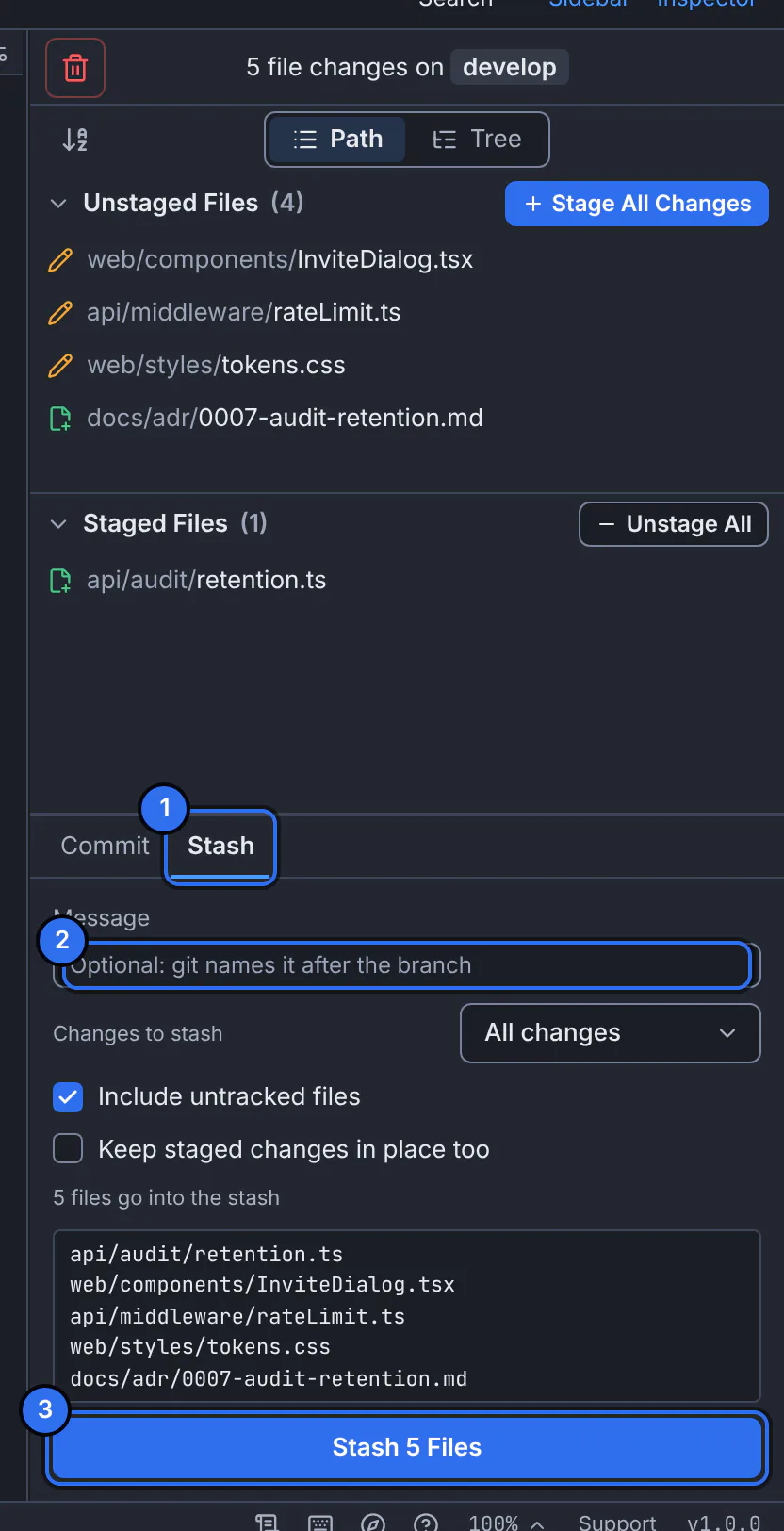
1 the Stash tab, 2 an optional message, 3 the button that stashes.GitTree interface with a demonstration repository. Choose what goes in
Under Changes to stash, pick All changes, Only staged changes or Only the selected files. Turn on Include untracked files for new files too.
Name it and stash
Type a Message so you recognise it later (otherwise Git names it after the branch), and press Stash.
Expected result
GitTree says Stashed your changes. The working folder is clean, and the stash appears in the Stashes section.
Bring a stash back
| Action | What it does |
|---|---|
| Pop Stash | Applies the changes and removes the stash. |
| Apply Stash | Applies the changes and keeps the stash in the list. |
| Show Stash | Shows its files and diff without applying anything. |
| Create Branch from Stash… | Creates a branch at the commit the stash was made on, checks it out and applies the stash there. |
| Rename Stash… | Changes its message. |
| Delete Stash… | Removes it from the list; it is kept in the recovery snapshots, so Undo brings it back. |
If something goes wrong
“The stash conflicts with your changes: resolve the conflicts. The stash is kept.”
Your current files changed the same lines. Resolve the conflicts; the stash stays in the list until you delete it.
“Nothing to stash: there are no changes.”
The working folder is already clean. New files are only stashed with Include untracked files.
Questions
Stash or worktree?
A stash suits a short interruption. To keep working on two branches at once, a worktree gives each its own folder.