Keyboard shortcuts
Most GitTree commands have a shortcut. Press Ctrl+/ (⌘/ on a Mac) for the full list inside the app, filtered as you type; Customize… there changes any of them. The tables below list the defaults.
Works in GitTree Free: every local Git feature, once you are signed in.
On this page
Before you start
- On a Mac, ⌘ is Command, ⌥ Option, ⇧ Shift and ⌃ Control. On Windows and Linux, the same shortcuts use Ctrl, Alt and Shift.
Where to find it
- Keyboard Shortcuts in the status bar, or the shortcut below.
- Menus and the command palette show each command’s shortcut beside its name.
| Action | macOS | Windows and Linux |
|---|---|---|
| Keyboard Shortcuts | ⌘/ | Ctrl+/ |
| Command Palette… | ⌘⇧P | Ctrl+Shift+P |
Steps
Open the list
Press Ctrl+/ (⌘/ on a Mac). The sheet lists every shortcut, generated from the commands you can run, grouped by area.
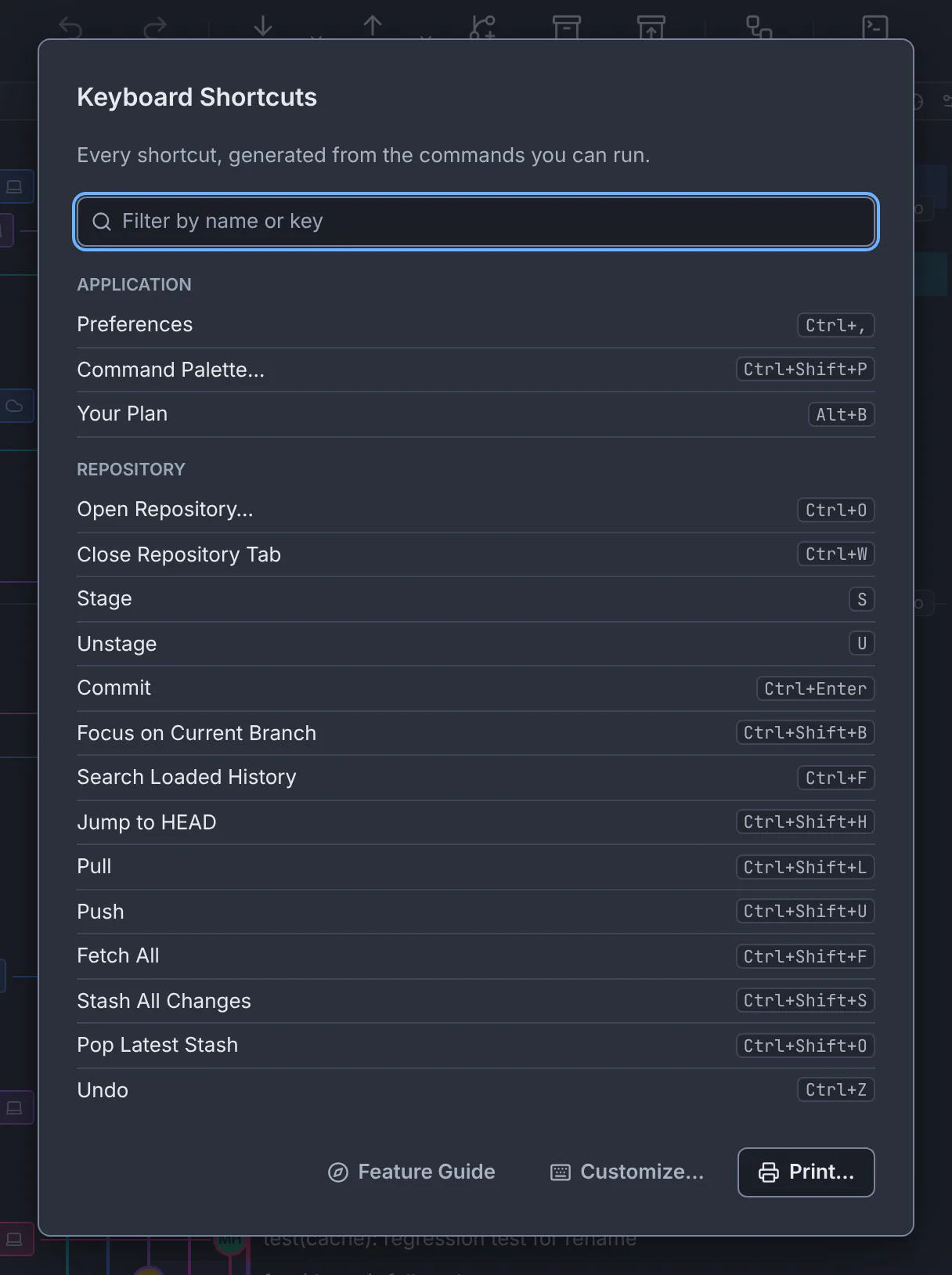
The list in the app is built from the commands themselves, so it always matches your version.GitTree interface with a demonstration repository. Filter it
Type in Filter by name or key, such as
pushorCtrl+Shift. Print… prints what is listed.Change a shortcut
Choose Customize…, find the command and use Change, Remove or Reset. A shortcut another command already uses is not saved.
Expected result
Your shortcuts work in every repository tab and are saved with your preferences.
App and windows
| Action | macOS | Windows and Linux |
|---|---|---|
| Open Repository… | ⌘O | Ctrl+O |
| New Tab | ⌘T | Ctrl+T |
| Close Repository Tab | ⌘W | Ctrl+W |
| Preferences | ⌘, | Ctrl+, |
| Command Palette… | ⌘⇧P | Ctrl+Shift+P |
| Keyboard Shortcuts | ⌘/ | Ctrl+/ |
| Feature Guide | ⌥H | Alt+H |
Panels and zoom
| Action | macOS | Windows and Linux |
|---|---|---|
| Toggle Sidebar | ⌘J | Ctrl+J |
| Toggle Inspector | ⌘K | Ctrl+K |
| Toggle Bottom Drawer | ⌥T | Alt+T |
| Toggle Full View | ⌘⇧F12 | Ctrl+Shift+F12 |
| Zoom In | ⌘= | Ctrl+= |
| Zoom Out | ⌘- | Ctrl+- |
| Actual Size | ⌘0 | Ctrl+0 |
Changes and sync
| Action | macOS | Windows and Linux |
|---|---|---|
| Stage | S | S |
| Unstage | U | U |
| Commit | ⌘Enter | Ctrl+Enter |
| Undo | ⌘Z | Ctrl+Z |
| Redo | ⌘⇧Z | Ctrl+Shift+Z |
| Fetch All | ⌘⇧F | Ctrl+Shift+F |
| Pull | ⌘⇧L | Ctrl+Shift+L |
| Push | ⌘⇧U | Ctrl+Shift+U |
| Stash All Changes | ⌘⇧S | Ctrl+Shift+S |
| Pop Latest Stash | ⌘⇧O | Ctrl+Shift+O |
Graph, files and diffs
| Action | macOS | Windows and Linux |
|---|---|---|
| Search Loaded History | ⌘F | Ctrl+F |
| Jump to HEAD | ⌘⇧H | Ctrl+Shift+H |
| Focus on Current Branch | ⌘⇧B | Ctrl+Shift+B |
| Show Files | ⌘⇧E | Ctrl+Shift+E |
| Next Change | F7 | F7 |
| Previous Change | ⇧F7 | Shift+F7 |
Nour and CI/CD (Pro)
| Action | macOS | Windows and Linux |
|---|---|---|
| Show or Hide Nour | ⌘⇧Space | Ctrl+Shift+Space |
| Show CI/CD | ⌥P | Alt+P |
| Refresh CI/CD | ⌥⇧R | Alt+Shift+R |
| Re-run Failed Jobs | ⌥⇧F | Alt+Shift+F |
If something goes wrong
A shortcut does nothing
Some keys work only where they apply: Stage and Unstage in the changes list, Next Change in a diff. Others may be taken by your system or customized; check Keyboard Shortcuts in the app.
Questions
Why do some shortcuts differ on my computer?
Chords a platform cannot deliver are not shown there, and any shortcut you customized replaces the default. The list in the app is always the one in effect.