Use recent and favourite repositories
The new tab lists the repositories you opened under Recent and the ones you starred under Favourites. Select one to open it in a tab. The lists stay on this computer.
FreeUpdated
Works in GitTree Free: every local Git feature, once you are signed in.
On this page
Before you start
- You have opened at least one repository before; the lists start empty.
Where to find it
- The new tab: Recent and Favourites.
- The command palette: Toggle Favourite and Remove from Recents for the repository in front.
| Action | macOS | Windows and Linux |
|---|---|---|
| New Tab | ⌘T | Ctrl+T |
| Open Repository… | ⌘O | Ctrl+O |
Steps
Open a new tab
Press + beside your tabs, or the shortcut. Recent lists repositories in the order you last opened them.
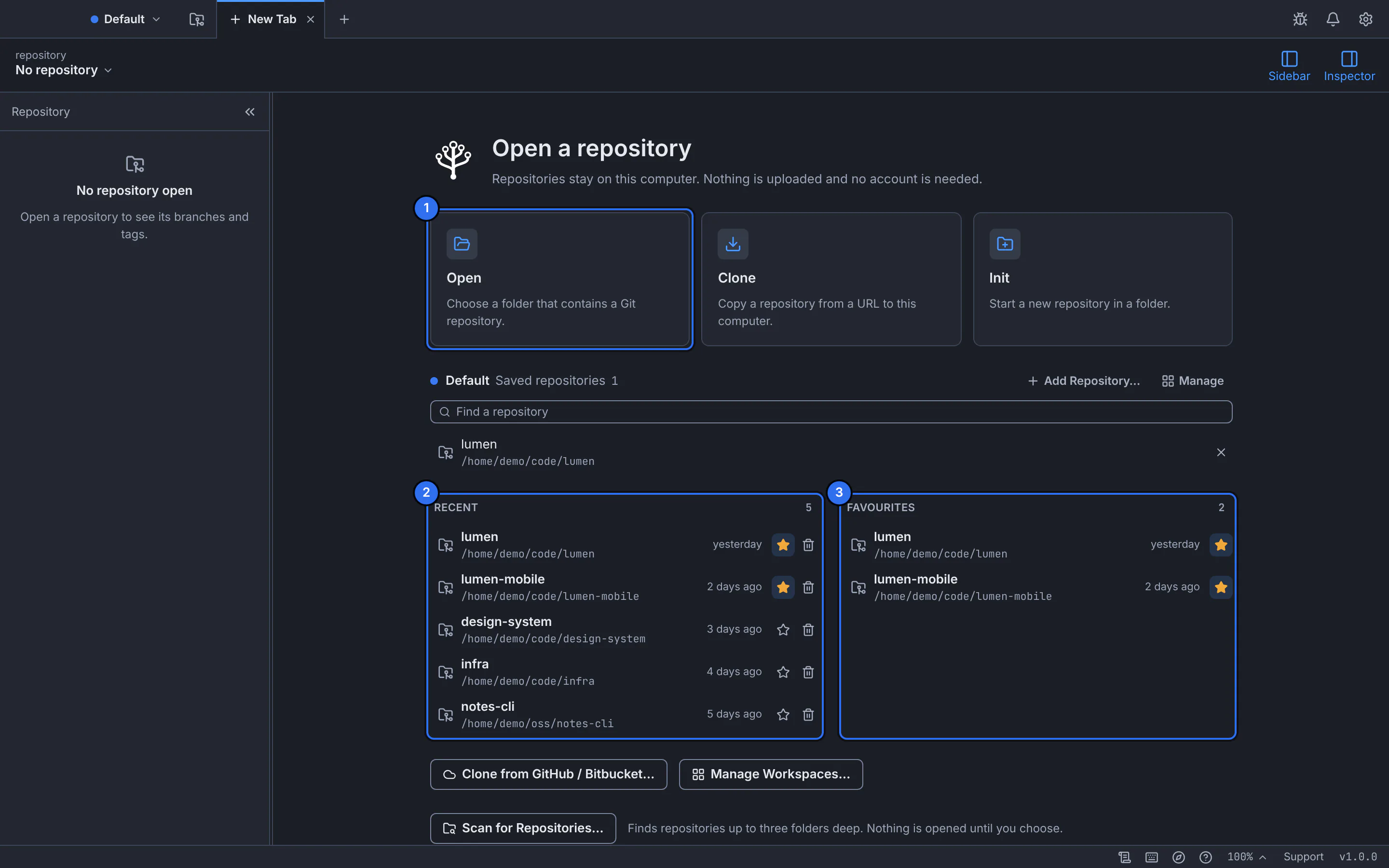
1 open a folder, 2 recent repositories, 3 favourites.GitTree interface with a demonstration repository. Star the ones you use most
Select the star beside a repository, or run Toggle Favourite. It appears under Favourites and stays there whatever you open later.
Open one
Select a repository in either list. It opens in its own tab.
Expected result
Your everyday repositories are one click away on every new tab.
Keep the lists tidy
- Remove from Recents takes a repository off the list; its folder is not touched.
- Starring again, or Toggle Favourite, removes it from Favourites.
- For many repositories, group them in workspaces.
If something goes wrong
A recent repository will not open
Its folder was moved or deleted. Remove it from Recents and open it from its new place.
Questions
Are my recent repositories shared or synced?
No. The lists stay on this computer and are never sent anywhere.