Git guides
How to Resolve Git Merge Conflicts on the Command Line and in a Three-Way Editor
How to resolve merge conflicts in Git: read the conflict markers, fix them with plain Git commands or in a visual three-way editor, and see conflicts coming before you merge. Plus rerere, aborting safely and undoing a merge.
To resolve merge conflicts in Git, open each file Git reports as conflicted, decide what the code should be between the <<<<<<<, ======= and >>>>>>> markers, delete the markers, stage the file with git add, and finish with git commit (or git merge --continue). To back out instead, run git merge --abort. This guide walks through that loop on the command line, then in a visual three-way editor, and ends with the habits that make conflicts rarer and easy to undo.
The visual examples use GitTree, the free Git client we make for macOS, Windows and Linux. It runs the Git installed on your computer, so clicking and typing give the same result; the GitTree feature list has the wider picture.
What a merge conflict in Git actually is
Git merges line by line using three versions of each file: the base (the last commit both branches share), ours (your current branch, HEAD) and theirs (the incoming branch, MERGE_HEAD). If only one side changed a region, Git takes that change. If both sides changed the same lines differently, Git stops, writes both versions into the file and leaves the decision to you.
The same thing can happen in git pull, git rebase, git cherry-pick, git revert and git stash pop. The fix is identical; only the final command differs. git status labels each conflicted path:
- both modified: both branches changed the same lines. This is the common case.
- deleted by us / deleted by them: one side deleted the file and the other changed it, so you keep the changed file or confirm the deletion.
- both added: each branch created a different file at the same path.
How to fix merge conflicts on the command line
1. Find the conflicted files
Git lists the conflicts the moment the merge stops, and git status keeps the list until you finish. git diff --name-only --diff-filter=U prints just the unmerged paths.
$ git merge feature/login
Auto-merging src/auth.ts
CONFLICT (content): Merge conflict in src/auth.ts
Automatic merge failed; fix conflicts and then commit the result.

$ git status
On branch main
You have unmerged paths.

Unmerged paths:
  (use "git add <file>..." to mark resolution)
        both modified:   src/auth.ts
2. Read the conflict markers
Everything outside the markers merged cleanly. The block after <<<<<<< HEAD is your current branch, the block before >>>>>>> feature/login is the incoming one, and the ======= line separates them.
export const retries = 3;
<<<<<<< HEAD
export const timeout = 45;
=======
export const timeout = 60;
>>>>>>> feature/login
export const debug = false;
Two versions are often not enough to decide. Set Git’s zdiff3 conflict style once, and every conflict also shows the base, after a ||||||| line:
$ git config --global merge.conflictStyle zdiff3

<<<<<<< HEAD
export const timeout = 45;
||||||| 556e564
export const timeout = 30;
=======
export const timeout = 60;
>>>>>>> feature/login
Now you can see that main raised the timeout from 30 to 45 and the feature branch to 60: decide which value the product needs, not which branch wins.
3. Edit the file and mark it resolved
Write the code you want (one side, the other, a mix or something new) and delete every marker line. Let Git check for leftovers before you stage, because a stray ======= committed by accident is a classic broken build.
$ git diff --check          # lists any leftover conflict markers
$ git add src/auth.ts
$ git commit                # or: git merge --continue
If one side’s version of the whole file is right, take it directly:
$ git checkout --ours -- src/auth.ts     # keep the current branch's version
$ git checkout --theirs -- src/auth.ts   # keep the incoming version
$ git add src/auth.ts4. Finish the operation
When every file is staged, continue whatever stopped: git commit (or git merge --continue), git rebase --continue, git cherry-pick --continue or git revert --continue. A rebase can stop again on a later commit; repeat the loop.
| Command | What it shows |
|---|---|
git diff | A combined diff of each conflicted file against both sides |
git log --merge -p <path> | The commits on each side that touched the file, with their diffs |
git show :1:<path> | The base version of the file |
git show :2:<path>, git show :3:<path> | Your version (HEAD) and the incoming version (MERGE_HEAD) |
git mergetool | Opens the merge tool configured in Git, one conflicted file at a time |
Resolve merge conflicts in a GUI: a three-way Git conflict resolver
Markers are fine for a two-line clash. With a dozen conflicts in a long file, a GUI conflict resolver is faster and much harder to get wrong. A good Git merge conflict tool shows all three versions together, lets you decide conflict by conflict and refuses to save while markers remain.
In GitTree, a merge that stops shows a banner with the number of conflicts and a list of the conflicted files. Open one and the editor takes the whole window: the current and incoming branches side by side at the top, each labelled with its branch name, and the Output, the file as it will be saved, underneath.
- Per conflict: take the current side, the incoming side, both or neither, or pick single lines from each.
- Edit Output by hand for anything the buttons do not cover.
- Show Base to see the common ancestor (Git writes it when
merge.conflictStyleisdiff3orzdiff3). - Undo Choice to step back through your decisions.
- Deleted files: when one side deleted a file the other changed, keep that side’s file or confirm the deletion.
GitTree will not save a result that still contains marker lines. It can also open the file in your external merge tool: VS Code, Cursor, JetBrains IDEs, Beyond Compare, Meld, KDiff3, P4Merge, WinMerge, a custom program, or Git’s own merge.tool. If the tool closes without resolving the file, the file stays conflicted.
How to resolve a merge conflict in GitTree, step by step
Start the merge
Open the branch menu on the branch you want to bring in and merge it into your current branch, or drag one branch onto another. The menu names both branches, so the direction is never a guess.
Read the conflict preview
Before anything changes, the merge dialog says the branches merge without conflicts or lists the files where it will stop. Choose how to record the merge, then confirm.
Open the conflicted files
If the merge stops, the banner counts the conflicts and the file list shows each conflicted file. Open the first one in the three-way editor.
Decide each conflict
Take the current side, the incoming side, both or neither, pick single lines, or edit the Output. Use Show Base to see the code before either branch changed it.
Save and mark the file resolved
Choose Save and Mark Resolved. GitTree writes and stages the file, then you move on to the next one. It refuses while conflict marker lines remain.
Commit the merge
When every file is resolved, choose Commit and Merge (Continue Rebase for a rebase). Changed your mind later? Reset the branch to the commit it was on before the merge from the commit menu; GitTree snapshots the reset first, so Undo can reverse it.
Predict merge conflicts before you merge
Since Git 2.38, git merge-tree --write-tree performs a merge in memory without reading or writing your working tree or index, and without making a commit. With --name-only it lists the files that would conflict; the exit status is 1 when there are conflicts and 0 when the merge would be clean.
$ git fetch
$ git merge-tree --write-tree --name-only HEAD origin/main
0d708adc4a836d088802870278cb1f3daf06355f
src/auth.ts

Auto-merging src/auth.ts
CONFLICT (content): Merge conflict in src/auth.ts
GitTree runs this preview for you: the merge dialog shows the predicted result before you confirm. After each fetch, it also checks your branch against its upstream and the base branch (main or master unless you set another) and shows a warning beside the branch name, such as “Would conflict with main in 2 files”. A second hint marks files you are changing that other fetched, unmerged branches also change.
Both checks use only what you have already fetched: nothing is fetched, merged or changed to compute them, and nothing leaves your computer. Either one can be turned off in Preferences.
Reuse conflict resolutions with git rerere
Rerere stands for “reuse recorded resolution”. With it on, Git records each conflict and how you resolved it. When the identical conflict comes back, say on a repeated rebase of a long-lived branch or a merge you redo, Git writes your earlier resolution into the file.
$ git config --global rerere.enabled true
$ git rerere forget src/auth.ts   # drop a recorded resolution that was wrong
Git leaves the reused result unstaged for review unless rerere.autoUpdate is set. In GitTree, the repository settings have Reuse recorded resolutions (rerere) and Stage reused resolutions switches for those Git options; the conflict view labels a reused resolution, and Forget Resolution deletes a wrong one.
How to abort a merge safely
If a conflict is bigger than you have time for, back out with the matching abort:
$ git merge --abort
$ git rebase --abort
$ git cherry-pick --abort
$ git revert --abort
Git’s own documentation warns that git merge --abort cannot always rebuild uncommitted changes you had when the merge started. Commit or stash before you merge, and the abort only has committed work to restore.
In GitTree, Abort Merge (or Abort Rebase, Cherry-Pick, Revert) explains first that Git restores the branch, index and working copy from before the operation and drops the resolutions made so far. GitTree saves everything the abort drops, staged or not, in recovery snapshots, so Undo can bring it back.
How to undo a merge after you committed it
What to do depends on whether you have pushed the merge:
# Not pushed yet, right after the merge:
$ git reset --hard ORIG_HEAD     # also discards uncommitted changes
$ git reset --merge ORIG_HEAD    # keeps uncommitted changes

# Already pushed:
$ git revert -m 1 <merge-commit> # a new commit that reverses it
A merge saves your branch’s previous tip in ORIG_HEAD, so resetting to it removes the merge, unless a later reset or rebase moved ORIG_HEAD. Once others have the merge, revert instead. Reverting a merge tells Git you never want those changes: merging that branch again will not bring them back unless you revert the revert.
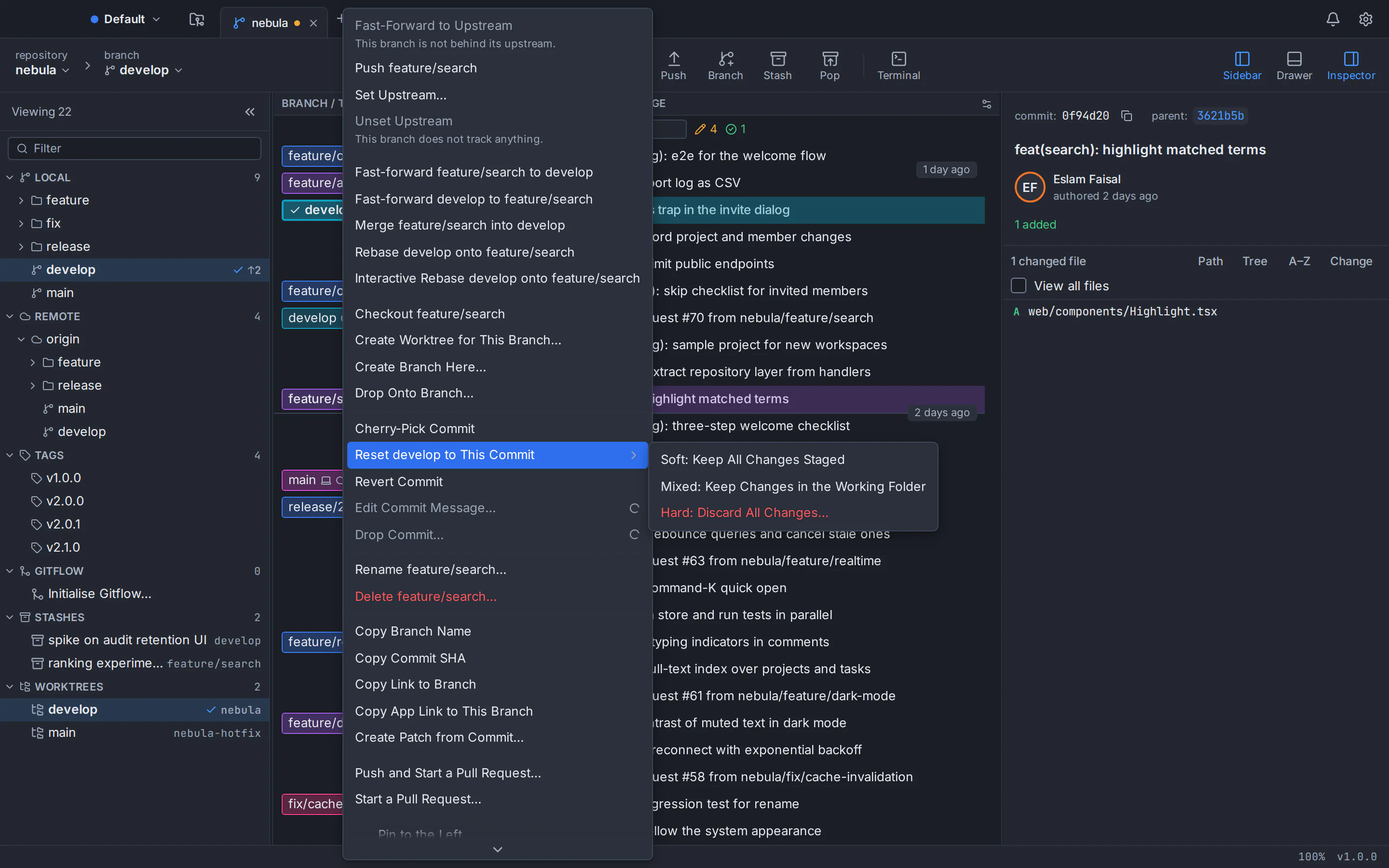
In GitTree, select the merge’s first parent (the commit your branch was on before) in the graph and choose a soft, mixed or hard reset to it from the commit menu, each labelled with what it keeps. GitTree snapshots 19 kinds of operation before they run, resets included, so Undo can reverse the reset, and the reflog view recovers older states. The guide to undoing a reset, rebase or commit covers recovery in depth.
How to prevent most merge conflicts
- Keep branches small and short-lived. The longer two branches diverge, the more lines they both touch.
- Bring the base branch in often, not once at the end.
- Separate formatting from logic. Agree on one formatter and land whole-file reformatting on its own.
- Regenerate lockfiles instead of hand-merging them. Take either side, then run your package manager again.
- Turn on zdiff3 and rerere once. Two commands, lasting benefit.
- Commit or stash before integrating, so every abort and undo is exact.
Still weighing the terminal against a GUI? Git GUI vs command line compares both honestly.
GitTree is free today, private repositories included; it needs a free account and Git 2.39 or newer. Get it for macOS, Windows or Linux, or see every installer on the GitTree download page. On Ubuntu 22.04, upgrade Git first. Stuck on a stubborn conflict? Ask GitTree support.
Frequently asked questions
What causes a merge conflict in Git?
A merge conflict happens when two branches change the same lines of a file in different ways, or when one branch deletes a file the other modified. Git combines changes to different parts of a file automatically, but it cannot choose between two edits to the same lines, so it stops and asks you to decide.
Is it safe to abort a merge with conflicts?
Yes, if you committed or stashed your own work first. git merge --abort restores the branch, index and working tree from before the merge and discards your resolutions. Uncommitted edits you had before the merge may not come back exactly, which is why committing or stashing first matters. GitTree snapshots whatever an abort drops, so Undo can recover it.
What do ours and theirs mean in a Git conflict?
In a merge, “ours” is the branch you are on (HEAD) and “theirs” is the branch being merged in. In a rebase they swap: “ours” is the branch you are rebasing onto and “theirs” is your own commit being replayed. That is why git checkout --ours surprises people mid-rebase. GitTree labels each side with its branch name and role.
How do I undo a merge that I already committed?
If you have not pushed, run git reset --hard ORIG_HEAD right after the merge, or git reset --merge ORIG_HEAD to keep your uncommitted changes. If the merge is already on a shared branch, run git revert -m 1 <merge-commit> to reverse it without rewriting history. In GitTree, reset the branch to the merge’s first parent from the commit menu; the reset is snapshotted first, so Undo can reverse it if you change your mind.
What is the best tool to resolve Git merge conflicts?
Look for a merge conflict tool that shows three versions at once (your side, the incoming side and the common base), lets you decide conflict by conflict, and will not save a file with markers left in it. GitTree includes a three-way editor like that and can also hand a file to the merge tool you already use. Either way, turn on zdiff3.
Can Git resolve the same conflict automatically next time?
Yes, with rerere. Run git config --global rerere.enabled true and Git records how you resolve each conflict. When exactly the same conflict appears again, for instance during a repeated rebase, Git writes your earlier resolution into the file. You still review and stage it unless rerere.autoUpdate is on. GitTree shows when a resolution was reused.
Sources
Claims about other products were checked against their official pages on October 6, 2026. Prices and features change; the vendors’ pages are the source of truth.
- Git documentation: git merge (how conflicts are presented and resolved, --abort, ORIG_HEAD)
- Git documentation: git merge-tree (--write-tree, --name-only, exit status)
- Git 2.38 release notes (the new git merge-tree mode)
- Git documentation: git config (merge.conflictStyle, rerere.enabled, rerere.autoUpdate)
- Git documentation: git rerere
- Git documentation: git checkout (--ours and --theirs)
- Git documentation: git diff (--check)
- Git documentation: git mergetool
- Git documentation: git reset (undo a merge with ORIG_HEAD)
- Git documentation: git revert (-m for merge commits)