How to merge one Git branch into another
Merging takes two commands, but the direction trips people up, and Git may fast-forward or create a merge commit. Here is the exact sequence, what fast-forward means, and which option to use when.
Written by Kodmora
The software house behind GitTree
- Merge
- Branches
- Merge conflicts
On this page
To merge `feature` into `main`, switch to the branch that receives the commits, then merge the other one: `git switch main` followed by `git merge feature`. The branch you are on is the one that changes. If main has no new commits, Git fast-forwards it. Otherwise it creates a merge commit, and stops if the two sides conflict.
How do I merge a branch step by step?
# get the latest
git fetch origin

# go to the branch that receives the work
git switch main
git pull --ff-only

# bring the other branch in
git merge feature/search

# publish it
git push
Start with a clean tree: commit or stash first. If you change your mind partway, `git merge --abort` takes you back.
Which way does a merge go?
git merge X always means “bring X into the branch I am on”. So merging feature into main is done from main, while updating feature with the latest main is done from feature:
# keep a feature branch up to date
git switch feature/search
git fetch origin
git merge origin/main
What is a fast-forward merge?
If the receiving branch has no commits of its own since the other branch left it, there is nothing to combine. Git moves the branch pointer forward to the other branch’s latest commit and adds no merge commit. History stays a straight line. Git prints Fast-forward when this happens.
# before
main:    A---B
              \
feature:       C---D

# after a fast-forward merge
main:    A---B---C---D
When both branches have new commits, a fast-forward is impossible, so Git makes a merge commit with two parents. The fast-forward lesson and the lesson on merging diverged branches show both in practice.
What do --ff-only, --no-ff and --squash do?
| Option | Result | Use it when |
|---|---|---|
| (none) | Fast-forward if possible, otherwise a merge commit | Most everyday merges |
--ff-only | Fast-forward, or stop with an error | Updating main from its remote |
--no-ff | Always a merge commit | You want each feature visible in history |
--squash | All changes staged, no commit, no merge recorded | You want one tidy commit |
git merge --ff-only origin/main
git merge --no-ff feature/search

git merge --squash feature/search
git commit -m "feat(search): quick open"
What happens when the merge conflicts?
Git stops and marks the conflicted files. Edit them, git add each one, then run git commit to finish the merge. How to resolve merge conflicts explains the markers.
Can I take one side automatically?
# take their side wherever hunks conflict
git merge -X theirs feature/search

# take our side wherever hunks conflict
git merge -X ours feature/search

# during a merge, take one side of a whole file
git checkout --theirs path/to/file
git add path/to/fileShould I merge or rebase?
Merge keeps history exactly as it happened and never rewrites commits, so it is always safe on shared branches. Rebase replays your commits on top of another branch for a straight line, but it rewrites them, so keep it to branches only you use. The merge versus rebase lesson goes through the trade-offs.
What should I do after merging?
# check that the branch is fully merged
git branch --merged

# delete it locally and on the remote
git branch -d feature/search
git push origin --delete feature/search
How to delete a branch covers the cleanup. To back out a merge that is already pushed, see how to revert a merge commit.
How to merge a branch in GitTree
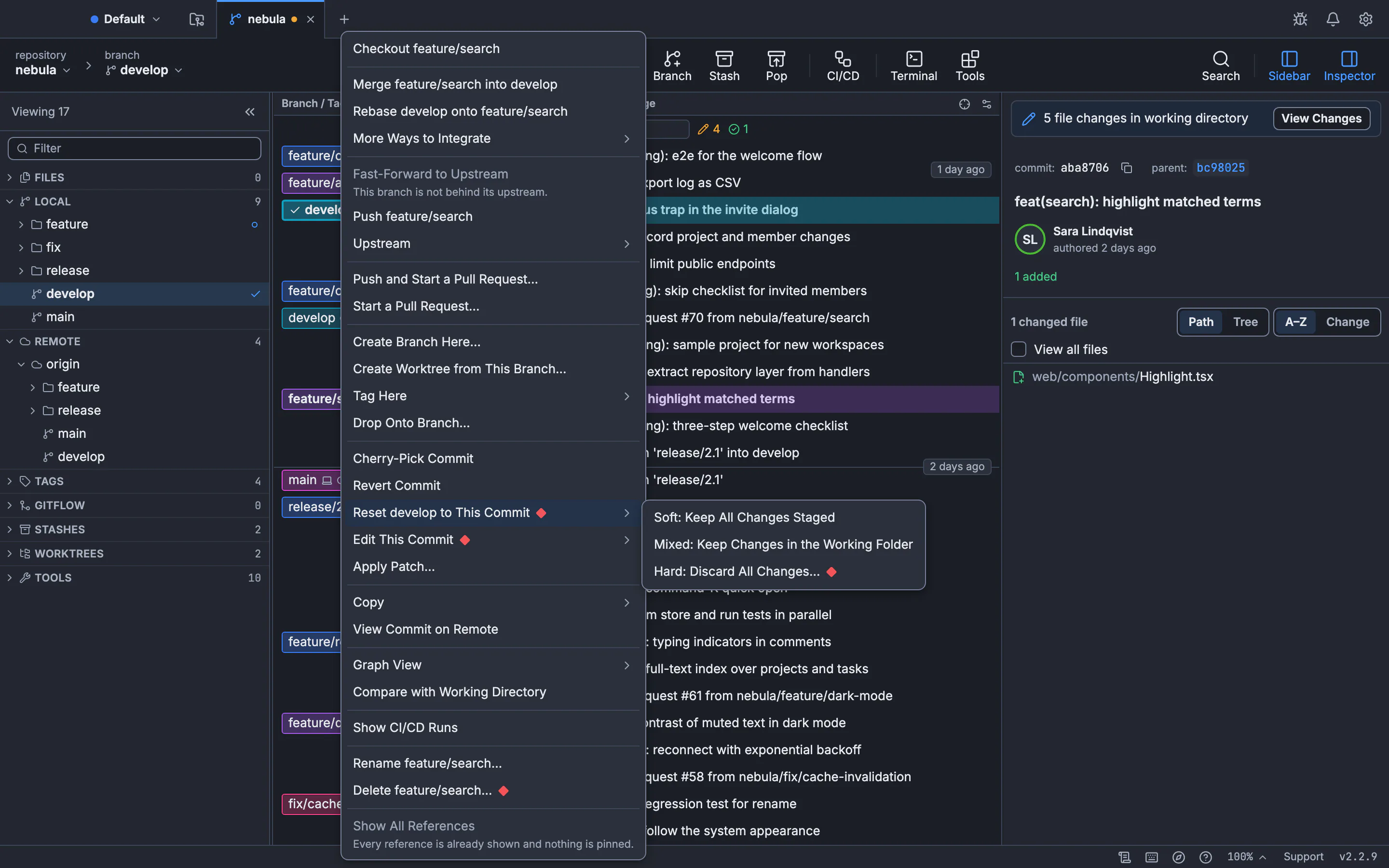
Check out the receiving branch
Double-click the branch that should receive the commits, such as
develop.Choose the branch to merge
Right-click the label of the branch with the new work and choose Merge … into …. You can also drag one label onto the other.
Read the preview
GitTree checks first and tells you Merges without conflicts. or which files will stop with a conflict.
Choose how it is recorded
Under Record it as, pick Fast-forward if possible, else a merge commit, Always a merge commit, Fast-forward only or Squash into staged changes (no commit), then press Merge.
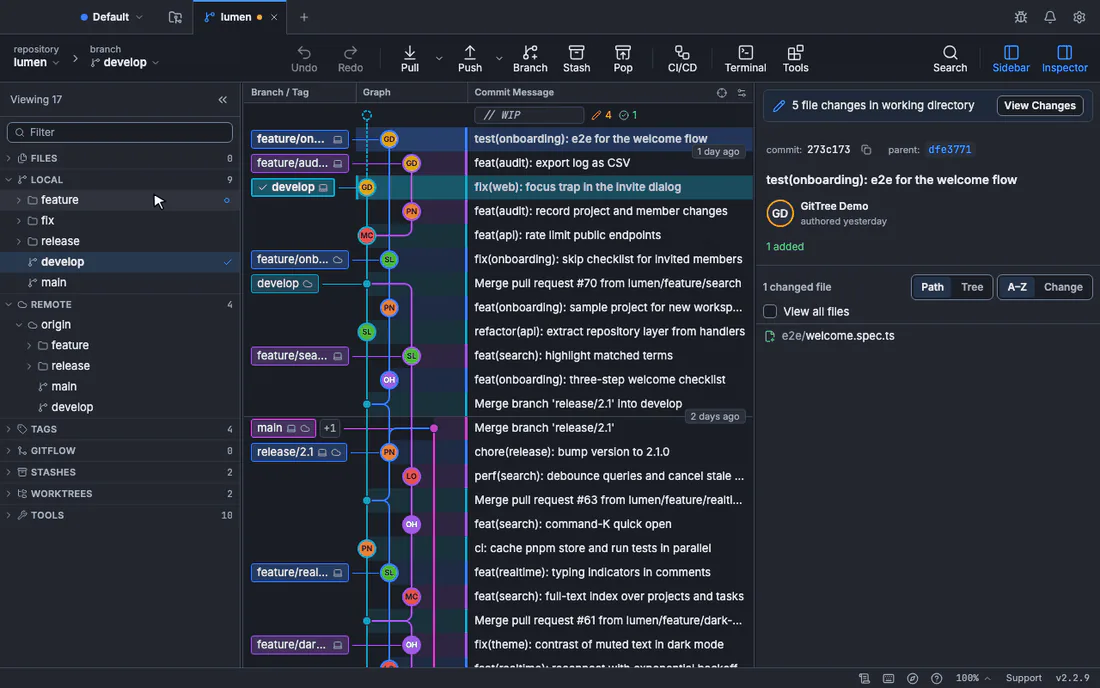
See merge branches for every option.
Frequently asked questions
Does merging delete the other branch?
No. The other branch stays exactly where it was. Delete it yourself when you no longer need it.
How do I merge a branch into main on GitHub?
Open a pull request and press Merge. If you merge locally instead, push main afterwards. Branch protection may require the pull request route.
What does “Already up to date” mean?
The branch you are on already contains every commit of the other branch, so there is nothing to merge. Check that you are on the right branch, and run git fetch if you expected new remote commits.
What does “refusing to merge unrelated histories” mean?
The two branches share no common commit, often because a repository was initialized twice. If you really mean to join them, add --allow-unrelated-histories.
Is a squash merge a real merge?
A squash stages the combined changes without creating a commit or recording merge ancestry. You must commit them yourself. Even afterwards, Git does not record that the source branch was merged, so git branch -d can refuse to delete it.
Sources
Claims about other products were checked against their official pages on November 8, 2026. Prices and features change; the vendors’ pages are the source of truth.