How to Amend the Last Commit in Git (Message, Files, Author and Undo)
Whether you spotted a typo in your commit message, forgot to stage a file, committed a secret by mistake, or used the wrong author email, git commit --amend replaces the tip commit cleanly without cluttering your branch with “fix typo” commits.
Written by Kodmora
The software house behind GitTree
- Commits
- Staging
- Commit history
- Undo and recovery
- Rebase
On this page
To fix the most recent commit on your current branch, run git commit --amend. If nothing is staged, Git replaces the commit with your updated message; if you stage new changes first, Git folds those staged changes into the commit and lets you keep the existing message with --no-edit or rewrite it in place. Prefer a visual workflow? In GitTree on macOS, Windows and Linux, turn on Amend Previous Commit in the commit panel (or right-click the top commit in the graph and choose Edit Commit Message…) to pre-fill the message, stage or unstage individual lines, see a remote-branch warning before rewriting pushed history, and recover anytime with one-click Undo.
Quick reference: every git commit --amend command
Pick the exact command that matches what is wrong with your latest commit—or jump to the detailed section below for edge cases, hooks, signed commits, and visual alternatives.
| What you want to fix | Command to run | What happens to the commit |
|---|---|---|
| Fix a typo in the last commit message (inline) | git commit --amend -m "New message" | Replaces HEAD with a new commit carrying the new message and any currently staged changes |
| Edit a multi-line commit message in your editor | git commit --amend | Opens your configured Git editor with the existing subject and body pre-filled |
| Reword only the message (ignore staged files) | git commit --amend --only -m "New message" | Rewrites the commit message of HEAD while leaving your current staging area untouched for the next commit |
| Add a forgotten file and keep the same message | git add <file> && git commit --amend --no-edit | Folds <file> into the last commit without opening the text editor |
| Add specific lines or hunks to the last commit | git add -p && git commit --amend --no-edit | Lets you stage chosen hunks interactively, then folds only those hunks into HEAD |
| Fold all modified tracked files into the last commit | git commit -a --amend --no-edit | Stages every modified or deleted tracked file and amends HEAD in one step (untracked files are ignored) |
| Remove a file committed by mistake (keep on disk) | git restore --source=HEAD~1 --staged <file> && git commit --amend --no-edit | Reverts <file> in the index back to HEAD~1 while keeping your local working tree file intact |
| Fix the author name and email on the last commit | git commit --amend --reset-author --no-edit | Updates the commit author (and timestamp) to match your current user.name and user.email config |
| Update a branch after amending a pushed commit | git push --force-with-lease --force-if-includes | Safely updates the remote branch only if no teammate has pushed new commits and your local reflog includes the remote tip |
Undo an accidental git commit --amend | git reset --soft HEAD@{1} | Moves the branch pointer back to the pre-amend commit while keeping any extra changes staged |
What git commit --amend actually does under the hood
Every Git commit hash is a cryptographic checksum (SHA-1 or SHA-256) computed from five pieces of data: the root tree snapshot, the parent commit hash(es), the author name/email/timestamp, the committer name/email/timestamp, and the commit message. Change even a single character in the message—or the committer timestamp one second later—and the resulting hash is completely different.
# Before git commit --amend:
A --- B --- C  <-- main (HEAD)

# After git commit --amend:
A --- B --- C' <-- main (HEAD)
       \
        C      (still in git reflog as HEAD@{1} until garbage collection)
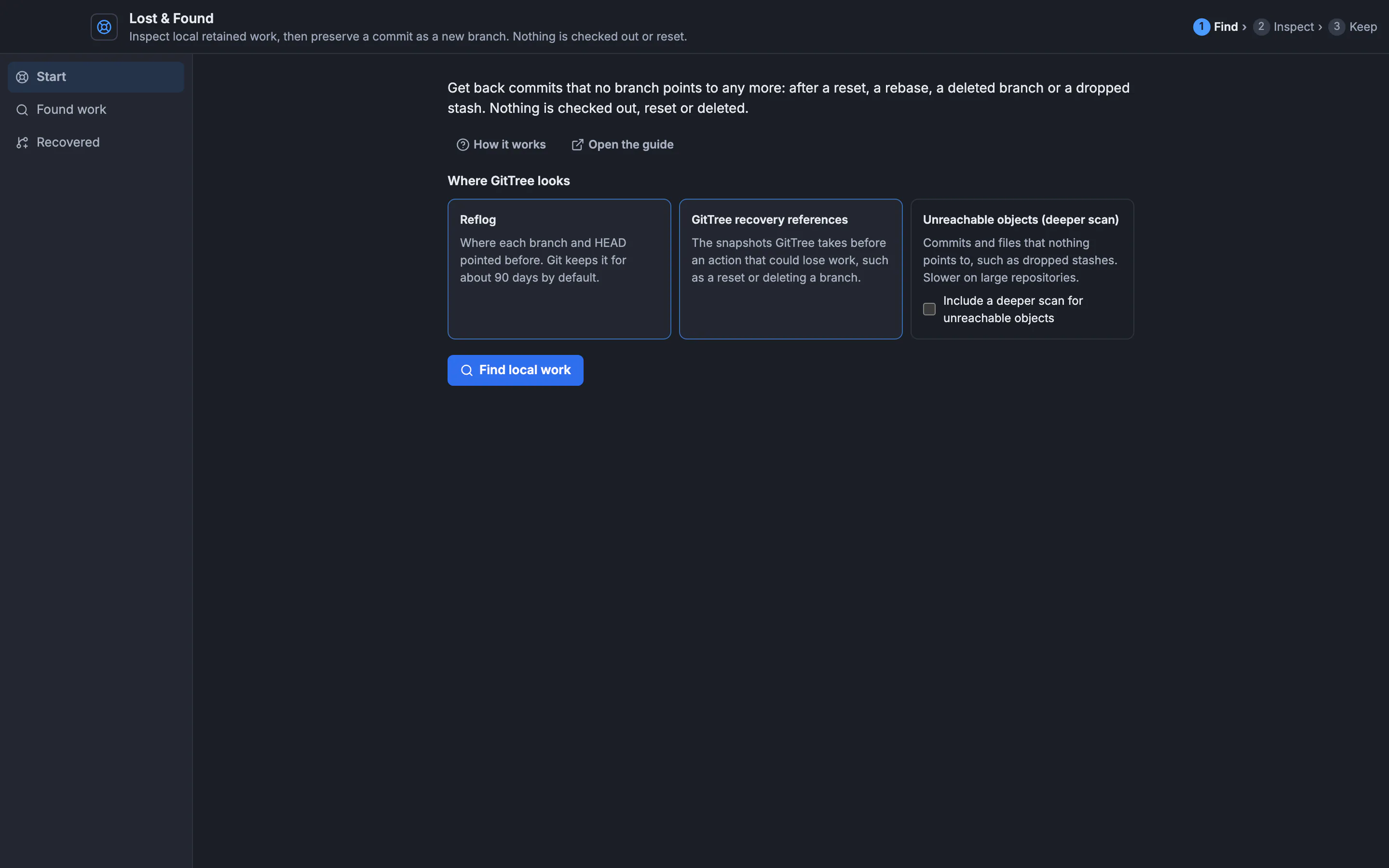
When you run git commit --amend, Git takes whatever is currently in the staging area (the index), combines it with the parent pointer(s) of C (B), writes a new commit object C', and updates your current branch reference to point at C'. The original commit C is not deleted immediately: it remains recorded in your local reflog (HEAD@{1}) for at least 30 to 90 days (gc.reflogExpireUnreachable), which is why an accidental amend is always recoverable locally—either via git reflog or through GitTree’s Undo and Redo and Lost & Found tools.
1. Change the last commit message
If you just committed and immediately noticed a typo, a wrong Jira/GitHub issue number, or a missing Conventional Commits prefix (feat:, fix:, chore:), check git status first so you know whether anything is staged.
Pass a new one-line or multi-paragraph message with -m
To replace the message directly from the terminal without launching an editor, pass -m. You can chain multiple -m flags to create a subject line and body paragraphs:
# Replace the commit subject inline
git commit --amend -m "fix(auth): validate refresh token expiry before rotation"

# Replace both the subject line and body paragraph
git commit --amend \
  -m "fix(auth): validate refresh token expiry before rotation" \
  -m "Prevents expired tokens from issuing a new session when clock skew exceeds 30s."
Edit the existing message in your text editor
When your commit already has a detailed multi-line description, trailers (Co-authored-by:, Signed-off-by:), or issue references that you do not want to retype, run git commit --amend without -m:
git commit --amendGit opens your configured core.editor (Vim, Nano, VS Code, Zed, etc.) with the current commit message pre-loaded. Save and close the file to write the amended commit. If you change your mind while the editor is open, delete the entire commit message (leaving the file empty) and save—Git aborts the amend with Aborting commit due to empty commit message and leaves HEAD untouched.
2. Add forgotten files or specific lines to the last commit
Forgetting to save one file, stage a test fixture, or run your formatter before committing is the most common reason developers reach for --amend. Stage the missing changes first, then amend with --no-edit so Git keeps the existing commit message without opening an editor:
# Stage the forgotten file (or files)
git add src/auth/token-validator.test.ts

# Fold the staged file into the last commit and keep the existing message
git commit --amend --no-edit
Stage only specific lines or hunks before amending
What if your working tree contains both the 3-line fix that belongs in the previous commit *and* 40 lines of debug logging or work for your next feature? Do not run git add . or git commit -a --amend. Instead, stage only the exact hunks or lines that belong in the previous commit using patch mode (covered in detail in our guide to git add -p and staging specific lines):
# Choose y/n/s (split) for each changed hunk
git add -p src/auth/token-validator.ts

# Verify what is staged vs what stays in the working tree
git diff --staged

# Amend the last commit with only the staged hunks
git commit --amend --no-edit
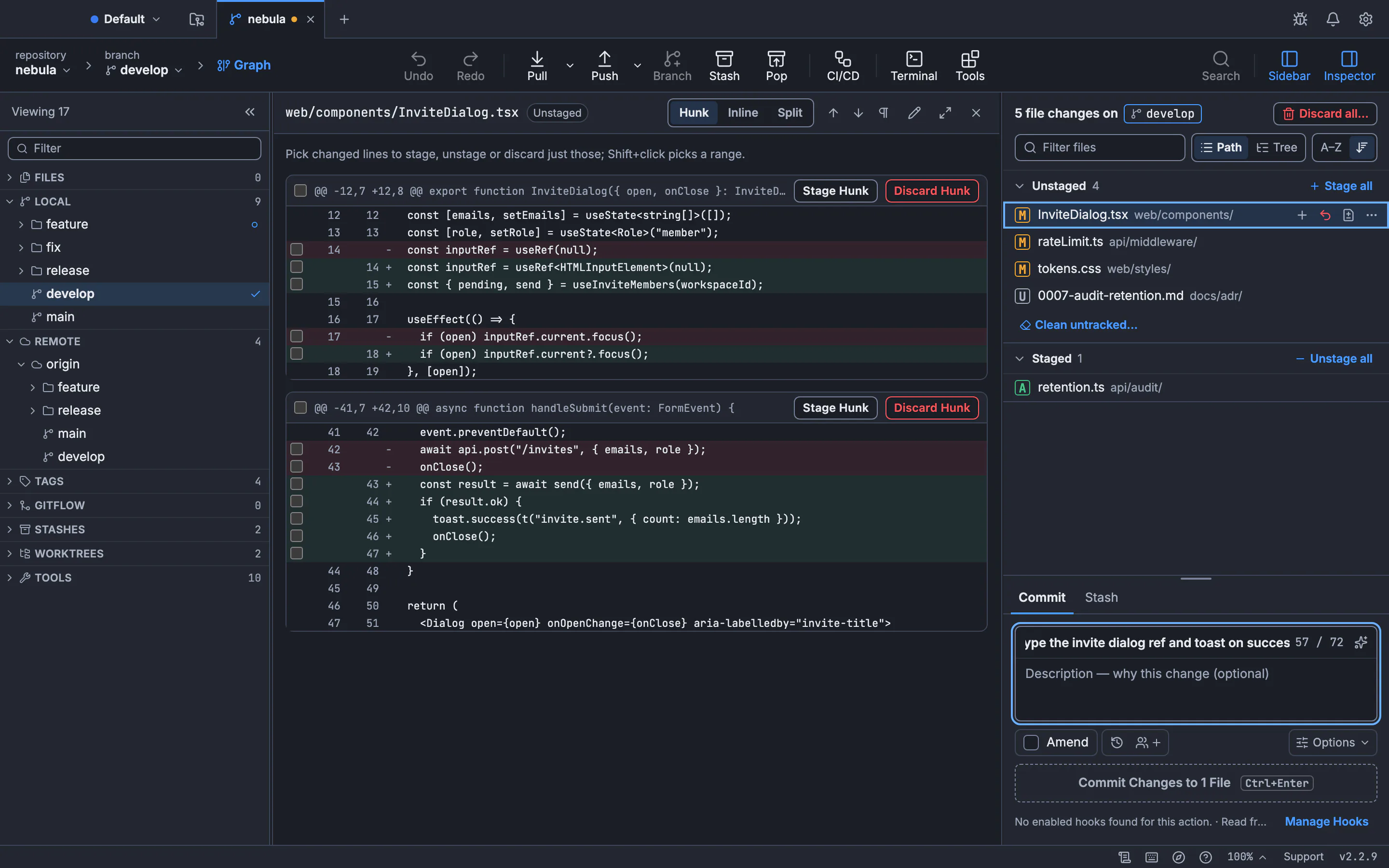
In GitTree, you never have to wrestle with terminal hunk splitting (s, e) to do this: click any file in Unstaged Changes, select the exact lines or click Stage Hunk in the side-by-side or inline diff, and toggle Amend Previous Commit. Check our Git diff guide to see how inspecting staged vs unstaged diffs prevents accidental code from slipping into an amended commit.
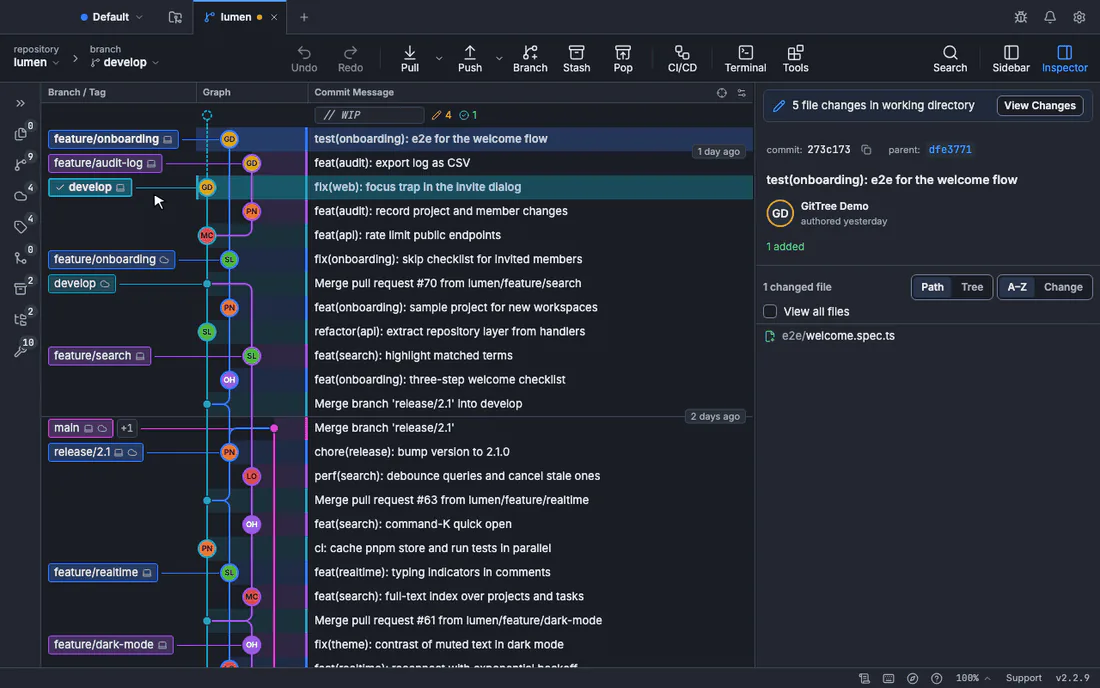
3. Remove a file committed by mistake (without deleting it from disk)
Suppose you ran git add . and accidentally committed a .env.local file, a large build artifact, or a file that belongs in a separate pull request. How you remove it from HEAD depends on whether the file existed in the commit before HEAD (HEAD~1) or was newly added in HEAD.
Case A: Remove a newly added file from the last commit (keep local file)
Use git rm --cached to remove the file from the staging index while leaving the physical file on your disk, then amend:
# Remove the file from the index only (leaves the file on disk)
git rm --cached .env.local

# Optional: add it to .gitignore so it never gets staged again
echo ".env.local" >> .gitignore
git add .gitignore

# Rewrite the last commit without .env.local
git commit --amend --no-edit
Case B: Revert edits to a tracked file in the last commit (keep local edits)
If <file> was already tracked in HEAD~1 and you accidentally included edits to it in HEAD, do not use git rm --cached (that would record a file deletion in HEAD!). Instead, restore the index entry for that file from HEAD~1:
# Reset only the staged index state of <file> back to HEAD~1
git restore --source=HEAD~1 --staged src/config/database.ts

# Amend HEAD: the commit no longer touches database.ts, and your local edits stay in the working tree
git commit --amend --no-edit
If you instead want to discard unwanted local edits or clean untracked files completely, see how to discard changes and clean untracked files in Git and how to restore a deleted file in Git.
4. Change the author, email, or timestamp of the last commit
When you commit on a new laptop before setting user.email, or commit inside a work repository while your personal GitHub email is configured globally, the commit records the wrong identity. git commit --amend can rewrite the commit’s metadata without touching a single file.
# Option 1: Set an explicit author name and email on the last commit
git commit --amend --author="Jane Doe <jane@company.com>" --no-edit

# Option 2: Update git config first, then reset the commit author to match
git config user.name "Jane Doe"
git config user.email "jane@company.com"
git commit --amend --reset-author --no-edit

# Option 3: Amend the author date as well
git commit --amend --date="2026-11-11T14:30:00+02:00" --no-edit5. How to safely amend a commit you already pushed
As soon as you amend a commit that was already pushed to origin, your local branch and the remote-tracking branch (origin/<branch>) diverge: your local branch has C', while origin still has C. Both commits share parent B.
If the branch is your own feature or pull-request branch, update the remote safely with --force-with-lease (and --force-if-includes in Git 2.30+):
# Safely replace the remote branch tip with your amended commit
git push --force-with-lease --force-if-includes origin HEAD- Why `--force-with-lease` instead of `--force`: Plain
git push --forceblindly overwrites the remote branch, erasing any commits a teammate or CI bot pushed since your last fetch.--force-with-leasechecks thatorigin/<branch>still points to the exact commit SHA stored in your local remote-tracking ref; if anyone else pushed in the meantime, Git rejects the push instead of losing their work. - What `--force-if-includes` adds: If you have background auto-fetching enabled, your remote-tracking ref might update before you push.
--force-if-includesverifies that the commit at the tip of the remote branch was actually integrated into your local reflog before allowing the rewrite. - When you are on `main` or a shared branch: Do not amend and force-push a shared branch that other developers base their work on. Instead, leave the commit intact and push a new fix commit, or reverse it cleanly with
git revert(see our guide to reverting commits and merges and the Recover Pushed Mistakes tutorial). - Need to configure your tracking branch first? See how to set an upstream branch in Git.
6. What if the commit you need to amend is NOT the last commit?
git commit --amend only ever rewrites HEAD (the tip commit). When the typo or missing change belongs in HEAD~2 or three commits back, you have two clean options—without manually stashing andcherry-picking:
Option 1: Fast CLI autosquash with git commit --fixup
Stage the fix, create a --fixup commit targeting the older commit’s SHA (or --fixup=amend:<sha> to also edit its message), and run git rebase -i --autosquash:
# 1. Stage the changes meant for the older commit (e.g. a1b2c3d)
git add src/api/client.ts

# 2. Create a fixup commit targeting a1b2c3d
git commit --fixup=a1b2c3d

# 3. Autosquash the fixup commit straight into a1b2c3d
GIT_SEQUENCE_EDITOR=: git rebase -i --autosquash a1b2c3d~1
Option 2: Visual Interactive Rebase in GitTree
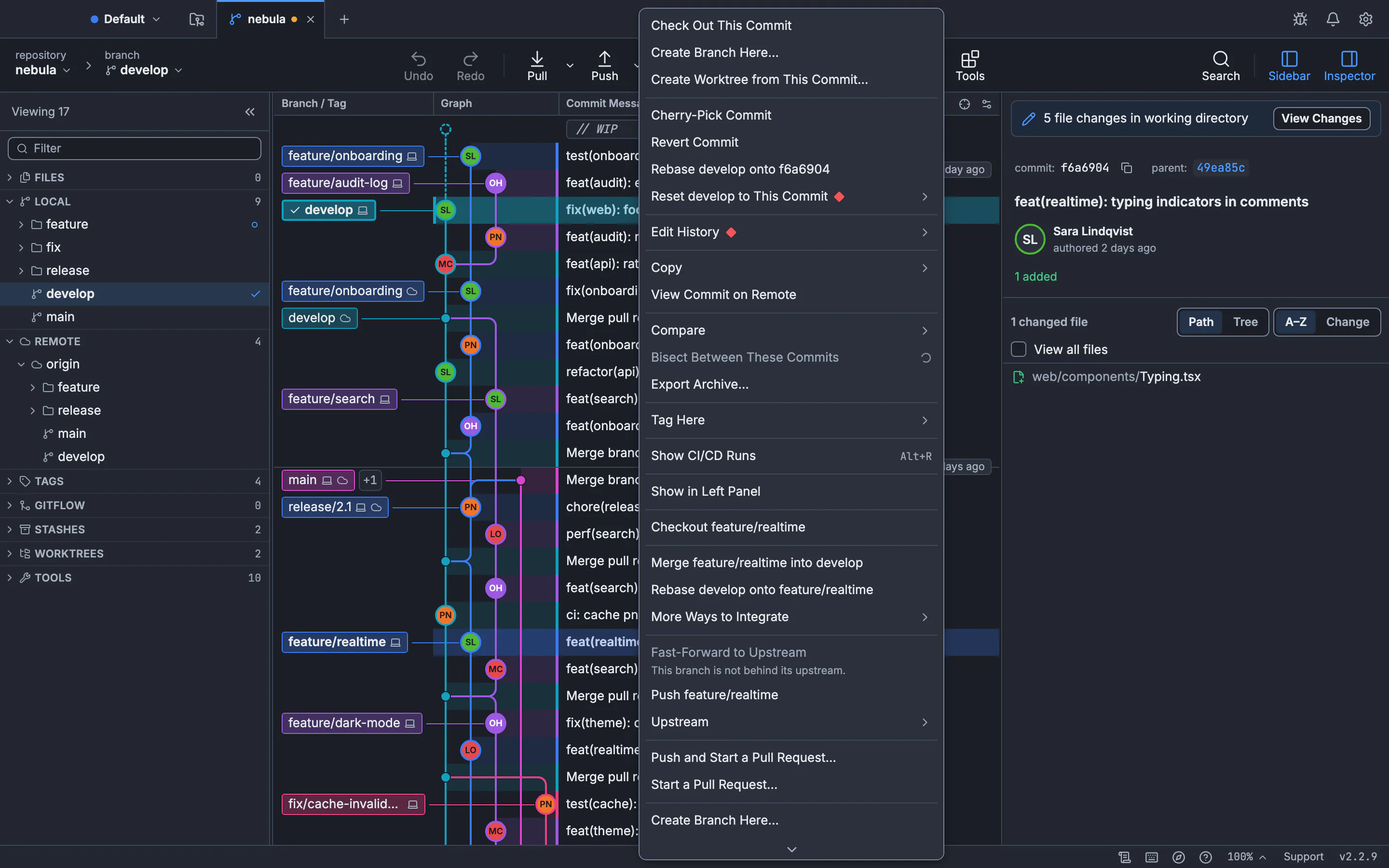
Instead of copying SHAs and editing rebase todo files in the terminal, read our complete interactive rebase GUI guide and branch rebase guide. In GitTree’s Interactive Rebase and Reword, Squash and Drop planner, right-click any older commit in the graph, choose Interactive Rebase from Here…, switch that commit to Reword or drag a fix commit onto it to Fixup/Squash, and apply in one click.
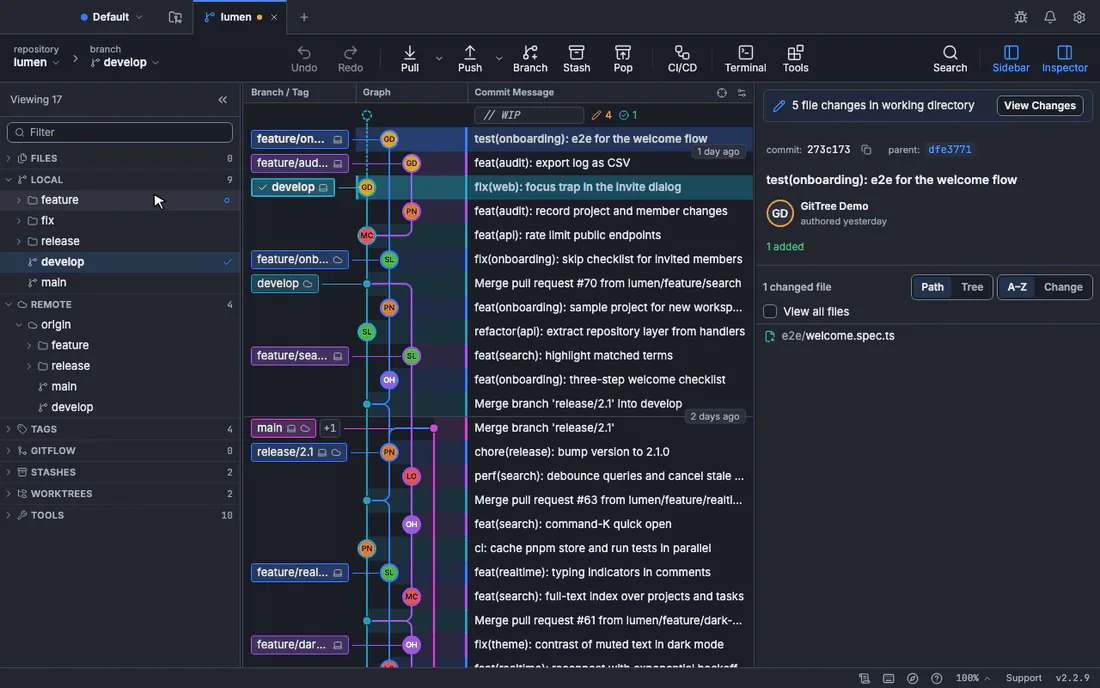
7. How to undo an accidental git commit --amend
Did you run git commit --amend while unintended files were staged, or accidentally overwrite a commit message you needed? Because Git records every movement of HEAD in the local reflog, your pre-amend commit is still sitting safely at HEAD@{1}.
# 1. Inspect the reflog to see the amend and the commit before it
git reflog -n 5
# e9f8d7c (HEAD -> feature) HEAD@{0}: commit (amend): feat: add billing webhook
# 4a3b2c1 HEAD@{1}: commit: feat: add billing webhook

# 2. Restore the branch to the pre-amend commit and keep any extra changes staged
git reset --soft HEAD@{1}
Using git reset --soft HEAD@{1} puts your branch pointer right back on the original commit (4a3b2c1) and leaves the difference between the amended commit and the original commit staged in your index—nothing in your working tree is lost. For a deep dive into soft, mixed, and hard resets and reflog recovery, read Git reset --soft vs --mixed vs --hard, how to undo git reset, rebase, or commit with reflog, and how to recover dropped stashes and dangling commits.
When to use git commit --amend vs reset, revert, or rebase -i
Use this decision matrix whenever you need to fix history so you pick the command that matches your commit’s position and whether teammates have pulled it:
| Command | Target commit | Rewrites SHA? | Best used when |
|---|---|---|---|
git commit --amend | Latest commit (HEAD) only | Yes | You want to reword the latest commit message, fold in forgotten staged changes, or fix author metadata on a local or personal branch |
git reset --soft HEAD~1 | Latest commit (HEAD) | Yes | You want to uncommit HEAD completely while keeping all of its changes staged so you can split them into two or more separate commits |
git rebase -i <base> | Any commit in the range | Yes | You need to edit, reword, squash, fixup, reorder, or drop a commit older than HEAD before merging your PR |
git revert <sha> | Any commit (HEAD or older) | No (adds a new commit) | The commit is already on main or a shared branch where force-pushing is blocked or would disrupt teammates |
How to amend the last commit in GitTree (step by step)
Open Changes and inspect your staged diff
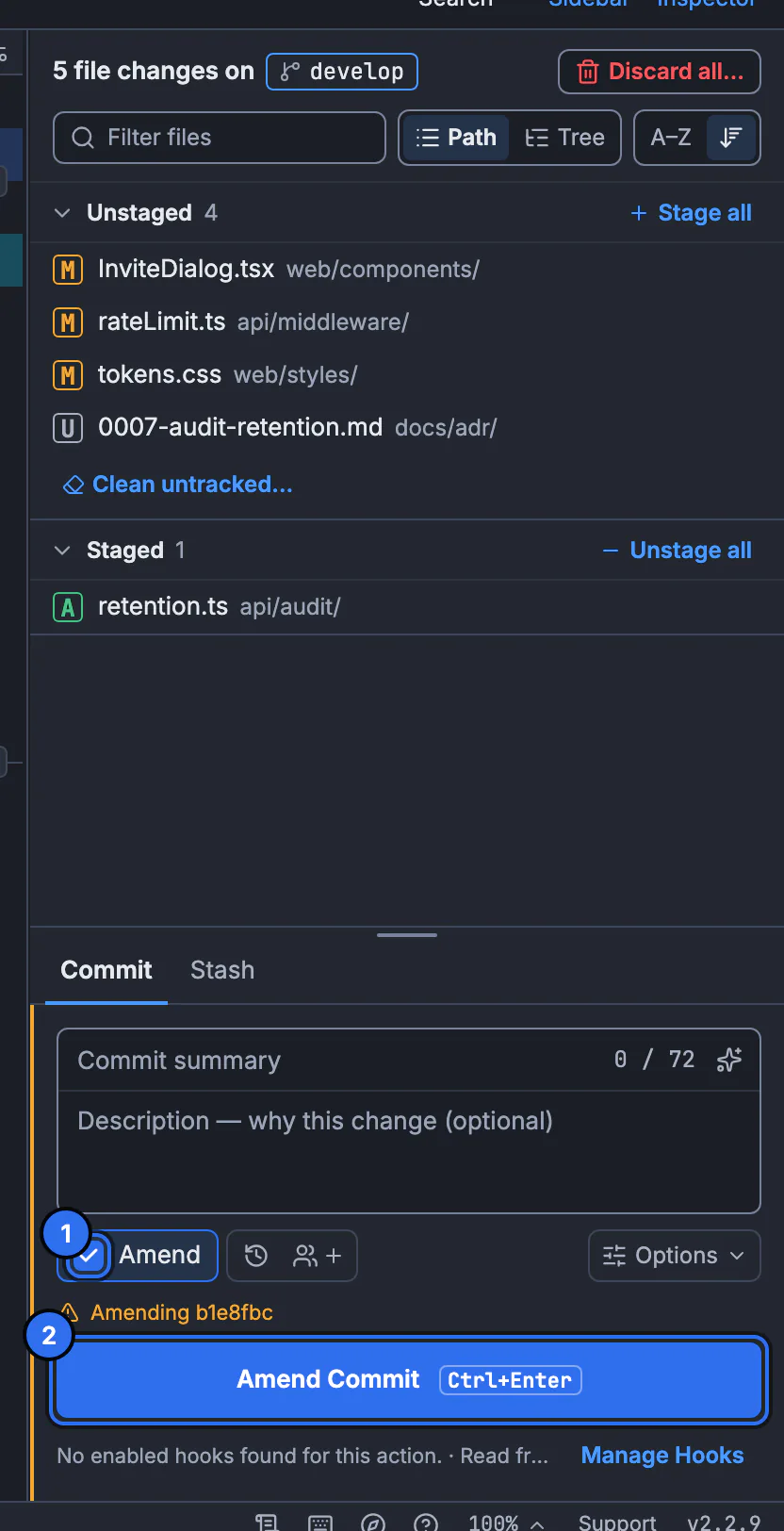
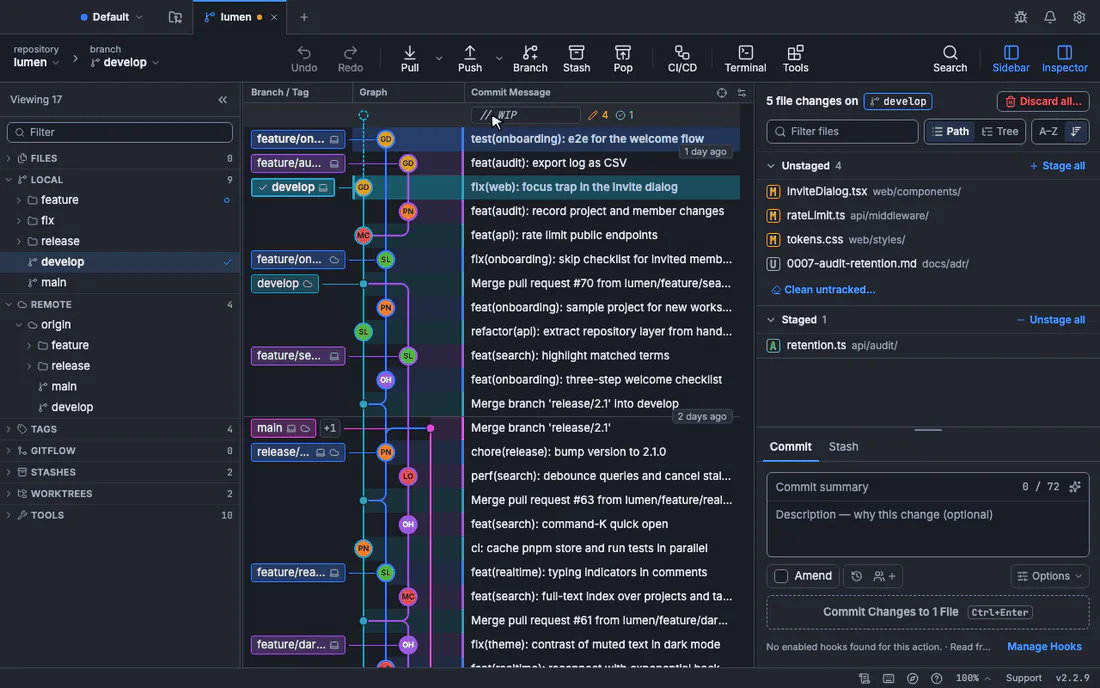
In GitTree on macOS, Windows and Linux, open Changes in the sidebar. If you only want to edit the last commit’s message, leave Staged Changes empty; if you want to fold in a forgotten file or specific lines, stage only those files, hunks, or lines in the side-by-side diff.
Turn on Amend Previous Commit (1)
Switch on Amend Previous Commit above the commit message box (or press
Cmd+Shift+Mon macOS /Ctrl+Shift+Mon Windows and Linux). GitTree pre-fills the summary and description fromHEADwhen the message box is empty—and ifHEADhas already been pushed to your remote, GitTree displays an explicit warning banner before you rewrite history.Refine the message (or draft with AI) and click Amend Commit (2)
Edit the subject or body—or click the sparkle button in GitTree Pro to let Nour and your own coding agent CLI (Claude Code, Codex, or Gemini CLI) draft an updated commit message from the full amended diff—then click Amend Commit.
Undo in one click or push safely with Force Push (With Lease)
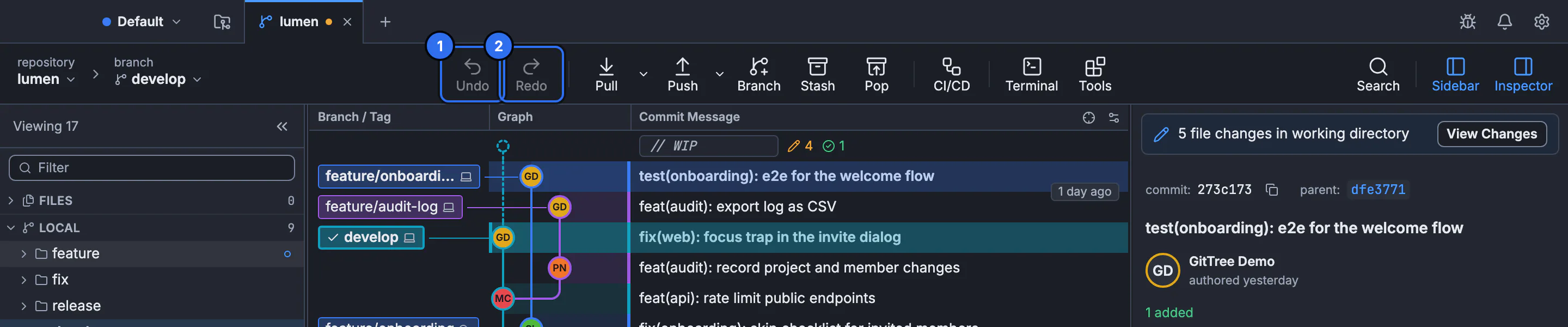
Changed your mind? Click Undo in the top toolbar (
Cmd+Z/Ctrl+Z) to restore the original pre-amend commit from GitTree’srefs/ogt/trashsafety snapshot, or inspect the old commit anytime in Lost & Found. If the commit was already on your remote feature branch, use Force Push (With Lease)… from the toolbar.
How GitTree eliminates every common git commit --amend mistake
Most command-line amend accidents happen because the terminal hides three critical pieces of context until it is too late: what is already sitting in your staging area, whether HEAD has already been pushed to origin, and what the previous commit SHA was before you overwrote it. GitTree solves each of those failure modes directly in the interface:
- Live Staged vs Unstaged Diff Inspection: Before you click Amend Commit, the Staged Changes list sits directly above the commit box so you can never accidentally fold half-finished files into
HEAD. You can stage or unstage individual lines, hunks, or files with one click (Stage Files, Hunks and Lines). - Pushed-Commit Detection & Force-Push-With-Lease Protection: When
HEADis already on the remote branch, GitTree warns you right inside the commit panel *before* you amend, and pairs the workflow with Force Push (With Lease)… so you never overwrite a teammate’s push. - Right-Click Rewording & Quick `fixup!` / `amend!` Creation: Want to reword
HEADwithout touching your staged files? Right-click the top commit in the commit graph and choose Edit Commit Message…. Need to fix an older commit? Right-click that older commit in the graph to create afixup!oramend!commit or open Interactive Rebase. - Automatic Safety Snapshots (`refs/ogt/trash`) & One-Click Undo: Before executing any of 19 history-changing operations—including Amending a Commit, interactive rebase, reset, branch delete, and discard—GitTree records a local snapshot under
refs/ogt/trash. Clicking Undo (Cmd+Z/Ctrl+Z) restores your exact pre-amend commit and staging state immediately. - Visual Lost & Found & Built-in Terminal: Even if you amended from the built-in terminal or weeks ago, Lost & Found surfaces unreachable and replaced commits with their full diffs so you can restore, cherry-pick, or branch from them without parsing raw
git reflogoutput. - Git Hooks, Secret Warnings & AI Commit Messages: GitTree runs your repository’s
pre-commitandcommit-msgGit hooks, checks staged diffs for accidental API keys, and (in GitTree Pro) lets Nour generate accurate commit messages using your own local coding agent.
Frequently asked questions
Does git commit --amend change the commit SHA hash?
Yes. Git commits are immutable, so git commit --amend creates a brand-new commit object with a new SHA-1 (or SHA-256) hash that shares the same parent as the commit it replaces, then moves your branch pointer to the new commit. The replaced commit stays in your local git reflog (HEAD@{1}) until Git garbage collection expires unreachable objects.
How do I amend the last commit without changing its commit message?
Stage your additional changes with git add <file> (or git add -p), then run git commit --amend --no-edit. The --no-edit flag tells Git to reuse the existing commit message from HEAD without opening your text editor. In GitTree, turning on Amend Previous Commit automatically fills in the previous commit’s summary and description so you can click Amend Commit immediately.
How do I change only the last commit message when I already have other files staged?
Run git commit --amend --only -m "New commit message" (or git commit --amend -o). The --only flag instructs Git to amend HEAD using only the file tree already recorded in HEAD, leaving your currently staged files untouched in the index for your next commit. In GitTree, you can also right-click the top commit in the graph and choose Edit Commit Message….
Can I amend a commit after I have already pushed it to GitHub, GitLab, or Bitbucket?
Yes, if it is your own feature branch: amend the commit locally and then run git push --force-with-lease --force-if-includes (or use Force Push (With Lease)… in GitTree) so Git updates the remote branch only if nobody else has pushed new commits. Do not run git pull after amending a pushed commit, and avoid amending commits on shared branches like main—use git revert there instead.
How do I remove a file from the last commit without deleting it from my computer?
If the file was newly added in the last commit, run git rm --cached <file> followed by git commit --amend --no-edit. If the file already existed in HEAD~1 and you only want to remove the edits made in HEAD, run git restore --source=HEAD~1 --staged <file> and then git commit --amend --no-edit. Both commands keep your local file intact in the working tree.
How do I undo a git commit --amend if I made a mistake?
Run git reset --soft HEAD@{1} in the terminal. That moves your branch pointer back to the exact commit HEAD pointed to right before the amend while keeping any newly added changes staged. In GitTree, simply click Undo in the toolbar (Cmd+Z on macOS or Ctrl+Z on Windows and Linux) or open Lost & Found to restore the pre-amend commit.
Does git commit --amend run pre-commit and commit-msg hooks or keep GPG/SSH signatures?
Yes—git commit --amend triggers both pre-commit and commit-msg hooks just like a normal commit (pass --no-verify / -n to bypass them when needed). Because amending creates a new commit object, any GPG or SSH signature on the original commit is replaced; if you have commit.gpgsign enabled in Git or in GitTree Preferences › Commit Signing, Git automatically re-signs the amended commit.
How do I amend a commit that is two or three commits back in history?
git commit --amend only edits HEAD. To amend an older commit from the CLI, stage your fix, run git commit --fixup=<sha> (or --fixup=amend:<sha>), and run git rebase -i --autosquash <sha>~1. In GitTree, right-click the older commit in the commit graph and choose Interactive Rebase from Here… to reword, edit, or squash it visually.
Sources
Claims about other products were checked against their official pages on November 11, 2026. Prices and features change; the vendors’ pages are the source of truth.
- Git documentation — git-commit (--amend, --no-edit, --only, --reset-author)
- Pro Git Book — 7.6 Git Tools: Rewriting History (Changing the Last Commit)
- Git documentation — git-push (--force-with-lease and --force-if-includes)
- Git documentation — git-restore (--source and --staged)
- Git documentation — git-reflog (recovering pre-amend commits)