Git guides
Git add -p: stage specific lines and make focused commits
Two unrelated changes ended up in one file. Commit the fix now and leave the refactor for later: a practical guide to the staging area, patch mode and GitTree’s line selection.
To commit only part of a file, stage the changes you want with `git add -p -- path/to/file`, review them with `git diff --cached`, then commit. The remaining edits stay in your working files. In GitTree, open the file diff, select the changed lines and choose Stage Lines to prepare the same kind of focused commit.
Suppose you fixed a checkout validation bug, then started reorganizing the same component. A reviewer should be able to understand the bug fix without reading an unfinished refactor. This guide separates those changes before they become history. The animated example uses GitTree, the client we make for macOS, Windows and Linux. Partial staging belongs to the Free plan; current official builds require sign-in.
Working tree, staging area and commit: what gets saved?
| Place | What it contains | How to inspect it |
|---|---|---|
| Working tree | Your files as they are now | Open the files in your editor |
| Index / staging area | The proposed next snapshot | git diff --cached compares it to HEAD |
| HEAD | The current commit | git show HEAD:path/to/file |
Staging is a selection step, not a commit and not a push. A file can be partly staged: the index holds one version while your editor shows all edits. If you edit again after staging, the staged version does not silently update. Review it again before committing. The visual commit graph helps inspect the history once the commit exists.
How to use git add -p on one file
Begin with git status and inspect anything already staged. Patch mode adds selected changes to the existing index; it does not remove earlier selections. In this example, replace src/checkout.ts with your tracked text file, then accept only the validation fix when Git asks about each block.
git status
git diff --cached
git diff -- src/checkout.ts
git add -p -- src/checkout.ts
git diff --cached
git diff -- src/checkout.ts
git commit -m "fix: validate checkout input"
Run the final commit only after reviewing the staged diff and testing the intended change. git diff --cached shows what the commit will record; plain git diff shows what will remain uncommitted. Do not use git commit -a or give file paths to git commit for this workflow: those forms can bypass the partial selection you just prepared.
Split a hunk when the fix and refactor are close together
A hunk is a block of nearby changed lines with context. Patch mode may group the fix and the refactor together. Use s to ask Git to split the block. If the edits cannot be separated automatically, e opens a patch editor, or a visual line selector can help you choose the intended additions and removals.
| Key | Decision |
|---|---|
y | Stage this block |
n | Leave this block unstaged |
s | Split it into smaller blocks when possible |
e | Edit the proposed patch |
q | Stop reviewing the remaining blocks |
For a replacement, consider both the removed line and its replacement as one logical change. Selecting only half can produce code you never saw in your editor. Advanced patch editing is optional; if you cannot explain the staged result, unstage it and choose a clearer boundary. Focused commits need to work on their own, not simply be small.
How to stage specific lines in GitTree
Open the changed file
Select the // WIP row, then select the file under Unstaged Files to open its diff.
Choose the right amount
Use Stage Hunk for a complete block, or tick the boxes beside the changed lines. Shift-click selects a range.
Stage the selected lines
Choose Stage Lines in the selection bar. The other edits remain in your working files.
Inspect the staged version
Select the file under Staged Files and review the diff. Use Unstage Hunk or Unstage Lines to correct the selection.
Commit one coherent change
Write a message describing the selected change and commit it. Return to the remaining edits for the next commit.
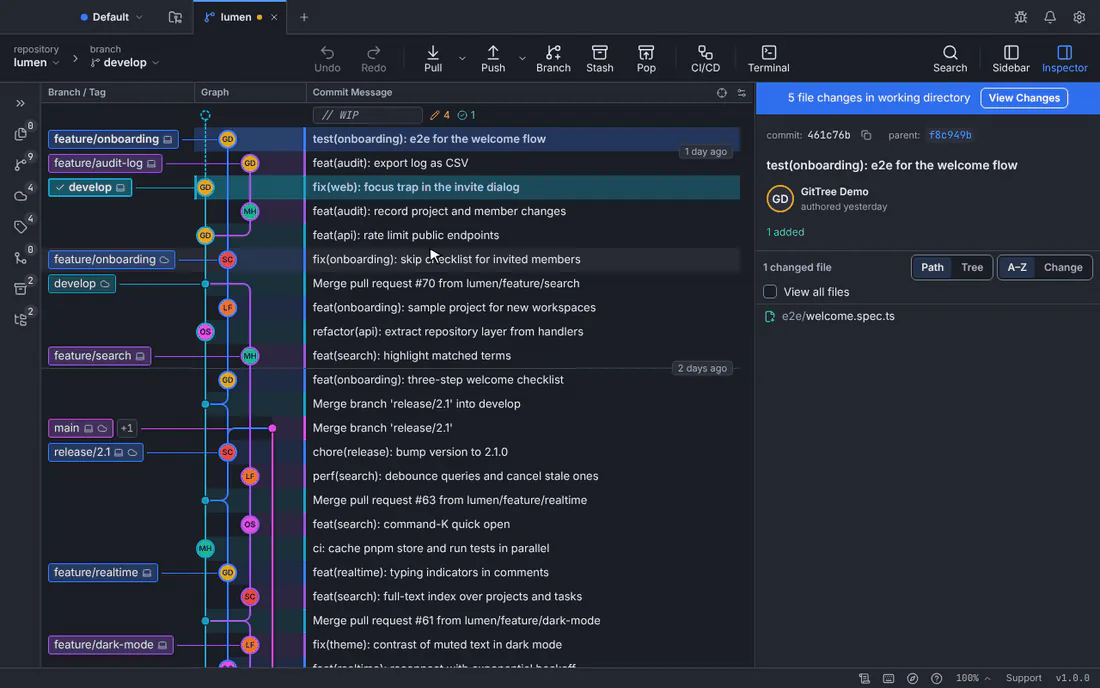
Download GitTree to review a mixed diff and build focused commits visually. You can use it on an existing repository alongside the terminal; both read the same Git staging area.
Unstage changes without discarding your edits
git restore --staged -- src/checkout.ts
# Or choose which staged blocks to remove:
git restore --staged -p -- src/checkout.ts
These are alternative commands. With --staged, restore changes the index rather than your working file. For a repository with commits, it normally resets the staged content toward HEAD. Without --staged, restore can overwrite working edits, so keep the distinction clear. In GitTree choose Unstage, not Discard, when you only want to change what the next commit includes.
Why a file appears twice, or a line cannot be staged
A file under both Staged Files and Unstaged Files usually means partial staging or a later edit, not a duplicate file. A new, untracked text file may need git add -N -- path/to/new-file before patch mode can offer its contents. Binary files have no ordinary text hunks; GitTree also stages renames, LFS pointers and submodule changes as whole-file operations. If whitespace is hidden, show it before selecting whitespace-only changes.
If an editor or formatter changes the file after you open its diff, GitTree may refuse a stale line selection. Refresh the diff and pick again. Avoid splitting tightly coupled changes just to reach a smaller line count. For a task interruption, stash the unfinished work; for already committed mixed history, review the interactive rebase guide.
Test the commit you are preparing, not just the editor’s files
Your normal test command runs against working files, which still include unstaged edits. Passing tests there do not prove the partial commit is complete. For an important split, make the first local commit, then inspect and test that committed snapshot in a separate clean checkout or worktree. Add the missing dependency if it fails before sharing the branch. The worktree guide explains how separate folders help keep those versions apart.
Frequently asked questions
What does git add -p do?
It lets you choose blocks of unstaged changes to add to the index. It does not create a commit or upload your work.
Can I commit only a few lines of a file?
Yes. Stage those changes, inspect git diff --cached and commit without -a or file-path arguments. The other edits remain uncommitted.
Does unstaging delete my edits?
Unstaging with git restore --staged changes the index and leaves working files alone. Discarding or restoring working files is a different operation.
Why can Git not split my hunk?
Nearby edits may not contain enough unchanged context to split automatically. Review the patch manually or use line selection, keeping dependent additions and removals together.
Is partial staging free in GitTree?
Yes. File, hunk and line staging are in the Free plan, including private repositories. Current official builds require sign-in.
Sources
Claims about other products were checked against their official pages on October 28, 2026. Prices and features change; the vendors’ pages are the source of truth.