Git guides
Git stash: save changes, switch branches and restore your work
An urgent fix interrupts unfinished work. Save it with Git stash, restore the right entry later, and understand apply, pop and conflicts before you click. Includes a visual GitTree walkthrough.
Git stash saves uncommitted changes so you can work on something else, then bring those changes back. Start with git stash push -m "WIP: checkout form"; restore with git stash apply when you want to keep the saved entry, or git stash pop when you want to remove it after a successful restore. Add -u when new, untracked files belong to the work too.
This guide uses a checkout-form interruption as its example: pause the form, fix a production bug on another branch, then return to the form. The visual walkthrough uses GitTree, the client we make for macOS, Windows and Linux. Stash management is included in the Free plan; current official builds require sign-in.
When to use stash, a commit or a worktree
| Situation | Use | Reason |
|---|---|---|
| A short interruption with unfinished edits | Stash | Temporarily clear the files without adding a normal branch commit |
| Work you need to share or back up remotely | Commit and push to an appropriate branch | Stashes stay local; a normal push does not upload them |
| Two tasks you want open at once | Worktree | Each task gets its own working folder |
For longer parallel tasks, use the worktree guide. A stash is convenient temporary storage, but should not be your only backup of valuable work. Name entries after the task, because stash@{0} means the latest entry and the numbers change as the list changes.
Save changes and switch branches: a complete example
First inspect git status: a default stash includes modifications to tracked files, including staged edits, but leaves untracked and ignored files alone. In this example the form includes a newly created file, so use -u. These commands assume feature/checkout and hotfix/payment already exist; substitute your own branch names.
git status
git stash push -u -m "WIP: checkout form"
git stash list
git status
git switch hotfix/payment
Finish, test and commit the hotfix before returning. Check the stash list and its diff before applying: another task may have created a newer entry in the meantime. Quoting a selector such as "stash@{0}" also keeps shells from interpreting its special characters.
git switch feature/checkout
git stash list
git stash show -p --include-untracked "stash@{0}"
git stash apply "stash@{0}"
git status
Git stash apply vs pop: which should you choose?
| Command | Restores files | Keeps the stash |
|---|---|---|
git stash apply "stash@{0}" | Yes | Yes |
git stash pop "stash@{0}" | Yes | No, after success; yes if conflicts stop it |
git stash apply --index "stash@{0}" | Yes, and attempts to restore the staging state | Yes |
For an important unfinished change, apply first, review and test it, then delete the saved entry once you have committed the restored work. Applying twice can create conflicts or repeat changes; inspect the working files before trying again. Neither apply nor pop pushes anything to a server.
Stash untracked files, specific files or staged changes
git stash push -u -m "WIP: include new files"
git stash push -m "WIP: checkout only" -- src/checkout.ts
git stash push --staged -m "WIP: staged changes only"
git stash push --keep-index -m "WIP: keep staged work ready"
These are alternative commands, not a sequence to run together. A path after -- limits the stash to that path. --staged saves only staged changes; --keep-index leaves staged changes in place so you can test or commit them while shelving other edits. They solve different problems. Older Git installations may not support --staged; check git --version and the help for your installed version.
How to stash and restore changes in GitTree
Inspect the work in progress
Open the
// WIProw, review the files and choose the Stash tab beside Commit.Choose the scope
Select All changes, Only staged changes or Only the selected files. Enable Include untracked files when new files belong to the task.
Give it a task name
Enter a message such as WIP: checkout form, then choose Stash. Inspect any files left behind before switching branches; a partial stash does not clear all work.
Preview before restoring
In the Stashes section, right-click the correct entry and choose Show Stash to inspect its files and diff. Check that the receiving branch is correct.
Apply, review and finish
Choose Apply Stash to retain the entry, or Pop Stash to remove it after success. Review the changes, run your tests and commit when ready.
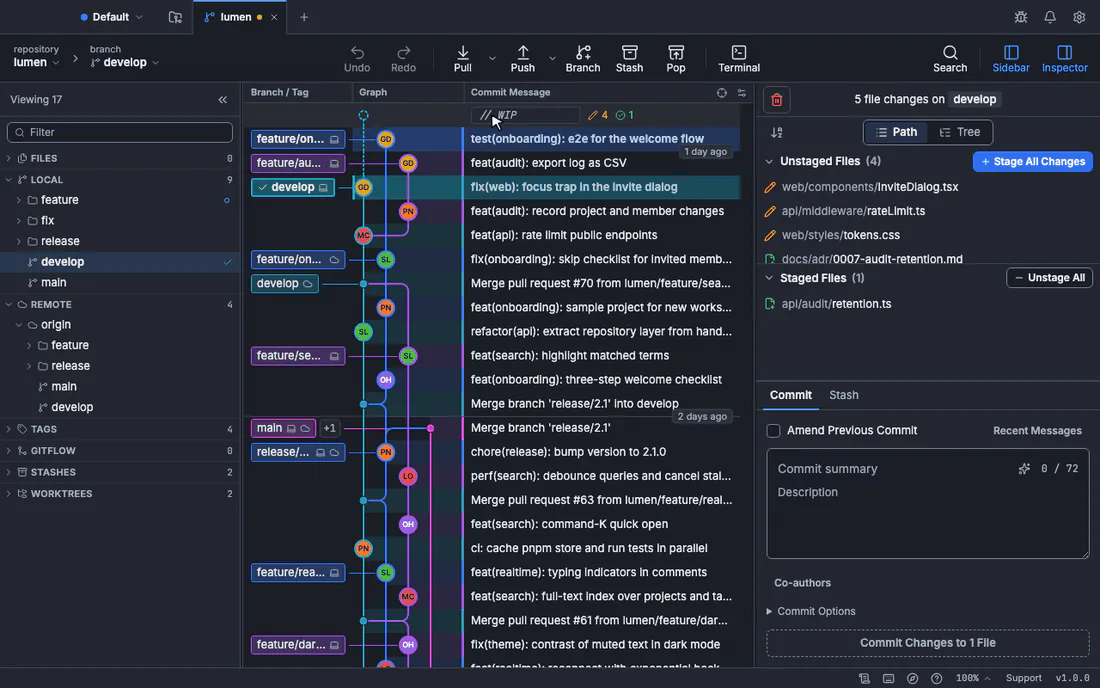
Want to follow these steps with your own repository? Download GitTree, sign in, and open the repository folder. Your existing stashes remain ordinary Git stashes, visible from the terminal too.
How to resolve git stash pop conflicts
A stash can conflict when the destination branch changed the same lines. A failed pop keeps the stash, but some changes may already have been applied. Do not repeatedly pop it. Run git status, resolve each unmerged file, and stage only the intended resolutions. The merge conflict guide explains the markers and the three-way editor.
git status
git diff --name-only --diff-filter=U
# Edit and test each conflicted file, then stage its resolution:
git add -- src/checkout.ts
git diff --cached
git status
There is no git stash --continue or git stash --abort. Once the files are resolved, review and commit normally. If you want to abandon the attempt, preserve any work that existed before the apply and inspect every changed path before discarding anything. A blanket hard reset can erase unrelated edits. When the destination has diverged too far, git stash branch rescue/checkout "stash@{0}" restores on a new branch at the original base; a successful operation removes that stash entry.
Delete a stash only after checking the result
Use git stash list again before git stash drop "stash@{0}": the position may have changed. git stash clear removes the entire list. Recovery of a dropped stash in plain Git is uncertain and depends on whether its objects still exist; do not rely on finding it later. In GitTree, Delete Stash keeps the deleted entry in recovery snapshots so Undo can restore it. That app-specific recovery does not make terminal deletion a guaranteed recoverable action. For broader recovery options, see undoing Git mistakes.
Frequently asked questions
Does git stash save untracked files?
Not by default. Use git stash push -u, or Include untracked files in GitTree. Ignored files require a separate choice; -u does not include them.
Can I apply a stash to another branch?
Yes. Check out the destination branch and apply the entry there. Review its diff first: the stash may depend on code absent from that branch.
Does git stash pop delete the stash on conflict?
No. Git retains the entry when applying it conflicts. Resolve and verify the working files before removing the entry yourself.
Is a stash pushed to GitHub?
A normal git push does not upload stashes. Commit work on an appropriate branch and push that branch if you need a remote copy.
Is GitTree stash management free?
Yes, stash management is part of the Free plan. Current official builds require sign-in; GitTree Pro is not required for this local Git workflow.
Sources
Claims about other products were checked against their official pages on October 28, 2026. Prices and features change; the vendors’ pages are the source of truth.