Git guides
Git cherry-pick: copy a commit to another branch and fix conflicts
Need one bug fix without merging the whole feature branch? Learn how cherry-pick works, choose the correct destination, handle dependent commits, and review the result visually in GitTree.
Git cherry-pick applies the change introduced by a commit to your current branch, usually recording a new commit. Switch to the branch that should receive the fix, inspect the source commit, then run git cherry-pick <commit>. The source branch stays in place. If the patch conflicts, resolve the files and continue, or abort the operation.
Imagine a payment bug fixed on feature/checkout, while a release branch needs only that fix. Merging the whole feature could bring unfinished work. This guide shows how to copy just the fix with Git and with GitTree, the client we build for macOS, Windows and Linux. The extra value of the visual route is checking the destination branch and the source diff before applying the change.
Cherry-pick vs merge vs rebase: choose the operation
| Goal | Operation | Effect |
|---|---|---|
| Bring a branch and its ancestry together | Merge | Integrates branch histories |
| Replay a line of development on another base | Rebase | Rewrites the replayed commits |
| Bring selected changes without the whole branch | Cherry-pick | Applies selected patches to the current branch |
Cherry-pick is useful for a backport or a small fix committed to the wrong branch. It is a poor substitute for repeatedly merging two branches that should share all their work: copied changes can become difficult to track. For a whole-branch workflow, see interactive rebase and the commit graph guide.
How to cherry-pick a commit onto another branch
Start with a clean working tree. Commit or stash unfinished edits; the stash guide covers that pause-and-resume workflow. Fetch if the fix is remote, then inspect the source history. The branch names and hash below are examples: replace them with an existing destination branch, your source branch and the actual fix hash.
git status
git fetch origin
git log --oneline origin/feature/checkout
git show abc1234
git switch release/2.x
git status
git cherry-pick -x abc1234
git show --stat HEAD
git status
-x adds the source commit reference to the message for a clean cherry-pick, which helps trace public backports. Fetch updates remote-tracking refs; it does not automatically update your checked-out release branch. Confirm that the destination is at the revision your team expects. Review the new commit and run the release branch’s tests before pushing.
The picked commit normally has a different hash because its parent and other commit metadata differ. Its original remains on the source branch. Copying a fix does not remove it from the wrong branch; deciding how to clean up that branch is a separate history decision, especially if other people already use it.
How to cherry-pick visually in GitTree
Open the destination branch
Check out the branch that needs the fix. Review the WIP row and commit or stash edits before starting.
Inspect the source commit
Find the fix in the graph and read its diff. Check whether it assumes earlier changes that the destination does not contain.
Choose Cherry-Pick Commit
Right-click the source commit and select Cherry-Pick Commit. For several commits, use Ctrl-click or Command-click to select rows, then Cherry-Pick Commits; check dependencies and ordering before starting.
Resolve or abort if it stops
Use the conflict banner to open affected files. Resolve and stage the results, then Continue; choose Abort to abandon the active operation.
Review the new history
Inspect the new commit at the top of the receiving branch, test the affected behavior and review the branch again before pushing.
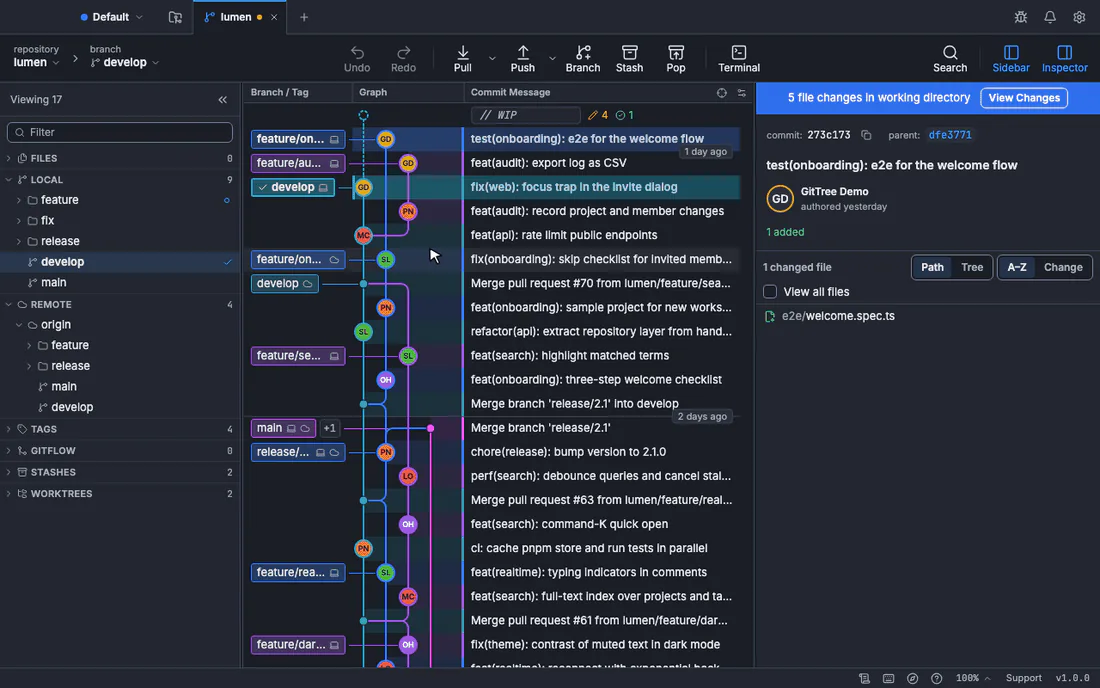
Download GitTree to follow this workflow with a visual graph and conflict editor. Cherry-pick is included in the Free plan, including private repositories. Sign in to the current official app, open your existing repository and use the same Git history you already have.
Cherry-pick multiple commits and ranges
git cherry-pick abc1234 def5678
# A linear range, including the first commit:
git cherry-pick "abc1234^..def5678"
These are alternative examples. An explicit list picks the commits in the supplied order; put prerequisite changes first. A range follows revision-set rules rather than selecting the rows you happen to see in a graph. A..B excludes A; A^..B includes A for a simple linear sequence when A has a parent. For a beginner backport, prefer an explicit, reviewed list over a range that crosses merges.
Resolve cherry-pick conflicts and continue
When Git cannot apply the patch, it pauses. Run git status to identify the operation and conflicted paths, then edit the intended result. Use the conflict resolution guide for marker examples and the GitTree three-way editor. A syntactically clean resolution still needs tests: the destination may use different APIs.
git status
git diff --name-only --diff-filter=U
# Resolve the file, then check and stage it:
git diff --check
git add -- src/payment.ts
git diff --cached
git cherry-pick --continue
A sequence can pause more than once, once for each problematic commit. If Git says the pick is empty, inspect whether the change is already present or your resolution removed it. Use git cherry-pick --skip only when you deliberately want to omit that commit; it is not a general conflict fix.
Git cherry-pick abort vs quit vs skip
| Command | Meaning |
|---|---|
git cherry-pick --continue | Continue after resolving and staging |
git cherry-pick --abort | Cancel and restore the pre-sequence state |
git cherry-pick --skip | Omit the current commit and continue the sequence |
git cherry-pick --quit | Forget operation state while leaving current files and commits in place |
Merge commits, missing dependencies and undoing a pick
A merge commit needs a mainline parent because it represents changes relative to more than one parent. Inspect it with git show --no-patch --pretty=raw <merge> before considering git cherry-pick -m 1 <merge>. Parent 1 is not universally correct. GitTree asks you to select the parent; choose by the history you want to compare against, not by habit. Picking the original ordinary fix commit is often easier to reason about.
If the copied fix builds incorrectly, inspect its prerequisites: a helper, schema change or configuration may live in an earlier commit. A successful Git operation proves only that the patch applied. Test the receiving branch. To undo a finished pick on shared history, revert the new commit created on the destination branch, not the original source hash. For unpublished work, review the reset and recovery choices in undoing Git mistakes before moving branch history.
Frequently asked questions
Does cherry-pick move or copy a commit?
It applies the changes to the current branch, usually creating a new commit. It does not delete the source commit or move the source branch.
Which branch should I check out first?
Check out the destination: the branch that should receive the change. Select the source commit only after checking the destination branch.
Why does a cherry-pick conflict?
The patch is being applied to a different context. The destination may have edited or deleted the same lines, or lack prerequisite changes.
Can I cherry-pick without committing?
Yes. git cherry-pick --no-commit applies the selected changes to the working tree and index without making the usual commits. Review and commit the result yourself.
Is cherry-pick free in GitTree?
Yes. The Free plan includes this local Git operation for private repositories too. Current official builds require sign-in.
Sources
Claims about other products were checked against their official pages on October 28, 2026. Prices and features change; the vendors’ pages are the source of truth.