Git guides
Create and switch Git branches: choose the right starting point
A new branch is easy; starting it from the wrong commit is the expensive part. Learn how to create, switch and track branches, protect unfinished edits, and check the result in GitTree.
Use `git switch -c feature/checkout` to create a branch at your current commit and switch to it. To switch to an existing local branch, use git switch branch-name. To create one at a different starting point, include that commit or branch after the new name. In GitTree, Branch opens the creation dialog; check its starting commit before confirming.
The practical question is which history your next change should build on. A feature for the next release might start from main; an urgent patch for an older release should start from that release branch. This guide follows a feature branch from its base to its first push, with an animated GitTree example. GitTree is the client we make for macOS, Windows and Linux; local branch operations are included in the Free plan and current official builds require sign-in.
What is a Git branch, and what does HEAD mean?
A branch is a name pointing to a commit. Creating another name does not duplicate the repository or its files. HEAD normally identifies the branch you have checked out; new commits advance that branch. Switching changes the checked-out files to the destination history while preserving compatible local edits. A visual commit graph makes the branch labels and their shared commits easier to inspect.
| Command | Creates a branch? | Switches to it? |
|---|---|---|
git branch feature/checkout | Yes, at HEAD | No |
git switch -c feature/checkout | Yes, at HEAD | Yes |
git switch feature/checkout | Uses an existing local branch | Yes |
git checkout -b feature/checkout | Yes; older checkout spelling | Yes |
Create a branch from the correct base
Inspect the current branch and local edits first. If your team wants the latest fetched main as the base, fetch and name origin/main explicitly. Fetch updates remote-tracking references; it does not automatically move your local main. Replace origin, main and the feature name with the repository’s actual names.
git status
git branch --show-current
git fetch origin
git log -1 --oneline origin/main
git switch --no-track -c feature/checkout origin/main
git branch --show-current
git log -1 --oneline
Here --no-track avoids making the feature branch track origin/main just because it starts there. Its eventual upstream should normally be its own feature branch on the remote. If you want to start from the current commit instead, use git switch -c feature/checkout without a start point. Use git branch -vv to inspect tracking relationships.
Switch to an existing branch and return to the previous one
git switch feature/checkout
git branch --show-current
git switch -
Run each switch when you actually want to change tasks; these commands are a reference, not steps to execute blindly. git switch - returns to the previously checked-out branch or commit. Git switch is available from Git 2.23; on older installations, git checkout branch-name is the established equivalent for switching branches. Never add a force option simply to silence a refusal.
How to create and switch branches in GitTree
Check where you are starting
Inspect the current branch in the graph. Select Branch in the toolbar to start at the current commit, or right-click a commit and choose Create Branch Here.
Review the base and name
Read Create a branch at, then enter a task name such as feature/settings-copy. GitTree validates the name before creating it.
Create and check out
Keep Check out the new branch enabled if you want to work on it immediately, then choose Create Branch.
Confirm the current branch
Find the new branch label and its current-branch check mark. Your next commit will advance this branch.
Switch when ready
Double-click another branch label, or use its Checkout menu item. If local changes block the switch, choose how to preserve them before proceeding.
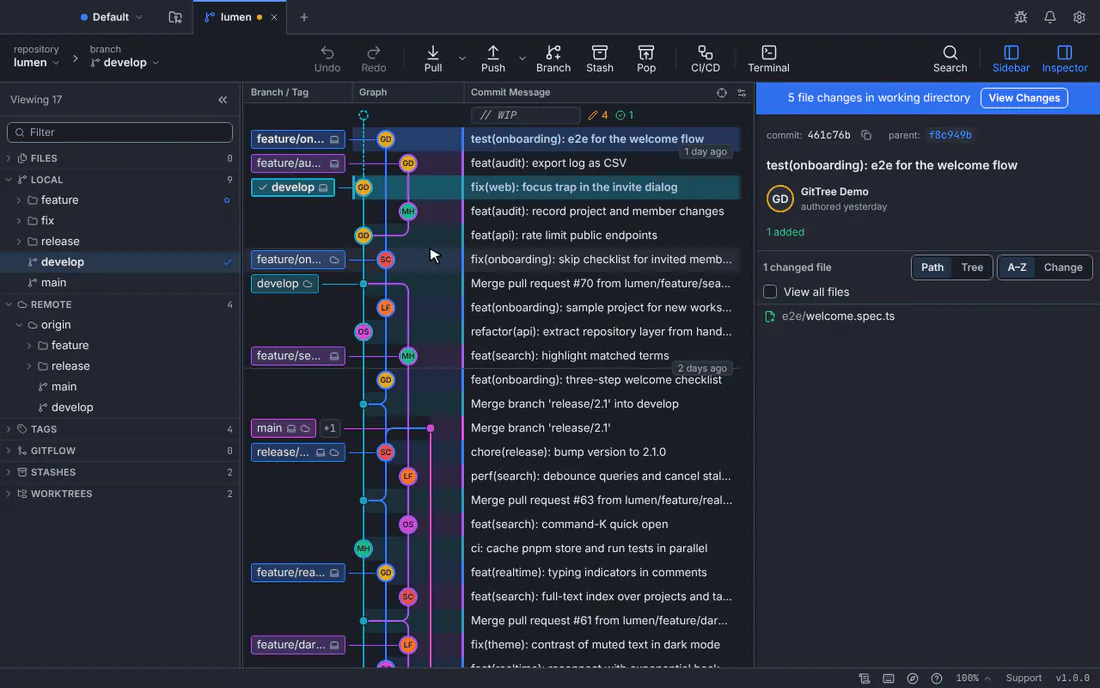
Download GitTree to see branches and their starting commits before you switch. Your repository stays a normal Git repository, so you can move between the visual interface and terminal commands.
What happens to uncommitted changes when switching branches?
Uncommitted edits are not stored on a branch yet. Git can carry them across a switch when they are compatible with the destination. It stops if the switch would overwrite local changes. That refusal protects work; it does not mean the repository is broken. Check git status before and after switching rather than assuming every edit belongs to the branch you were on.
GitTree offers Stash and Switch, Commit First, and Discard and Switch when local edits block checkout. Choose the option that matches your intent. Stashing keeps a temporary local copy; committing records a snapshot in history; discarding removes working edits. Do not choose Discard as a routine way to change branches. The stash guide explains how to inspect and restore the saved work.
Create a local branch from a remote branch
git fetch origin
git branch --remotes
git switch -c feature/checkout --track origin/feature/checkout
git branch -vv
This example assumes the local feature/checkout branch does not exist yet and the remote branch does. If it already exists locally, switch to it instead of trying to create it again. A remote-tracking name such as origin/feature/checkout is your last fetched view of the server branch; the local branch is where you commit. Tracking does not synchronize files continuously.
Publish your new branch when the change is ready
git status
git branch --show-current
git push -u origin feature/checkout
Creating a local branch does not upload it. After reviewing and committing the intended changes, push the branch to share its commits; -u records the upstream relationship. Confirm the destination remote and branch before the first push. For the broader upload workflow, see pushing a project to GitHub. A push does not publish unrelated uncommitted edits or local stash entries.
Fix common branch errors without forcing the switch
| Message or symptom | What to check |
|---|---|
| Branch already exists | Switch to it, or choose a different new name |
| Invalid reference / unknown branch | Check spelling, fetch, and inspect local and remote branch lists |
| Local changes would be overwritten | Commit or stash the affected work first |
| Branch is used by another worktree | Open that worktree or choose another branch |
| Detached HEAD | Create a branch at the current commit before leaving if you want to keep the work |
If you only edited on the wrong branch without committing, creating a new branch at the current HEAD often lets you continue there with those edits. If you already committed the fix, transferring it is a different task: the cherry-pick guide explains copying the chosen commit. For two active tasks, use separate worktrees so switching one folder does not interrupt the other.
Frequently asked questions
Does git branch create and switch at the same time?
git branch new-name creates the name without switching. git switch -c new-name creates it and checks it out.
Should I branch from main or origin/main?
Use the exact revision your task should start from. Local main and origin/main can differ; fetch updates the latter, not the former.
Will switching branches delete my changes?
Git normally refuses a switch that would overwrite local work. Compatible edits may follow you. Inspect status and commit or stash important work before changing tasks.
Does creating a branch publish it to GitHub?
No. A local branch stays on your computer until you push its commits to a remote. Verify the destination before publishing.
Can GitTree create a branch from an older commit?
Yes. Right-click the chosen commit and use Create Branch Here, then verify the starting commit and whether the new branch should be checked out.
Sources
Claims about other products were checked against their official pages on October 28, 2026. Prices and features change; the vendors’ pages are the source of truth.