Change fonts and zoom
Fonts & zoom in Preferences sets the interface font, the code font and the terminal font separately, with size, weight, line spacing and ligatures, and a live preview. Zoom scales the whole window. Restore default fonts and zoom puts those choices back and leaves your theme, language and other settings as they are.
Works in GitTree Free: every local Git feature, with no account needed.
On this page
Before you start
- Fonts and zoom are part of the Free plan. A font you type by name must be installed on this computer, or be one of the fonts included with GitTree.
- Zoom and the code-size keys are separate. Zoom scales text, icons and spacing. Code size changes the code font only.
Where to find it
- Preferences (
Mod+,): Fonts & zoom. - The command palette: search for the font and zoom commands.
- Code size also has keys: increase, decrease and reset. On macOS they use Command and Option. On Windows and Linux they use Ctrl and Alt.
| Action | macOS | Windows and Linux |
|---|---|---|
| Preferences | ⌘, | Ctrl+, |
| Zoom in | ⌘= | Ctrl+= |
| Zoom out | ⌘- | Ctrl+- |
| Reset zoom | ⌘0 | Ctrl+0 |
Steps
Open Fonts & zoom
Open Preferences and choose Fonts & zoom. The page is one of the grouped preference pages. Preview shows a short sample, including a commit subject, so you can see the code font before you leave the page.
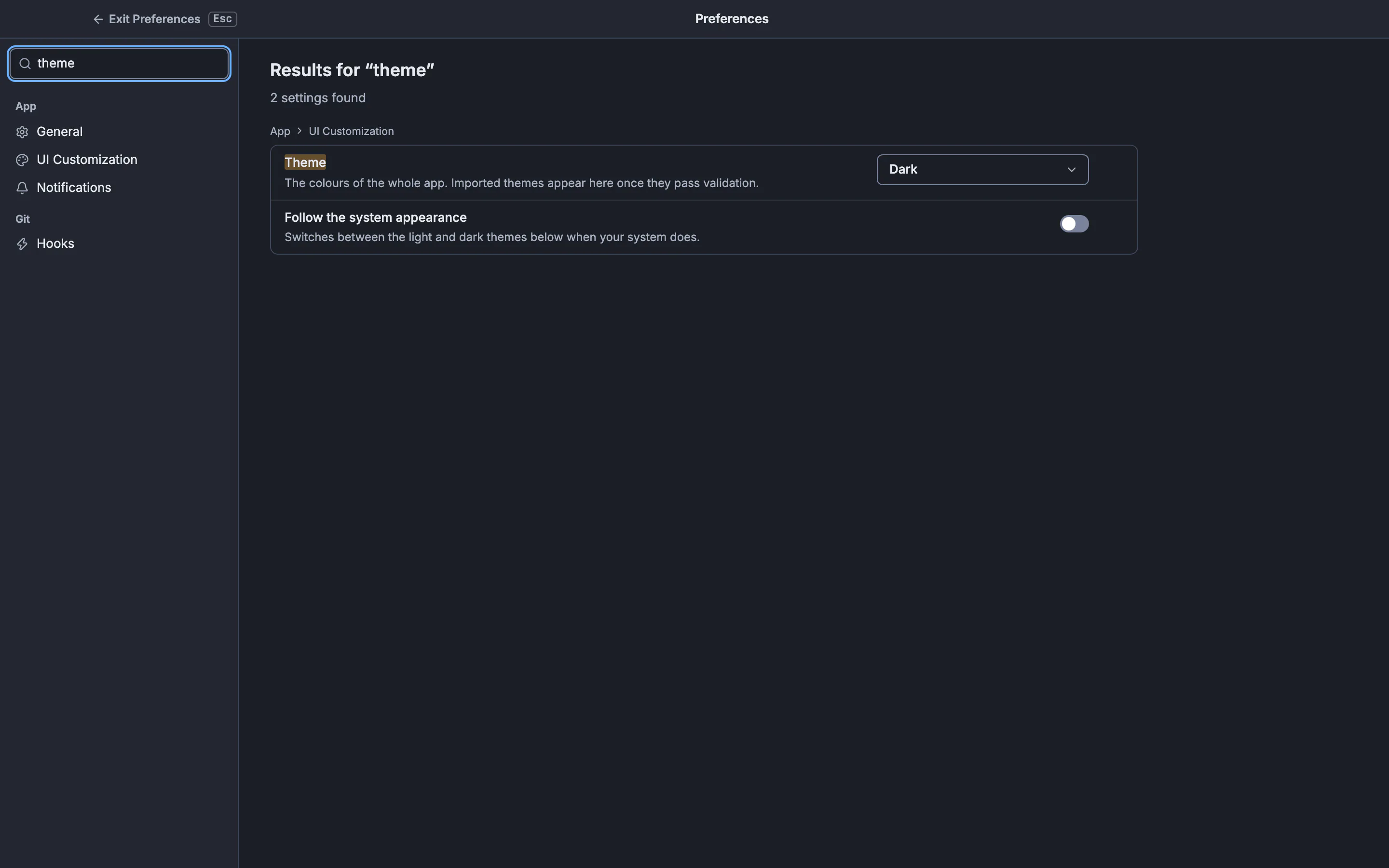
Fonts & zoom is a page in this Preferences window. The still shows Preferences, not necessarily the font list.GitTree interface with a demonstration repository. Choose each font
Set the interface, code and terminal fonts separately. Included with GitTree lists the bundled faces. On this computer lists installed fonts. Fira Code, Cascadia Code and Source Code Pro are among the coding fonts you can choose. An empty terminal font uses the code font. If the list cannot be read, you can still type a font family name.
Set size, spacing and ligatures
Code weight, line spacing and ligatures apply to code views, including diffs, blame, merge views and pipeline logs. Increase, decrease or reset the code font size from the menu, the command palette, or the keys in the table below. Those keys do not change the interface font.
Zoom the window, or restore defaults
Zoom in, Zoom out and Reset zoom scale the whole window, including text, icons and spacing. Restore default fonts and zoom asks you to confirm. It restores zoom and the interface, code and terminal fonts and sizes. Your theme, language and other settings stay as they are.
Expected result
Code, diffs and the terminal use the fonts you set, and the window zoom is the scale you set. Reopen a diff if a view was already on screen when you changed the code font. The preview on the preferences page is the sample to check first.
Zoom and code size
| Action | macOS | Windows and Linux |
|---|---|---|
| Zoom in | Command and = | Ctrl and = |
| Zoom out | Command and - | Ctrl and - |
| Reset zoom | Command and 0 | Ctrl and 0 |
| Increase code size | Command Option = | Ctrl Alt = |
| Decrease code size | Command Option - | Ctrl Alt - |
| Reset code size | Command Option 0 | Ctrl Alt 0 |
The zoom rows are the app’s Mod+=, Mod+- and Mod+0 chords. Mod is Command on macOS and Control on Windows and Linux. The code-size chords add Option on macOS and Alt on Windows and Linux. You can rebind chords in keyboard shortcuts.
Where the fonts apply
The code font is used by diffs, blame, merge views and pipeline logs. The working-file diff keeps the path and the view controls on one row, and that row follows the same font preferences. The terminal uses Terminal font and Terminal font size when you set them. Empty means the code font. Appearance and language is the theme and the interface language, which restore does not change.
git diff --word-diff
git blame --date=short README.md
Those commands are the terminal equivalents of the views that pick up the code font inside GitTree. They do not change GitTree’s font settings. The tutorial lesson on reading a diff is the same comparison without the font page.
Restore, and a font the list cannot see
Couldn’t read installed fonts. You can still type a font name. Type the family name. No font matches means the filter excluded every face. Read installed fonts again retries the list. Restore defaults is the confirm button. Cancel leaves your current fonts in place.
If something goes wrong
“Couldn’t read installed fonts. You can still type a font name.”
Type the family name, or press Read installed fonts again. Bundled fonts under Included with GitTree remain available.
“No font matches” the query.
Clear the filter. The message means the search excluded the list, not that every font was uninstalled.
Zoom changed the icons, and you only wanted larger code.
Reset zoom with Mod+0. Then change code size with the code-size keys or the code font size on Fonts & zoom. Zoom scales the whole window.
The terminal font did not change.
An empty terminal font uses the code font. Set Terminal font and Terminal font size if you want a different face. Restart is not required for the preference. Open the terminal again if it was already showing a session.
Questions
Does zoom change only the text?
No. Zoom scales the whole window, including text, icons and spacing. Code size is the separate control for the code font.
Will restore defaults change my language?
No. The confirm body says theme, language and other settings stay as they are. Zoom and the three fonts and their sizes go back to the defaults.
Can I use a font that is not in the list?
Yes. Type a font family name. It has to be a face the computer can draw. If installed fonts could not be read, typing a name is the path the page offers.
Do ligatures apply to the commit graph labels?
Ligatures are part of the code font settings. Code views, including diffs, blame, merge views and pipeline logs, follow the code font. The interface font is separate.
Is this a Pro feature?
No. Fonts and zoom are part of the Free plan, with no account needed.