Read repository counts on this computer
Repo Insights in Pro explores local history by period, branches, contributors, files, folders and trends, with .mailmap identities and bot counts. Export CSV or JSON, add supported provider pull-request activity, or preview and save your own counts to My reports, with an optional email copy. Team sharing has separate Organization requirements. These counts describe activity, not performance. Local analysis does not upload a report; saving or sharing requires your action.
Part of GitTree Pro, which everyone has at no cost right now; Free keeps every local Git feature. Compare the plans.
On this page
Before you start
- Repo Insights is part of GitTree Pro, which everyone has at no cost right now. Plans describes Pro. You are signed in.
- The history you want is on this computer. A shallow clone counts only the commits that were fetched. The report says when history is partial.
Where to find it
- Tools, or
Alt+I. Repo Insights opens in its own window. - Team reports (
Alt+Shift+I) is the inbox of reports an organization shared. It is not this local count. See Team reports.
| Action | macOS | Windows and Linux |
|---|---|---|
| Repo Insights | ⌥I | Alt+I |
| Team reports | ⌥⇧I | Alt+Shift+I |
Steps
Open Repo Insights
In the repository, press
Alt+Ior choose Repo Insights. The window is separate from the graph. Overview is the first section. The count runs on this computer. Opening the window does not upload a report.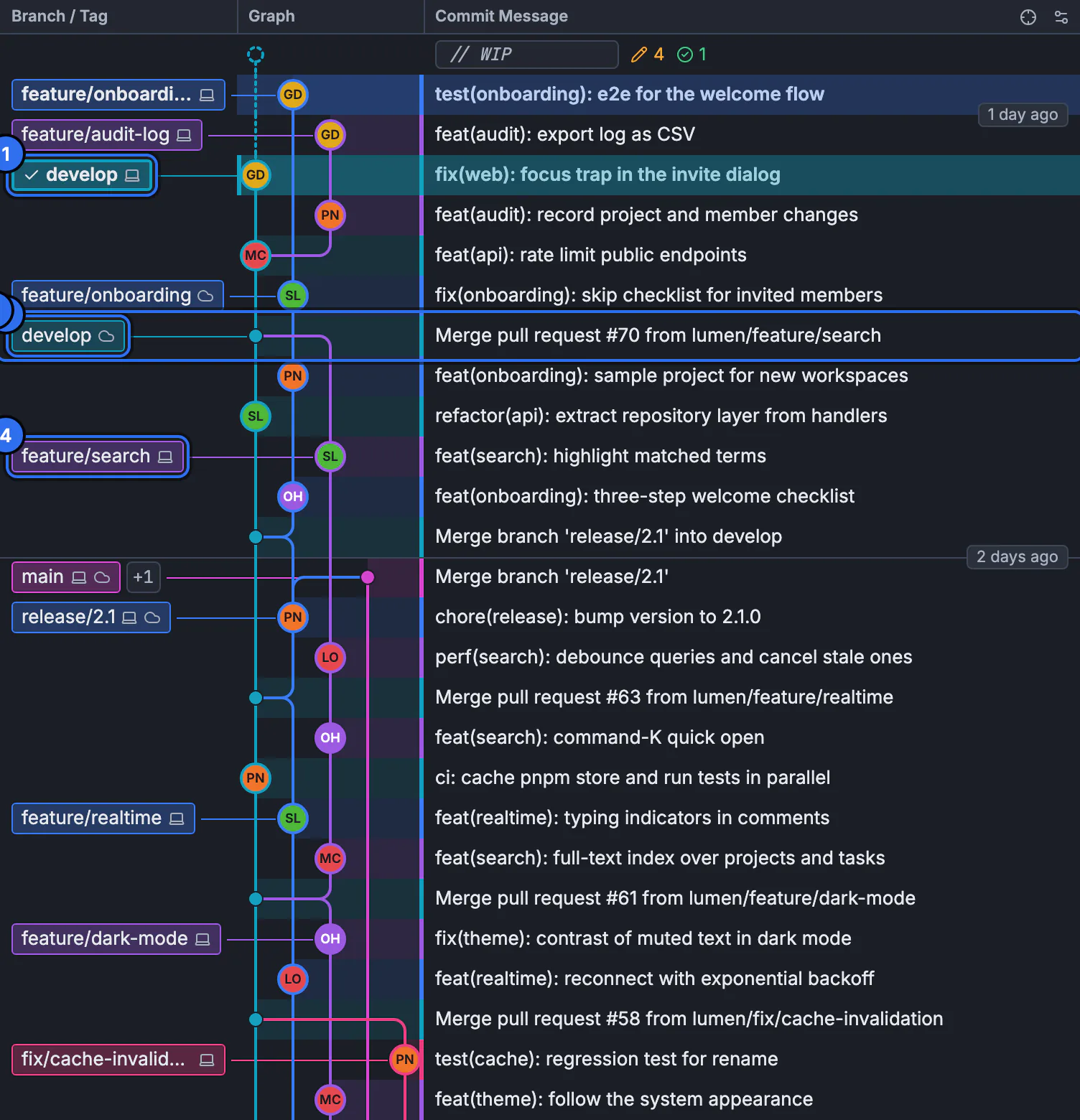
The report counts commits in this history. The still is the graph, not the Insights window.GitTree interface with a demonstration repository. Choose the range
Change range sets the period. The default period in Preferences is one of Last 30 days, Last 90 days, Last 180 days or Last 365 days, unless you pick another range for this run. The default is described as counted on this computer, with nothing uploaded.
Read the counting rules
People are merged with the repository’s .mailmap. Commits by bots are counted apart from people. Bulk commits are separated so one huge commit does not look like a week of work. The report says These counts describe activity, not performance. Do not read a row as a ranking.
Keep it local, or export a file
Export… writes Export CSV… or Export JSON… to a file you choose. The help says it writes contributors, with their names and emails, and that nothing is sent. Forget Repo Insights for This Repository… deletes reports kept for this repository on this computer. The repository is not touched.
Expected result
You have a report of commits and lines for the range, on this computer. Export created a file only if you chose a path. Sharing with an organization is a later step, and only an owner or admin can upload it.
What is counted
The same questions in a terminal are git shortlog and git log with a date range. Repo Insights adds the mailmap merge, the bot split and the bulk split, and it keeps the report so you can export it. It does not change commits.
git shortlog -sn --since="90 days ago"
git log --pretty=format:"%aN <%aE>" --since="90 days ago" | sort | uniq -c
Include pull request counts also reads pull requests and reviews from the host with your connected account. Only counts and times are kept: no titles, descriptions or code. Nothing is uploaded unless you share a report. If the run did not read them, a later share says the report has no pull request numbers. File history is a different view: one file, not the whole range.
Activity, not a score
The sentence on a Team report, and the meaning of these counts, is These counts describe activity, not performance. A person with fewer commits may have written the change that mattered. A merge commit and a one-line typo fix both add to a count. The report does not rank people, and it does not call the numbers a score.
Sharing is a separate step
Share with Organization… sends counts only after you preview them and press Upload Report. Names and emails stay on this computer. Member ids are what leave, plus the counts. The service accepts an upload from an owner or admin of an organization whose reports are turned on. Team reports is that path. The tutorial teaches history without these counts.
If something goes wrong
The report’s history line says the clone is shallow or partial.
Only fetched commits were counted. Fetch the history you need, then run the report again. The earlier numbers are not the full repository.
Two people who are one person appear as two rows.
Their emails are not merged. Add them to .mailmap and run the report again. The report reads the mailmap. It does not invent matches.
“This report has no pull request numbers.”
That run did not read pull requests. Turn Include pull request counts on in the report options and run it again. The host read uses your connected account.
Forget reports removed a report you still wanted.
Forget deletes the reports kept on this computer for that repository. Run Repo Insights again to count the history again. The repository files were not deleted.
Questions
Does Repo Insights upload my repository?
No. The count runs on this computer. Export writes a file you choose and sends nothing. A Team report upload is a separate confirmation, and it sends counts, not code.
Are the numbers a performance review?
No. These counts describe activity, not performance. They are commits and lines in the range, after mailmap and bot rules. They are not a rank.
Which plan includes Repo Insights?
GitTree Pro, which everyone has at no cost right now. Opening the window is not part of the Free plan.
What does Export CSV contain?
Contributors, with their names and emails, in a file you choose. Nothing is sent by the export.
Is Team reports the same window?
No. Alt+Shift+I opens Team reports, the reports owners and admins shared with your organizations. Alt+I is the local count.