Share a Team report of repository counts
A Team report shares counts from a Repo Insights run after an owner or admin previews them and chooses Upload Report. It needs no plan. The report contains counts, not code, diffs or commit messages. Members can read their own row and team totals.
Done on gittree.app with your GitTree account, the same one you sign in to the app with.
On this page
Before you start
- A GitTree account, and membership of an organization. Turning reports on, fetching the roster, uploading and reading reports need no plan.
- You are an owner or admin of that organization if you want to upload. Members can read what was shared, including their own row. Invite members is how people join.
Where to find it
- From a Repo Insights report: Share with Organization….
- Team reports in the account menu, or
Alt+Shift+I. - Report settings are on the website: Open Report Settings. The desktop does not turn reports on by itself.
| Action | macOS | Windows and Linux |
|---|---|---|
| Team reports | ⌥⇧I | Alt+Shift+I |
Steps
Run the local report first
Count the repository in Repo Insights. The share step starts from a report that is already on this computer. Open a Repo Insights report first if you try to share without one.
Choose the organization and the detail
Share with Organization… opens Share with organization. The intro says a Team report sends counts, and nothing is sent before you preview it and press Upload Report. Pick an organization that takes reports. Detail is Team totals only, Team totals and one row per member, or Members and their busiest folders. Folder names leave the computer only at that last level.
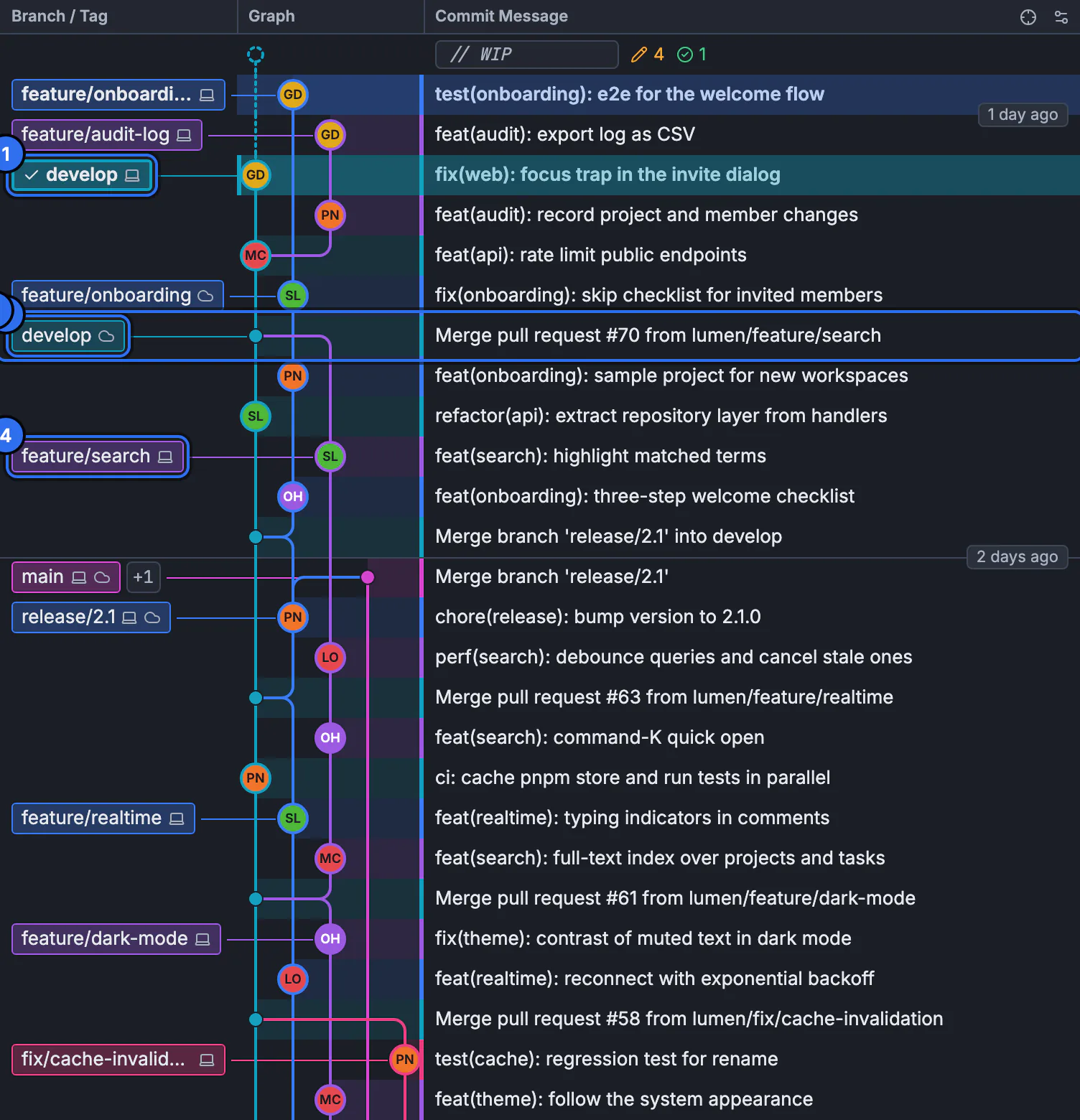
The upload sends counts from a report, not this graph and not the files in it.GitTree interface with a demonstration repository. Match authors, then preview the bytes
Who is who shows authors matched on this computer. Names and emails stay here. Only member ids leave. Confirm rows marked for review. The preview step is What leaves this computer. Tick I reviewed what will be sent before Upload Report.
Read it in Team reports
After the upload, members see the report in Team reports. The list says reports hold counts only. These counts describe activity, not performance. A member sees team totals and their own row. Owners and admins can see every row. No Team reports yet means none have been shared with your organizations.
Expected result
The organization has a stored report of counts for that repository and period, or you cancelled before the upload. The Git history on disk is unchanged. You can open the report from Team reports, and the uploader’s computer still has the local Repo Insights run.
Who can upload and who can read
| Action | Who |
|---|---|
| Turn reports on, and choose folder detail or retention past 365 days | An owner, on the website, with the acknowledgement |
| Upload a report | An owner or admin, from the desktop, while reports are on |
| See every member row | Owners and admins |
| See team totals and your own row | A member |
| Delete a report | The owner, or the admin who uploaded it |
You are not an owner or admin here and Team reports are off here are refusals. None of your organizations takes a Team report right now means none are enabled for an upload. The server checks the role again on the upload. A person who is not a member gets a not-found response, not the report.
What leaves the computer
The service accepts derived counts. It does not accept source code, diffs, commit messages, commit ids, branch or tag names, or private host names. File paths are not included. Folder names are included only at the members and folders level, and only if the organization allows that level. Pull request numbers, when the report has them, are counts and team times, not titles or code.
Also email the other owners and admins sends team totals only, never per-member numbers. The upload can still succeed if the optional email is skipped because the mail budget is full. Ask for help if a stored report should be removed and the owner cannot delete it. The changelog is not a Team report.
Plan, retention and the inbox
Turning reports on, fetching the roster, uploading and reading stored reports need no plan. Stored reports stay readable until they expire. Retention is 90, 180, 365 or 730 days. Only an owner may set folder detail or more than 365 days. A period longer than 366 days is refused, and more than 200 member rows is refused.
If something goes wrong
“Only owners and admins can upload a Team report.”
Ask an owner or admin. Repo Insights still runs on this computer. Your local report is not deleted by that refusal.
“Team reports are off here. Owners and admins turn them on on the website.”
Open Report Settings on the website. Turning them on needs the acknowledgement and the Organization plan. The desktop cannot enable them.
“Tick I reviewed what will be sent first.”
The upload stays disabled until that box is ticked. Read the preview. It is the bytes that will be sent.
“This report is gone, or you are no longer a member of its organization.”
The report expired, was deleted, or your membership ended. Ask an owner if it should still exist. A non-member does not receive the body.
Questions
Does a Team report include source code?
No. The intro says reports hold counts only: no code, diffs or commit messages left anyone’s computer. Folder names leave only at the members-and-folders level.
Who is allowed to upload?
An owner or admin of an organization that has reports turned on. The service checks the role again on the request.
Can a member see other people’s rows?
No. A member sees team totals and their own row. Owners and admins see every row. The caveat on the report is that the counts describe activity, not performance.
What happens when the Organization plan lapses?
New uploads and the roster fetch are refused while the gate is on. Reports already stored stay readable until they expire.
Is this the same as Repo Insights?
Repo Insights counts on your computer and can stay there. A Team report is the upload of counts from one of those runs. Alt+I opens the count. Alt+Shift+I opens the inbox.