Preview an HTML file without running it
An .html, .htm or .xhtml file can open in a preview tab. GitTree parses it on your computer, removes scripts, frames and other active content, and shows the rest in a sandboxed frame with no network. Inline styles and data: images can remain. The preview does not run the page.
Works in GitTree Free: every local Git feature, with no account needed.
On this page
Before you start
- The preview is part of the Free plan. The file is in the repository you have open, or it is the working copy of that path.
- You want to read the page, not to execute it. A page that depends on scripts or on a network will look incomplete. That is the sandbox, not a failed load of the repository.
Where to find it
- Open the file from the file browser. A path that ends in
.html,.htmor.xhtmlcan open as a preview, as Markdown can. - Open Preview where the file’s menu offers it.
| Action | macOS | Windows and Linux |
|---|---|---|
| Focus the files list | ⌘⇧E | Ctrl+Shift+E |
Steps
Open the file
In the file list, open the page. GitTree treats
.html,.htmand.xhtmlas preview files, along with Markdown. The tab shows the rendered page rather than only the source. Switch to the source editor when you want the text.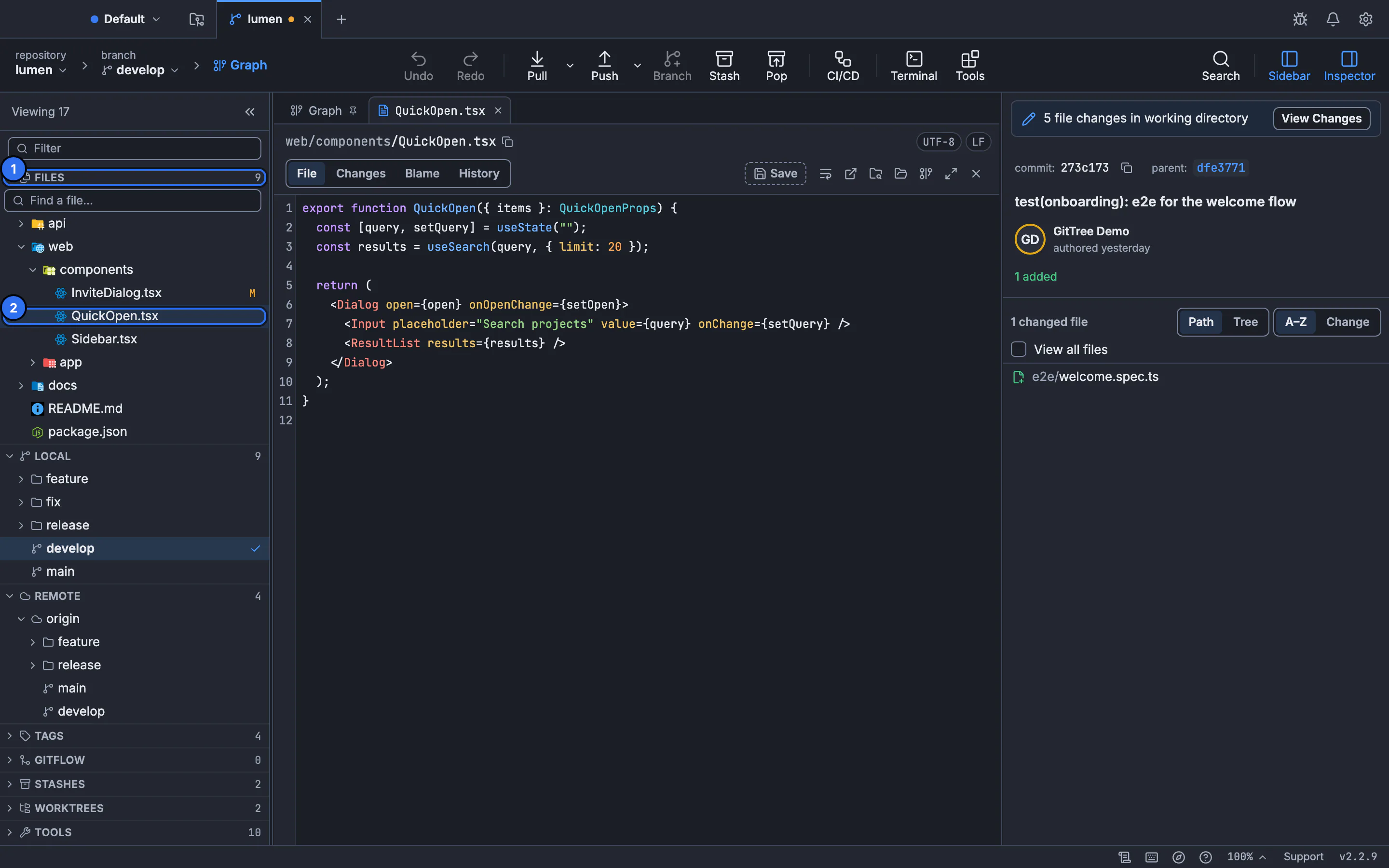
Open an HTML file from this list. The preview tab is the next view. The still is the file list.GitTree interface with a demonstration repository. Read the sandboxed page
The frame’s policy is
default-src 'none'; style-src 'unsafe-inline'; img-src data:; font-src data:. Scripts,base, refresh metas, iframes, frames, objects, embeds, applets and portals are removed before the frame sees the document. Remote images are not loaded. A stylesheet link that points at another file in the repository can be inlined, up to 64 assets.Notice when the page was reduced
If scripts or remote content were removed, the page is marked reduced. What you see is the static remainder. A link that would have left the file is not a navigation GitTree will perform inside the frame. Open the source to read the part that was removed.
Edit the source, then preview again
Change the file in the editor and open the preview again. The parser runs on the text you have. It does not fetch the page from a host. Commit the file from the commit box when you want the change in history. The preview does not commit.
Expected result
The tab shows the static page: inline styles and inlined local assets, without scripts and without network access. The repository is unchanged by the preview. Use the source tab to confirm a tag you expected is still in the file even though the frame does not run it.
What is removed
| Element or reference | What happens |
|---|---|
| script | Removed. It does not run. |
| iframe, frame, object, embed, applet, portal | Removed. They do not load. |
| base and meta refresh | Removed so the frame cannot be retargeted. |
| Remote image or font URL | Not loaded. Only data: images and fonts are allowed. |
| Stylesheet in the repository | Inlined when it is one of the first 64 assets. |
The policy is the first thing in the head, ahead of anything the page wrote. A page can only narrow that policy, not widen it. Parsing does not run the page and does not read the files it names until the preview fills the assets it decided to keep.
HTML and Markdown
The same “opens in a preview tab” rule covers Markdown and these page extensions. Markdown is rendered as Markdown. HTML is parsed as a document and then sandboxed. A .html file is not passed through the Markdown renderer. Open and edit files is the editor. The preview is the extra tab.
git show HEAD:docs/index.html
git check-ignore -v docs/index.html
git show prints the committed file. The preview shows the working copy when that is what you opened. Ignore rules do not hide a file that is already tracked. The tutorial lesson on reading a diff is how you compare the source, which the preview does not replace.
Limits
Each asset is one read, and the page keeps at most 64 paths. Assets past that stay as the page had them, without being pulled in. A very large page is parsed once per text. Filling assets does not parse it again. The preview is offline on purpose. It will not match a browser that is allowed to run scripts and call a network.
If something goes wrong
The page is blank or missing its layout.
Styles may come from a remote sheet or from a script. Those are not loaded. Inline the styles in the repository, within the 64 asset limit, or read the source.
Images are missing.
Remote images are blocked. An image in the repository is shown when it becomes a data: URL inside the asset limit. Check the path the page uses. A path that leaves the repository is dropped.
A button does nothing.
Scripts were removed. The preview does not run them. Use a browser you trust if you must execute the page, and only for a file you have read.
The preview does not match the committed file.
You are looking at the working copy. git show HEAD:path prints the committed text. Commit, or discard, if you want those to match.
Questions
Does the preview run JavaScript?
No. script elements are removed, and the frame’s policy sets default-src to none. The page is not executed.
Does it load images from the network?
No. img-src and font-src allow only data: URLs. Repository images are inlined as data when they are within the asset limit.
Which extensions open as a page?
html, htm and xhtml. Markdown opens in the Markdown preview. Other files open as source or as a diff.
Can a page loosen the sandbox?
No. The frame policy is inserted first. A page can only narrow it. A meta refresh or a base URL is removed.
Is HTML preview a Pro feature?
No. It is part of the Free plan, with no account needed.