Comparisons
Best Git GUI for Windows 11 and 10 in 2026: 9 Git clients compared
Nine Git clients for Windows, compared from their official pages: what each one costs, whether it needs Git for Windows, which have native ARM64 builds, and which fits beginners, power users and teams.
Disclosure: GitTree’s maker wrote this article, so we have a stake in GitTree. We describe every product, ours included, from its official pages and our own use, and say where another tool is the better fit.
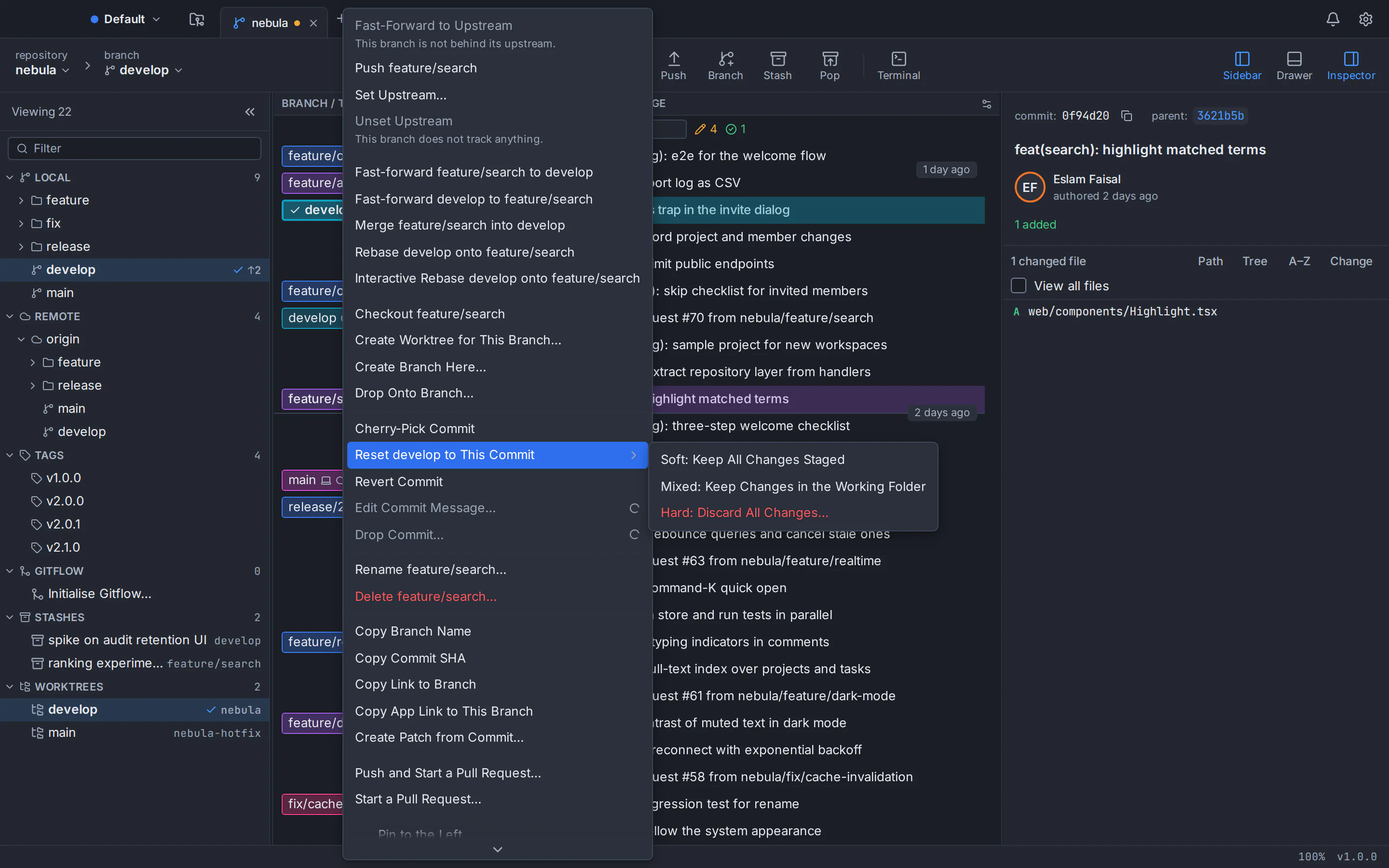
The best Git GUI for Windows depends on how you work. For beginners on GitHub, GitHub Desktop is free, open source and simple. Sourcetree is a free client with a branch graph, though on Windows it asks you to register with Bitbucket or an Atlassian account. Teams that pay for seats get the most integrations from GitKraken Desktop, while Fork, Tower, SmartGit and Sublime Merge are polished tools for power users that need a paid licence for work. TortoiseGit puts Git into File Explorer and has a native ARM64 build. And GitTree, our app, is a free Git client for Windows 11 and 10 with private repositories, a full interactive rebase and a three-way conflict editor included.
A note before the list: GitTree’s maker wrote this guide, so GitTree appears first and is clearly labelled as ours. Every other client is described only from its vendor’s official website, documentation and release notes, checked in October 2026 and listed in the sources at the end. Prices and plans change, so confirm them on the vendor’s page before you buy.
Best Git client for Windows: quick picks
- Best free Git GUI for Windows with private repositories: GitTree (our app), free today for individuals and companies.
- Best for beginners on GitHub: GitHub Desktop, free and open source, with an installer that needs no administrator rights.
- Best free graph client for Bitbucket and Jira users: Sourcetree.
- Best for teams that pay for integrations: GitKraken Desktop, with pull requests on four hosts, Jira, Trello and hosted AI on paid plans.
- Best for Windows on ARM: Tower (paid) or TortoiseGit (free), both with native ARM64 builds.
- Best one-time purchase: Fork at $59.99, or Sublime Merge at US$99 for a personal licence (prices as of October 2026).
- Best for deep Git features and a portable build: SmartGit, free for non-commercial use.
- Best inside File Explorer: TortoiseGit, free and open source.
Git GUI for Windows 11: the comparison table
How the nine clients compare on the points that matter most on Windows, as of October 2026. “Bundled” means the client ships its own Git, so you don’t have to install Git for Windows first.
| Client | Price | Windows version | Git | Windows on ARM |
|---|---|---|---|---|
| GitTree | Free today, private repositories included | Windows 10 (22H2) or 11, 64-bit | Needs Git for Windows 2.39+ | No, x64 only |
| GitKraken Desktop | Free for local and public repos; Pro $10 per seat per month, billed annually | Windows 10 or later | Bundled | ARM64 build in preview |
| GitHub Desktop | Free, open source (MIT) | Windows 10 64-bit or later | Bundled, with Git LFS | Beta channel only |
| Sourcetree | Free | Not published; needs .NET Framework 4.8 | Embedded Git and Git LFS, or your own | No |
| Fork | $59.99 one-time | Windows 7 or later, per its site | Bundled, with Git LFS | Not stated |
| Tower | From $69 per user per year; no free plan | Windows 10 or newer | Bundled | Yes, native ARM64 |
| SmartGit | Free for non-commercial use; commercial from $5 per user per month | Windows 10 or later, 64-bit | Bundled in the recommended download | No, x64 only |
| Sublime Merge | US$99 personal; US$75 per user per year for business | Not published; 64-bit only | Bundled | No, x64 only |
| TortoiseGit | Free, open source (GPL) | Windows 10 version 1607 or newer | Needs Git for Windows 2.24+ | Yes, native ARM64 |
Do you need Git for Windows for a Git GUI?
Usually not. Seven of the nine clients ship their own copy of Git: GitKraken Desktop, GitHub Desktop, Sourcetree, Fork, Tower, SmartGit and Sublime Merge. Two run the Git you install yourself: TortoiseGit, which needs Git for Windows 2.24 or newer, and GitTree, which needs 2.39 or newer. A client that uses your Git behaves exactly like git in PowerShell or Git Bash, and it improves whenever you update Git.
Even with a client that bundles Git, you may want Git for Windows anyway: GitHub’s documentation notes that to use Git on the command line, you need to install it yourself. In PowerShell, check what you have, then install Git for Windows with winget or update it:
git --version
winget install --id Git.Git -e --source winget
winget upgrade --id Git.Git -e --source winget
Git for Windows also includes Git GUI, a graphical tool for most Git commands, along with Git Bash. The clients below go further, with features such as colour-coded commit graphs, drag-and-drop rebasing and in-app pull requests. If you are still deciding whether you need a GUI at all, read Git GUI vs command line.
GitTree
Best for: A free, full-featured Git GUI for Windows with private repositories included
This is our app. GitTree is a free Git client for 64-bit Windows 11 and Windows 10 (22H2): a 7.5 MB installer that runs the Git for Windows you already have. It draws a colour-coded commit graph and covers line staging, a full interactive rebase, a three-way conflict editor and undo, with pull requests for GitHub, GitLab, Bitbucket and Azure DevOps (GitLab and Azure DevOps support is new).
Strengths
- Free today for individuals and organizations, private repositories and commercial use included
- Interactive rebase with pick, reword, edit, squash, fixup and drop, reordered by drag or keyboard
- A full-window three-way conflict editor with per-hunk and per-line choices, rerere and conflict prediction
- Undo and redo from the toolbar for commits, resets, rebases, discards and more, plus a reflog view
- A built-in terminal, a command palette with about 300 commands and rebindable shortcuts
- No telemetry; tokens stay in the Windows Credential Manager; interface in English and Arabic
Watch out for
- Needs Git for Windows 2.39 or newer: GitTree doesn’t bundle Git
- The installer isn’t code-signed yet, so SmartScreen may warn, and it asks for administrator approval
- x64 only: no ARM64 build, no MSI and no portable version
- Needs a free GitTree account; works offline for up to 7 days between checks
- Closed source and new (version 1.2.9), with no Jira, SSO or team features
- Platforms
- macOS: available
- Windows: available
- Linux: available
- Price
- Free today
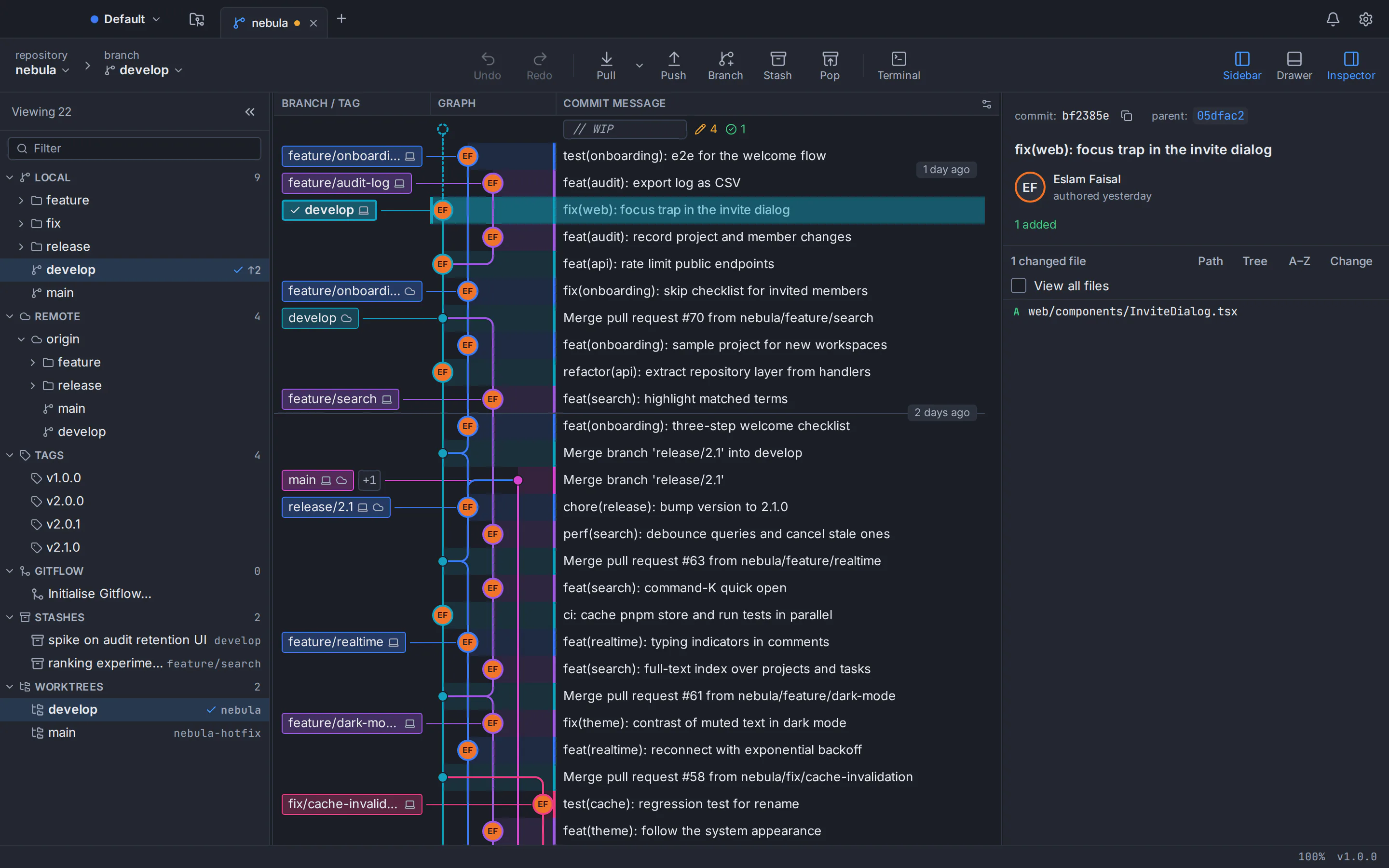
See the editors in action in our guides to interactive rebase in a Git GUI and resolving merge conflicts step by step, or read the full GitTree for Windows guide with system requirements and troubleshooting.
GitKraken Desktop
Best for: Teams that pay for seats and want pull requests, issue trackers and AI in one app
GitKraken Desktop runs on Windows 10 and later as a 64-bit installer, with an ARM64 build marked preview. It bundles Git, and its help centre says no Git command-line tools are required for basic use. It has a visual commit graph, a three-panel merge tool, a built-in terminal, a command palette and pull requests you create, view and merge for GitHub, GitLab, Bitbucket and Azure DevOps.
Strengths
- Bundled Git, so a clean PC works
- An ARM64 Windows build in preview, besides x64
- In-app pull requests on four hosts, plus Jira Cloud, Trello and GitHub and GitLab issues (write access on paid plans)
- Mature, with a minor release about every month
Watch out for
- The free Community plan covers only local repositories and public remotes
- On the free plan, interactive rebase, undo, worktrees and the merge tool are limited to public repositories, and the editable conflict output needs a paid licence
- The 12.6.0 Windows installer is about 412 MB
- Asks you to create or sign in to a GitKraken account; on Windows, Pageant is the only supported SSH agent
- Platforms
- macOS: available
- Windows: available
- Linux: available
- Price
- Free for local and public repos; Pro $10 per seat per month, billed annually (as of October 2026)
GitHub Desktop
Best for: Beginners who work on GitHub
GitHub’s free, open-source client (MIT licence) for 64-bit Windows 10 and later. It bundles Git and Git LFS, its .exe installs into your user folder without administrator rights, and an .msi lets IT deploy it through Group Policy. Stable releases are x64; Windows ARM64 builds are published only on the beta channel.
Strengths
- Free and open source; no account needed for local repositories
- Per-user installer without an admin prompt, plus an MSI for managed PCs
- Close GitHub integration: pull request checks with re-run, notifications and Copilot commit messages
- Split diff, and image diff with swipe and onion skin
Watch out for
- No commit graph: history is a linear list
- No general interactive rebase editor and no built-in three-way conflict editor
- GitHub-centred: GitLab, Bitbucket and Azure DevOps work only as plain remotes
- Usage metrics are on by default (you can opt out); English-only interface
- Platforms
- macOS: available
- Windows: available
- Linux: not available
- Price
- Free (AI features need GitHub Copilot)
Sourcetree
Best for: A free graph client, especially with Bitbucket and Jira
Atlassian’s free Git client. Sourcetree for Windows 3.4.32 is a 24.1 MB installer that can download embedded Git and Git LFS, and it relies on .NET Framework 4.8. It offers a branch graph, staging by file, hunk or line, interactive rebase, Git Flow, submodules and Mercurial support, and a free Enterprise MSI for silent installs.
Strengths
- Free, with a branch graph, line staging, interactive rebase and Git Flow
- Embedded Git and Git LFS, so a clean PC works
- A free Enterprise MSI with silent install and managed updates
- Jira issue links in commit messages and first-class Bitbucket accounts
Watch out for
- Each Windows user must register through Bitbucket or an Atlassian account on first launch
- No ARM64 build for Windows (a request is open)
- Conflicts are resolved per file with mine or theirs, or in an external merge tool
- The built-in diff is unified; a side-by-side view on Windows has been an open request since 2013
- No general undo, no worktree management, and “Create Pull Request” opens the browser
- Platforms
- macOS: available
- Windows: available
- Linux: not available
- Price
- Free
Fork
Best for: Developers who want a fast native app and a one-time licence
Fork is a native Windows app built with .NET and WPF by a two-person team, and its site says it runs on Windows 7 and later. Fork 2.23 for Windows bundles Git and Git LFS, and offers a commit graph, interactive rebase with fixup, a built-in merge-conflict resolver, worktrees, a reflog view and Quick Launch on Ctrl+P.
Strengths
- A one-time $59.99 licence for personal and commercial use on up to 3 machines
- Bundled Git and Git LFS
- Image diff with swipe and onion skin, and a merger for images, LFS files and submodules
- Bring-your-own-agent AI: Claude Code for branch reviews and commit messages
Watch out for
- Paid after a free evaluation of unstated length
- Its official pages don’t state Windows ARM64 support
- No built-in terminal (it opens Windows Terminal) and no general undo
- GPG signing isn’t listed for the Windows version, where the request is open
- Platforms
- macOS: available
- Windows: available
- Linux: not available
- Price
- $59.99 one-time (as of October 2026)
Tower
Best for: Professionals who want native ARM64, MSI packages and polished workflows
Tower 14.0 for Windows runs on Windows 10 or newer, with native x64 and ARM64 builds and MSI packages for both. It bundles Git, so no Git installation is required, and adds undo with Ctrl+Z, interactive rebase with fixup and autosquash, worktrees, stacked branches on Pro, and pull requests you can create, merge and comment on.
Strengths
- Native ARM64 build and MSI packages for managed deployment
- Bundled Git and Git LFS
- Ctrl+Z undo for commits, merges, rebases, discards and stashes, with redo
- SAML single sign-on and team management on the Enterprise plan
Watch out for
- No free plan (free for students, teachers and non-profits); subscription only
- The Conflict Wizard resolves whole files; line-level merging needs an external tool
- AI Commits are available on macOS only, according to Tower’s product overview
- Self-hosted GitHub Enterprise, GitLab and Bitbucket Server need the Pro plan
- Platforms
- macOS: available
- Windows: available
- Linux: not available
- Price
- From $69 per user per year (as of October 2026)
SmartGit
Best for: Power users who want deep Git features, a portable build and a perpetual-licence option
SmartGit 26.1 from syntevo is a Java app for 64-bit Windows 10 and later, x64 only. Its recommended downloads include Git and Git LFS, as a 131.7 MB installer or a 126.2 MB portable 7z archive. It has a built-in three-way Conflict Solver, an Index Editor for staging single lines, interactive rebase with split and autosquash, and inline comments on pull requests.
Strengths
- A built-in three-way Conflict Solver and an Index Editor
- Interactive rebase from the graph: squash, split, edit and autosquash
- Inline pull request review comments, plus Jira, Jenkins and TeamCity
- An official portable Windows build and a perpetual-licence option
Watch out for
- Free licences are only for hobby, education, open-source and charity use, after a manual review
- Commercial use from $5 per user per month
- No built-in terminal, and no command palette documented
- No ARM64 build listed for Windows
- Platforms
- macOS: available
- Windows: available
- Linux: available
- Price
- Free for non-commercial use; commercial from $5 per user per month (as of October 2026)
Sublime Merge
Best for: Speed-focused developers who like keyboard-driven, customisable tools
From the makers of Sublime Text: a fast client built on a custom Git-reading engine. On Windows it comes as an x64 setup .exe or an official portable .zip, and it bundles Git. It has a commit graph, line staging, a three-column merge tool, blame and file history, a command palette and key bindings you edit as JSON.
Strengths
- An official portable version
- Bundled Git on Windows
- A three-column merge tool, also usable as your git mergetool
- The personal licence never expires and includes 3 years of updates
Watch out for
- A licence is required for continued use: US$99 personal or US$75 per user per year for business
- No pull requests and no hosting integration
- No ARM64 build for Windows (a request is open)
- No built-in terminal and no reflog view
- Platforms
- macOS: available
- Windows: available
- Linux: available
- Price
- US$99 personal; US$75 per user per year for business (as of October 2026)
TortoiseGit
Best for: Working from File Explorer, and free use on Windows on ARM
TortoiseGit is a Windows shell extension rather than a standalone window: Git commands live in File Explorer’s right-click menu, with overlay icons on your files. It is open source under the GPL, free for commercial use, runs on Windows 10 version 1607 or newer, and has 32-bit, 64-bit and ARM64 installers. It needs Git for Windows 2.24 or newer installed separately.
Strengths
- Free and open source (GPL), commercial use included
- A native ARM64 build, plus 32-bit and 64-bit
- A log dialog with a branch graph, a rebase dialog (pick, squash, edit, skip), TortoiseGitMerge and TortoiseGitBlame
- 37 language packs, at varying levels of completeness
Watch out for
- Needs Git for Windows installed separately, and administrator rights to install
- Built around Explorer menus and dialogs rather than one main window
- Runs on Windows only, so it can’t be a shared tool for a mixed team
- Platforms
- macOS: not available
- Windows: available
- Linux: not available
- Price
- Free (open source)
Which Git GUIs run natively on Windows on ARM?
If you use an ARM-based Windows laptop, look for a native ARM64 build before you install. As of October 2026, the official download pages say:
- Native ARM64: Tower, with ARM64 MSI packages as well, and TortoiseGit.
- In preview: GitKraken Desktop offers an ARM64 installer marked “preview”.
- Beta channel only: GitHub Desktop publishes Windows ARM64 builds on its beta channel; stable releases are x64.
- x64 only: GitTree, Sourcetree, SmartGit and Sublime Merge. Requests for an ARM64 build are open for Sourcetree and Sublime Merge.
- Not stated: Fork’s official pages don’t say which Windows processors it supports.
Which Git client for Windows is free?
Four of the nine cost nothing for any use, including at work:
- GitTree: free today for individuals and organizations, private repositories included; it is closed source and needs a free account.
- GitHub Desktop: free and open source under the MIT licence; only its AI features need a GitHub Copilot plan.
- Sourcetree: free closed-source software from Atlassian, including the Enterprise MSI.
- TortoiseGit: free and open source under the GPL; its site says anyone may use it, including in a commercial environment.
The rest are free only in part. GitKraken’s free Community plan covers local repositories and public remotes, so private hosted repositories need Pro. SmartGit’s free licences are for hobby, education, open-source and charity use, granted after a manual review, and exclude paid work. Fork and Sublime Merge let you evaluate for free but need a licence for continued use, and Tower has a 30-day trial, then a subscription. For the licence terms in detail, see our guide to free Git GUIs for commercial use.
Git GUI download for Windows: how to install one on Windows 11 or 10
Check your Windows version and processor
Open Settings → System → About. System type tells you whether your PC has an x64-based or an ARM-based processor, and Windows specifications shows your version. Pick a client with a build for your processor and a minimum version you meet.
Install Git for Windows if your client needs it
GitTree and TortoiseGit use the Git on your PC. Run git --version in PowerShell; if Git is missing or too old, install Git for Windows from git-scm.com or with winget, then open a new terminal window. Clients that bundle Git can skip this step.
Download the installer from the official site
Use the vendor’s own website or its official releases page, and choose the installer that matches your processor. For GitTree, the download page fetches the 64-bit installer from the newest stable release, and every release publishes SHA256SUMS.txt.
Run the installer
Clients that install for every user of the PC, such as GitTree and TortoiseGit, ask for administrator approval; GitHub Desktop’s .exe installs into your user folder instead. If SmartScreen shows “Windows protected your PC” for an unsigned installer such as GitTree’s, check the file’s SHA-256 first, then choose More info and Run anyway.
Sign in and open your first repository
Connect your GitHub, GitLab, Bitbucket or Azure DevOps account if the client supports it, then open a folder, clone a repository or create a new one. In GitTree you sign in once with a free account, then choose Open, Clone or Init on the start page.
Our verdict: the best Git GUI for Windows in 2026
There is no single winner for everyone. If you are new to Git and work on GitHub, start with GitHub Desktop. If you need a native ARM64 build and your company pays, Tower is the most complete choice; on a budget, TortoiseGit runs natively on ARM64 for free. For integrations and team features across hosts, GitKraken Desktop leads, provided you pay for private work. And if you want a free Git client for Windows with a real commit graph, full interactive rebase, a three-way conflict editor and undo, try GitTree.
GitTree is one app for macOS, Windows and Linux. Browse every GitTree feature, or compare it in detail: GitTree vs GitKraken, GitTree vs Sourcetree, GitTree vs GitHub Desktop, GitTree vs Fork and GitTree vs Tower. On other systems, see the best Git client for Mac or our full round-up of the best Git GUI clients. Every installer is on the GitTree download page.
Frequently asked questions
What is the best Git GUI for Windows 11?
It depends on your needs. GitHub Desktop is the easiest free choice for beginners on GitHub, Sourcetree is a free client with a branch graph, and GitKraken Desktop offers the most integrations for teams that pay. Tower and TortoiseGit have native ARM64 builds. GitTree, made by the author of this guide, is free today with private repositories, interactive rebase and a three-way conflict editor.
Is there a free Git client for Windows that works with private repositories?
Yes. GitHub Desktop, Sourcetree and TortoiseGit are free for any use, and so is GitTree today, private repositories and commercial use included. GitHub Desktop and TortoiseGit are also open source. By contrast, as of October 2026, GitKraken’s free plan covers only local repositories and public remotes, and SmartGit’s free licences exclude paid work.
Do I need to install Git for Windows before installing a Git GUI?
Only for some clients. GitKraken Desktop, GitHub Desktop, Sourcetree, Fork, Tower, SmartGit and Sublime Merge ship their own Git. TortoiseGit needs Git for Windows 2.24 or newer, and GitTree needs 2.39 or newer. Run git --version in PowerShell to check, and install Git for Windows from git-scm.com or with winget if it is missing.
Which Git GUIs run natively on Windows on ARM?
As of October 2026, Tower and TortoiseGit publish native ARM64 builds for Windows, GitKraken Desktop offers an ARM64 installer marked preview, and GitHub Desktop has ARM64 builds on its beta channel only. GitTree, Sourcetree, SmartGit and Sublime Merge are x64 only, and Fork’s official pages don’t state which Windows processors it supports.
Does Git for Windows come with a GUI?
Yes. Git for Windows includes Git GUI, which its website describes as a graphical version of just about every Git command-line function, along with Git Bash and a right-click menu in File Explorer. It covers the essentials. The clients in this guide add more, such as colour-coded commit graphs, drag-and-drop rebasing, built-in conflict editors and pull requests.
Is GitHub Desktop or Sourcetree better on Windows?
GitHub Desktop is better for beginners: it needs no account for local repositories, installs without administrator rights and keeps the interface simple, but it has no commit graph. Sourcetree shows more of Git, with a branch graph, interactive rebase and Git Flow, but on Windows each user must register with Bitbucket or an Atlassian account on first launch.
Can I install a Git GUI on Windows without administrator rights?
Some clients allow it. GitHub Desktop’s .exe installs into your user folder, and SmartGit and Sublime Merge offer official portable versions that don’t use an installer. GitTree and TortoiseGit install for every user of the PC, so they ask for administrator approval. On a managed work PC, check your company’s policy or ask your IT team first.
Sources
Claims about other products were checked against their official pages on October 6, 2026. Prices and features change; the vendors’ pages are the source of truth.
- GitKraken Desktop: product page
- GitKraken: download (platforms and installers)
- GitKraken: pricing
- GitKraken Help: how to install GitKraken Desktop
- GitKraken Help: release notes
- GitKraken Help: branching and merging
- GitKraken Help: authentication (SSH agents)
- GitHub Desktop: product page
- GitHub Docs: supported operating systems for GitHub Desktop
- GitHub Docs: installing GitHub Desktop
- GitHub Docs: setting up GitHub Desktop
- GitHub Docs: viewing the branch history in GitHub Desktop
- GitHub Desktop repository: releases
- GitHub Desktop repository: usage data
- GitHub Desktop repository: what GitHub Desktop is (design document)
- GitHub Docs: GitHub Copilot plans
- Sourcetree: official website
- Sourcetree: download archives
- Sourcetree for Windows Enterprise
- Sourcetree for Windows release notes (3.4.32)
- Atlassian Support: Sourcetree Enterprise and MSI installation
- Atlassian Jira: SRCTREEWIN-14652, Windows ARM64 build
- Atlassian Jira: SRCTREEWIN-1296, side-by-side diff on Windows
- Fork: official website
- Fork: buy a licence
- Fork: licence agreement
- Fork for Windows: release notes
- Fork Windows tracker: GPG signing request
- Tower: pricing
- Tower: all features and requirements
- Tower: release notes
- Tower: undo
- Tower Help: merge conflicts on Windows
- Tower: AI product overview
- SmartGit: download
- SmartGit: pricing
- SmartGit: non-commercial licence registration
- SmartGit Docs: Conflict Solver
- SmartGit Docs: interactive rebase
- SmartGit Docs: tools preferences
- Sublime Merge: download
- Sublime HQ: Sublime Merge store
- Sublime Merge tracker: Windows ARM64 installer request
- Sublime Merge tracker: GitHub pull request support request
- TortoiseGit: about
- TortoiseGit: download
- TortoiseGit: installation and system requirements
- TortoiseGit: FAQ
- TortoiseGit: rebase dialog
- TortoiseGit: log dialog
- Git for Windows: official website
All product names are trademarks of their respective owners. GitTree is independent and not affiliated with or endorsed by any of them.