Git basics
Git vs GitHub: the difference explained, plus GitLab, Bitbucket and Azure DevOps
Git is the version control tool on your computer; GitHub is a website that hosts Git repositories online. Here is how the two fit together, how GitLab, Bitbucket and Azure DevOps compare, and how a desktop Git client connects to all four.
Disclosure: GitTree’s maker wrote this article, so we have a stake in GitTree. We describe every product, ours included, from its official pages and our own use, and say where another tool is the better fit.
Git vs GitHub comes down to one sentence: Git is the version control tool that records every change to your project on your own computer, and GitHub is a website that stores copies of Git repositories online so people can share them, review each other’s changes and run automated checks. You can use Git without GitHub, but GitHub is built on Git. Put simply, Git is the program, and GitHub is one of several services where you can keep what the program produces.
This guide shows which commands are Git and which part is GitHub, compares GitHub with GitLab, Bitbucket and Azure DevOps, and explains how a desktop Git client connects to all four. A short disclosure: GitTree’s maker wrote it, and GitTree is one of the clients it mentions. Facts about the other services come from their official pages, listed at the end.
The difference between Git and GitHub
Git describes itself as a free and open source distributed version control system. Linus Torvalds and the Linux kernel community created it in 2005, after they lost free access to the version control tool they had been using. “Distributed” means every copy of a repository holds the full history, so you can commit, branch, compare and undo with no network connection at all.
What is Git, and what does it do on your computer?
When you run git init in a folder, Git creates a hidden .git directory next to your files. From then on it can:
- Record snapshots of your project, called commits, each with a message, an author and a date.
- Keep separate lines of work on branches, so a new feature can grow without touching the version that works.
- Merge branches back together and show you exactly what changed between any two points in history.
- Take you back to any earlier commit when something breaks.
None of this needs an account, a website or the internet. Git is a command-line program first; desktop Git clients put a window on top of it.
What GitHub adds online
GitHub’s own documentation says it builds on Git by hosting your Git repositories in the cloud and adding planning and collaboration tools. In practice a GitHub repository is a copy of your Git repository on GitHub’s servers, plus everything a team needs around it:
- Remote hosting: a shared copy, public or private, that everyone pushes to and pulls from.
- Pull requests: proposals to merge a branch, with the diff, comments and approvals in one place.
- Issues and Projects for tracking bugs and planned work.
- GitHub Actions, a CI/CD platform that builds, tests and deploys your code.
- Access control over who can read, push or merge.
Git vs GitHub at a glance
| Git | GitHub | |
|---|---|---|
| What it is | Version control software | A website and service that hosts Git repositories |
| Where it runs | On your computer (and on any server you install it on) | In GitHub’s cloud, or on your own servers with GitHub Enterprise Server |
| Who makes it | The open source Git project | GitHub, part of Microsoft since 2018 |
| Needs the internet | No, only to sync with a remote | Yes |
| Cost (as of October 2026) | Free and open source | A Free plan with unlimited public and private repositories; paid Team and Enterprise plans |
| Main jobs | Commits, branches, merges, history | Sharing, pull requests, issues, CI/CD, permissions |
| Works without the other | Yes | No: every GitHub repository is a Git repository |
What is GitHub, and why do developers use it?
Because so many tutorials start with GitHub, the two names often get mixed up. GitHub is a service, and people use it for three main reasons:
- A backup and a meeting point. Your laptop can fail; the copy on GitHub stays. Every teammate clones from the same place and pushes back to it.
- Code review. A pull request lets others read the diff, comment on single lines and approve a change before it reaches
main. - Automation and sharing. GitHub Actions can run your tests on every push, and a public repository lets anyone read, fork and contribute to an open source project.
GitHub has been part of Microsoft since October 2018. Its free and paid plans appear in the comparison table further down, and GitHub’s pricing page has the current limits.
Git and GitHub explained with one real workflow
The clearest way to see where Git ends and GitHub begins is to put a new project online. These are the commands GitHub’s documentation gives for adding a local project to a new, empty GitHub repository:
git init -b main
git add .
git commit -m "First commit"
git remote add origin https://github.com/your-name/your-project.git
git push -u origin main
git init -b mainturns the folder into a Git repository whose first branch is calledmain. Git only.git add .andgit commitrecord the first snapshot. Still Git only, still offline.git remote add origin …saves the address of the GitHub repository under the short nameorigin. This is a Git command; GitHub is only the address.git push -u origin mainsends your commits to GitHub and remembersorigin/mainas the branch to sync with. This is the first step that needs the network and a GitHub login.
From then on the daily loop is Git on your machine (edit, git add, git commit), git push to share your work and git pull to bring in your teammates’ work. The pull request, the review and the CI run happen on GitHub’s website, and afterwards everyone pulls the merged result.
GitHub vs GitLab vs Bitbucket vs Azure DevOps
Three other services host Git repositories for many teams. All four store standard Git repositories, offer a free plan, let you review changes before they merge and run CI pipelines. They differ in who makes them, what they call a review, and how they fit the tools your team already uses.
GitLab
GitLab calls its review step a merge request: a central place to review code, discuss it and track changes. CI/CD is built in, and GitLab runs either on GitLab.com, hosted by GitLab, or as a self-managed instance on your own servers, which suits teams that must keep their code in-house.
Bitbucket
Bitbucket is Atlassian’s Git host, and Atlassian puts its connection to Jira front and centre. Reviews are pull requests, CI runs on Bitbucket Pipelines, and it comes as Bitbucket Cloud or as the self-managed Bitbucket Data Center. Atlassian’s Data Center end-of-life notice says Bitbucket Data Center will not be retired, but since March 30, 2026 new customers can no longer buy Data Center subscriptions; existing customers can carry on through a Bitbucket Hybrid License.
Azure DevOps
Azure DevOps is Microsoft’s suite for planning, code, builds and testing: Azure Boards, Azure Repos, Azure Pipelines, Azure Test Plans and Azure Artifacts. Azure Repos hosts Git repositories and, for teams that still use it, Team Foundation Version Control (TFVC). Microsoft’s documentation states plainly that Git in Azure DevOps is standard Git. It runs as the cloud service Azure DevOps Services or on premises as Azure DevOps Server.
| Service | Made by | Review request | Built-in CI/CD | Run it yourself | Free plan |
|---|---|---|---|---|---|
| GitHub | GitHub (Microsoft) | Pull request | GitHub Actions | GitHub Enterprise Server | Unlimited public and private repositories, 2,000 CI/CD minutes a month for private repositories |
| GitLab | GitLab | Merge request | GitLab CI/CD | Self-managed GitLab | 5 users per top-level group, 400 compute minutes a month |
| Bitbucket | Atlassian | Pull request | Bitbucket Pipelines | Bitbucket Data Center (existing Data Center customers only since March 30, 2026) | Up to 5 users, 50 build minutes a month |
| Azure DevOps | Microsoft | Pull request | Azure Pipelines | Azure DevOps Server | First 5 Basic users free, one Microsoft-hosted CI/CD job with 1,800 minutes a month |
Which one should you pick? Usually the choice follows the tools around it rather than Git itself: Jira users often pick Bitbucket, teams that want one self-hosted platform look at GitLab, companies already on Microsoft’s developer tools tend to have Azure DevOps, and many open source projects live on GitHub. Your Git skills carry over to all four.
How a desktop Git client connects to GitHub, GitLab, Bitbucket and Azure DevOps
A desktop Git client is a graphical window on top of Git. It talks to a hosting service in two separate ways, and knowing which is which explains most connection problems:
- Plain Git over HTTPS or SSH. Clone, fetch, pull and push are ordinary Git operations that work with any host, self-hosted servers included, once you authenticate with a token or credential manager (HTTPS) or an SSH key added to your account.
- The service’s API, after you sign in. Listing your repositories, opening a pull request or re-running a failed CI check are not Git features; a client needs a dedicated integration with each service for them.
GitHub’s own desktop client, GitHub Desktop, is free and open source and works with GitHub or other Git hosts; as of October 2026 it runs on macOS and Windows only, with no Linux version. That gap is why we wrote a guide to GitHub Desktop on Linux and a page on GitTree as a GitHub Desktop alternative.
How GitTree connects to each service
GitTree works through the Git already installed on your computer (version 2.39 or newer): every clone, fetch, pull and push runs through it, so any remote works over HTTPS or SSH, including hosts with no dedicated integration. On top of that, GitTree has integrations for the four services in this guide:
- GitHub, including GitHub Enterprise Server.
- GitLab, both gitlab.com and self-managed instances.
- Bitbucket, both Bitbucket Cloud and Bitbucket Data Center.
- Azure DevOps, the cloud service (Azure DevOps Services).
Once you connect an account you can browse and clone your repositories without copying a URL; list, create, review, comment on and merge pull or merge requests; see CI check results and re-run them on GitHub Actions, GitLab CI/CD, Bitbucket Pipelines and Azure Pipelines build validation; and follow open pull requests across all your repositories in one dashboard. GitHub and Bitbucket Cloud support is the most mature; GitLab, Azure DevOps, GitHub Enterprise Server and Bitbucket Data Center support is new. Tokens stay in your operating system’s secure credential store, and GitTree can generate an SSH key, test it and upload it to GitHub, GitLab or Bitbucket for you.
Connect GitTree to GitHub, GitLab, Bitbucket or Azure DevOps
Install GitTree and Git
Download GitTree for macOS, Windows or Linux, and install Git 2.39 or newer if you do not have it yet (Git for Windows on a Windows PC). Ubuntu 22.04 and Linux Mint 21 ship Git 2.34, so upgrade Git on Ubuntu first.
Sign in once
Sign in with a free GitTree account, created on gittree.app with GitHub, GitLab, Bitbucket or Azure DevOps. The first launch needs the network; after that the app works offline for up to 7 days between checks.
Connect your hosting account
In Preferences, open Integrations and connect the service where your repositories live. It is optional: clone, pull and push work over HTTPS or SSH without it, but browsing your repositories, pull requests and CI checks need it.
Clone a repository
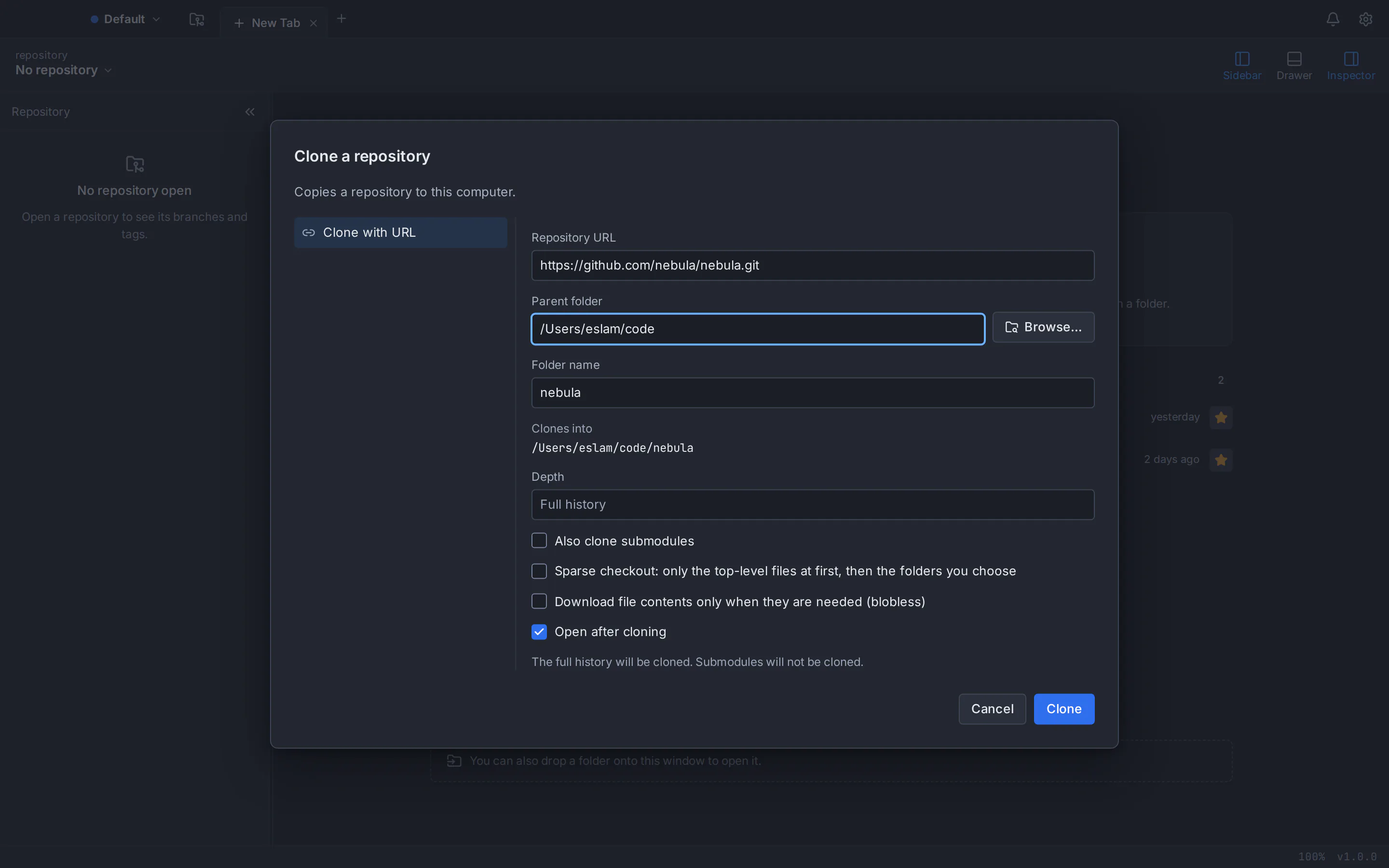
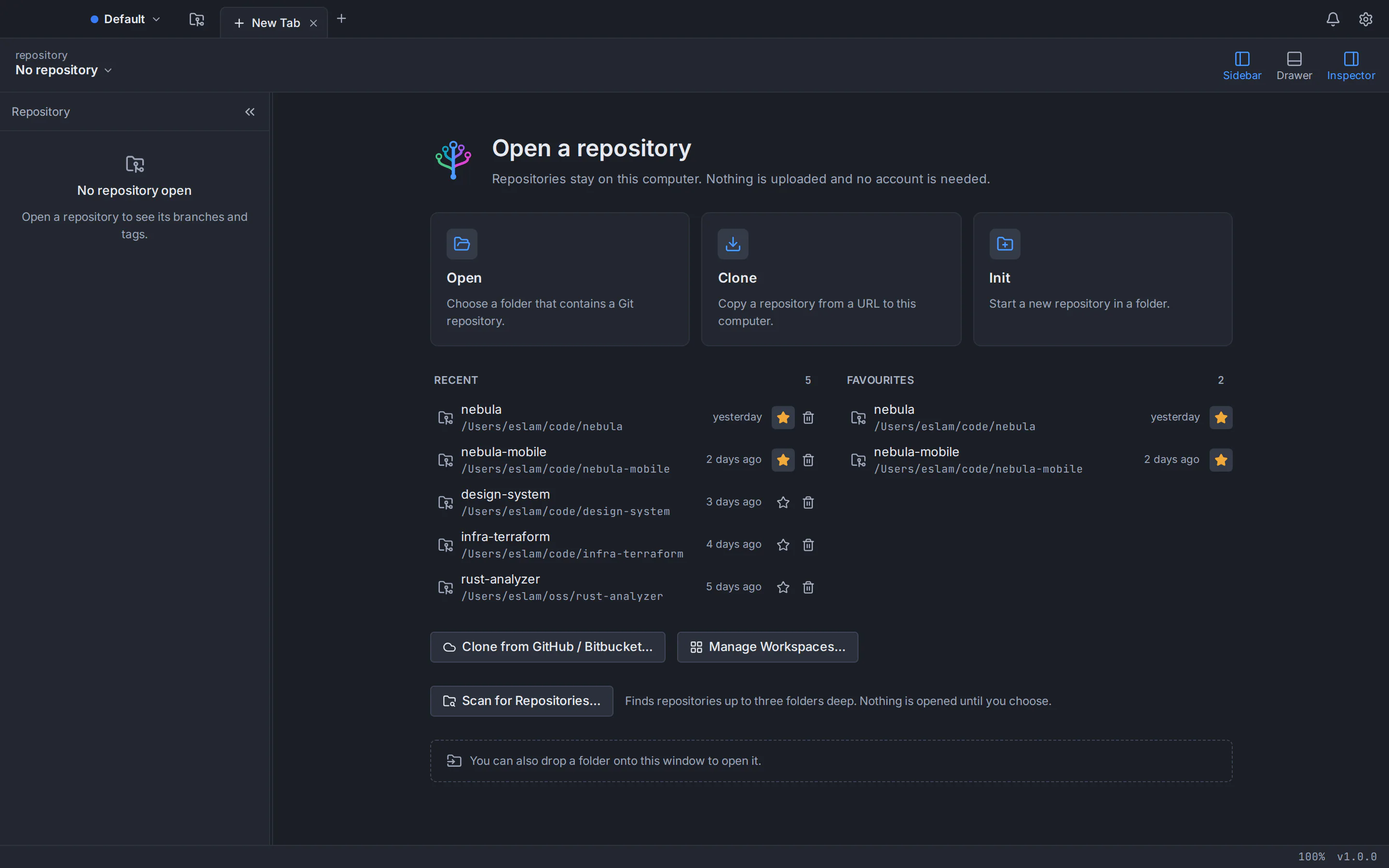
Choose Clone on the start page, paste the repository’s HTTPS or SSH address (or pick it from a connected account’s repositories), choose a parent folder and click Clone. With Open after cloning ticked, the repository opens as soon as it is copied.
Commit, push and open a pull request
Stage your changes, write a commit message and push. Then create the pull request (a merge request on GitLab) from GitTree, or drag your branch onto the target branch and choose to open one.
Do you need Git, GitHub, or both?
- Learning alone, or a project on one computer: Git is enough. Add a host later, when you want a backup.
- A backup or a second computer: Git plus any host with free private repositories.
- A team: Git on every machine, plus whichever host the team has chosen. The commands are the same everywhere.
- Contributing to open source: Git plus an account on the host where the project lives, which is often GitHub.
Whatever you choose, you will spend most of your time in Git itself: committing, branching and merging. If the terminal still feels unfamiliar, our Git for beginners guide walks through those basics in a GUI, and Git GUI vs command line helps you decide how you want to work.
GitTree is free today, private repositories included; it needs a free account and Git 2.39 or newer. Compare it with other apps in our round-up of the best Git GUI clients, or read the install notes for Mac, Windows and Linux.
Frequently asked questions
Is Git the same as GitHub?
No. Git is version control software that runs on your computer and records a project’s history as commits and branches. GitHub is a service that hosts Git repositories online and adds pull requests, issues, CI/CD and access control. Git works on its own; every GitHub repository is a Git repository.
Can I use Git without GitHub?
Yes. Git is complete on its own: you can commit, branch, merge and browse history on one computer without an account or a network. When you want a backup or to collaborate, add a remote on GitHub, GitLab, Bitbucket, Azure DevOps or your own server, and change hosts whenever you like.
Is GitHub free?
As of October 2026, GitHub’s Free plan includes unlimited public and private repositories, plus 2,000 CI/CD minutes a month and 500 MB of package storage (use in public repositories is free), with paid Team and Enterprise plans for organizations. GitLab, Bitbucket and Azure DevOps also have free plans with their own limits; check each pricing page for details.
Do I need to install Git to use GitHub?
To work on a GitHub repository on your own computer, yes: cloning, committing and pushing are Git operations. Some desktop clients bundle their own Git, while GitTree uses the copy you already have and needs version 2.39 or newer. For a quick change, you can also edit a file in GitHub’s web editor.
What is the difference between GitHub and GitLab?
Both host Git repositories and add code review, issues and CI/CD. GitHub calls a review a pull request and GitLab a merge request; their pipelines are GitHub Actions and GitLab CI/CD. GitLab runs on GitLab.com or self-managed, while GitHub’s self-hosted option is GitHub Enterprise Server. Your Git commands are identical on both.
Is GitHub Desktop the same as Git or GitHub?
Neither. GitHub Desktop is GitHub’s own desktop Git client: a free, open source app that runs Git for you and works with GitHub or other Git hosts. As of October 2026 it runs on macOS and Windows only, with no Linux version. Other desktop clients, such as GitTree, add dedicated integrations for GitLab, Bitbucket and Azure DevOps as well as GitHub.
Who owns GitHub?
Microsoft owns GitHub; it completed the acquisition in October 2018. That makes Microsoft the company behind two of the four services in this guide, GitHub and Azure DevOps, which remain separate products with their own plans. Git itself belongs to no company: it is a free and open source project.
Does GitTree work with GitLab, Bitbucket and Azure DevOps?
Yes. GitTree works with any Git remote over HTTPS or SSH, and integrates with GitHub (including Enterprise Server), GitLab (gitlab.com and self-managed), Bitbucket Cloud and Data Center, and Azure DevOps Services for repositories, pull requests and CI checks. GitHub and Bitbucket Cloud support is the most mature; the other integrations are new.
Sources
Claims about other products were checked against their official pages on October 6, 2026. Prices and features change; the vendors’ pages are the source of truth.
- Git: official website
- Pro Git: A Short History of Git
- GitHub Docs: What is GitHub?
- GitHub Docs: Pull requests
- GitHub Docs: Understanding GitHub Actions
- GitHub Docs: Adding locally hosted code to GitHub
- GitHub Docs: Editing files
- GitHub Docs: About GitHub Enterprise Server
- GitHub pricing
- GitHub Docs: About GitHub Desktop
- GitHub Docs: Installing GitHub Desktop
- The Official Microsoft Blog: Microsoft completes GitHub acquisition
- GitLab Docs: Merge requests
- GitLab Docs: CI/CD
- GitLab pricing
- Atlassian: Bitbucket
- Atlassian: Bitbucket Data Center
- Atlassian: Data Center end of life
- Bitbucket Cloud documentation: Create a pull request
- Bitbucket pricing
- Microsoft Learn: What is Azure DevOps?
- Microsoft Learn: What is Azure Repos?
- Azure DevOps Services pricing
All product names are trademarks of their respective owners. GitTree is independent and not affiliated with or endorsed by any of them.